How to Import Invoices in iDempiere
The Import Invoice window in iDempiere lets retail businesses load AP and AR invoices in bulk from a CSV file instead of entering them one by one. Correct configuration ensures accurate accounting entries, tax capture, and reliable financial reporting.
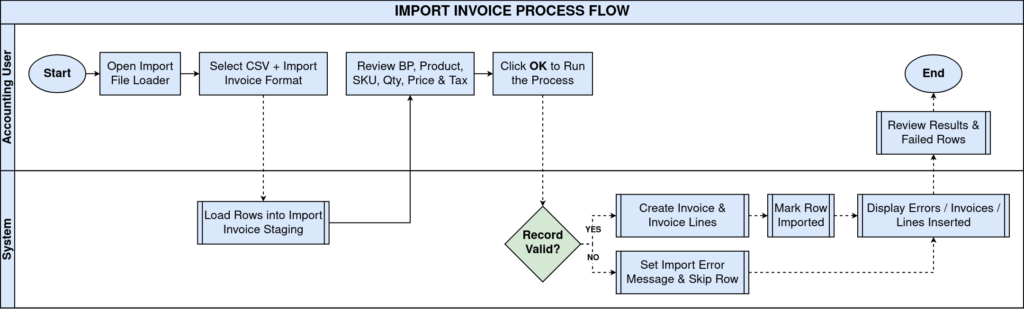
Process Flow
Business Rules
- Each import row must reference a valid Business Partner Key already configured in the system.
- Product Key or SKU on each line must match an existing Product record.
- Only Prepare and Complete are valid Document Actions for the import process.
- Records that fail validation are marked with an Import Error Message and skipped.
- The Imported checkbox prevents a successfully processed row from being imported again.
- Tax rates on each line must match a configured Tax record for the item.
- Currency Code on the file must match the Business Partner’s transaction currency.
Prerequisites
- Business Partner records configured for all suppliers or customers in the file.
- Product records configured with matching Product Key and SKU values.
- Document Type (example: AP Invoice) configured for the transaction.
- Price List and Payment Term configured and linked to the Business Partner.
- Import Format (Import Invoice) mapped to the CSV column sequence.
- Organization (example: Chennai Store) configured for the transaction.
- Tax records configured for applicable GST or VAT rates.
Navigation
Menu → General Rules → Data Import → Import Invoice
Configuration Steps
Step 1: Prepare the Import CSV File
Build the CSV with Organization, Document Type, Business Partner Key, Product Key, SKU, Quantity, Unit Price, and Tax columns in the exact order used by the Import Format.
Step 2: Load the File with Import File Loader
Open Import File Loader, select the CSV file, choose UTF-8 encoding, select Import Invoice as the Import Format, then confirm to load the rows.
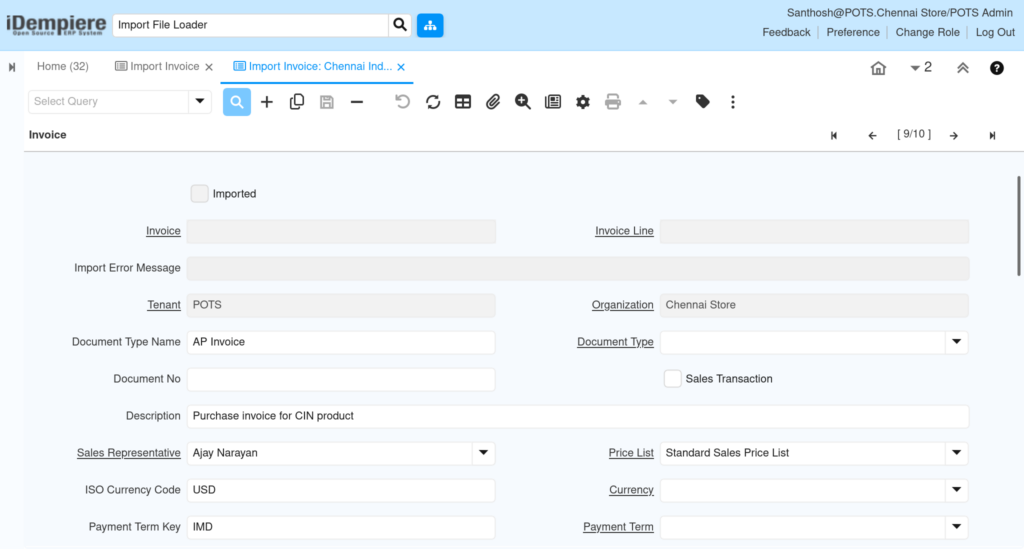
| Field | Sample Value | Description |
| Organization | Chennai Store | Store or business unit the invoice belongs to |
| Document Type Name | AP Invoice | Identifies the transaction as a purchase invoice |
| Sales Transaction | N | Marks the record as a purchase, not a sale |
| ISO Currency Code | USD | Currency used for pricing and tax on the invoice |
| Payment Term Key | IMD | Payment terms applied to the supplier invoice |


Step 3: Review Staged Records in Import Invoice
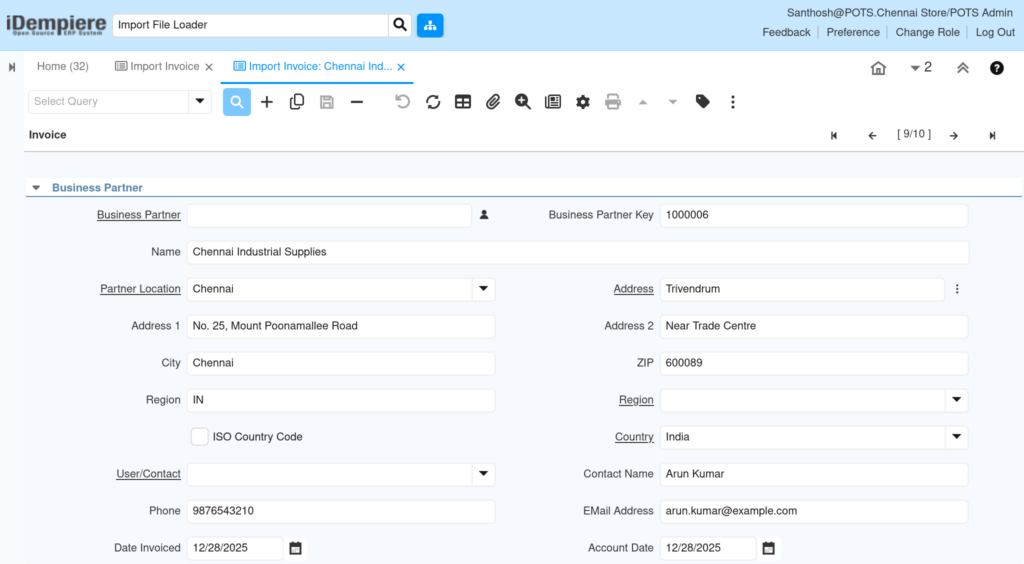
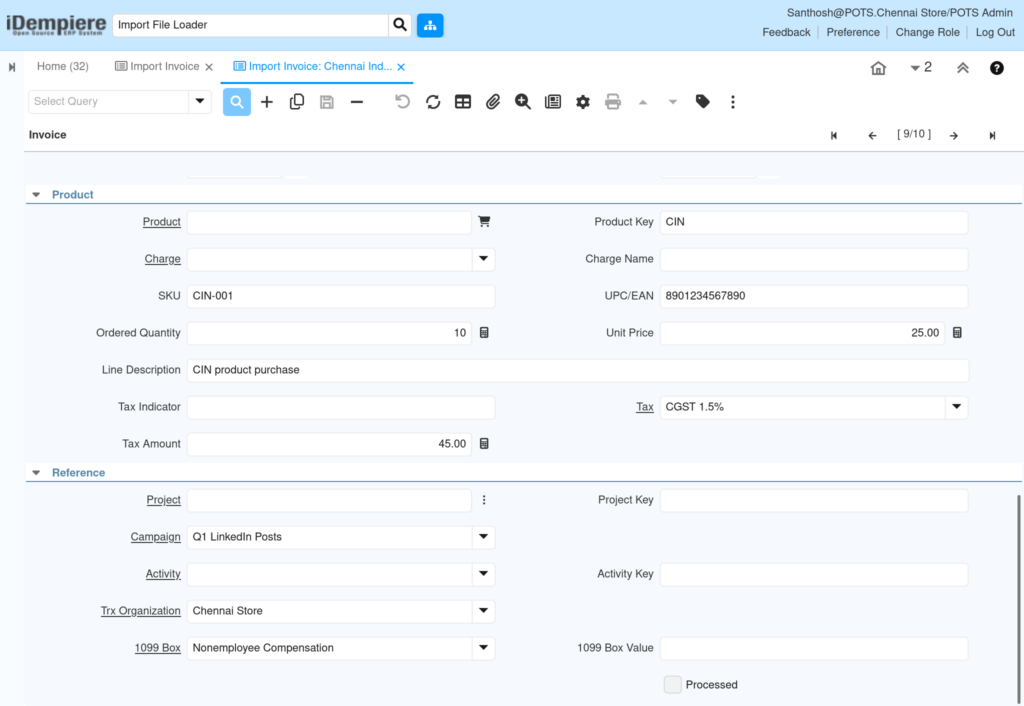
Open the Import Invoice tab, page through each staged record, and confirm Business Partner, Product, SKU, quantity, price, and tax values are populated correctly.
| Field | Sample Value | Description |
| Business Partner Key | 1000006 | Supplier code matched to an existing Business Partner |
| Product Key | CIN | Product code matched to an existing Product record |
| SKU | CIN-001 | Stock keeping unit used to confirm the exact item |
| Ordered Quantity | 10 | Quantity purchased on the invoice line |
| Unit Price | 25.00 | Price per unit used to calculate the line amount |
| Tax | CGST 1.5% | Tax rate applied to the invoice line |
| Tax Amount | 45.00 | Calculated tax value for the invoice line |
Step 4: Run the Import Invoice Process
Click Process, set Tenant and Organization, choose Document Action (Prepare or Complete), optionally check Delete old imported records, then click OK.
| Field | Sample Value | Description |
| Tenant | POTS | Client instance running the import |
| Organization | Chennai Store | Store the new invoice records are created under |
| Document Action | Prepare | Controls whether the invoice is only prepared or completed |
| Delete old imported records | Unchecked | Removes previously imported rows before reprocessing |
| Run as Job | Unchecked | Runs the import in the background instead of inline |

Step 5: Verify Results and Resolve Errors
Review the completion message for counts of Errors, Invoices Inserted, and Invoice Lines Inserted, then open failed rows to read the Import Error Message.

Common Issues and Resolutions
| Issue | Cause | Resolution |
| Product and Charge both null error | Product Key does not match any existing product | Create or correct the product record with the matching key before import |
| Business Partner not linked | Business Partner Key not found in the system | Create the Business Partner record with a matching Value before import |
| Invoice stuck at Prepare status | Document Action set to Prepare instead of Complete | Rerun the process with Complete after reviewing the invoice |
| Duplicate invoices on reimport | Same file reprocessed without checking Imported status | Check the Imported flag or use Delete old imported records before rerun |
| Tax not calculated on line | Tax field left blank in the import file | Map a valid Tax rate in the CSV or set it manually before processing |
| Currency mismatch error | ISO Currency Code differs from the Business Partner’s currency | Align the currency code with the Business Partner’s price list currency |
| Partial import with some rows failing | Mixed valid and invalid rows in the same batch | Correct the failed rows individually and reprocess only those records |
| Import Error Message remains after fix | Old error text not cleared after correcting the record | Clear the Import Error Message field manually and reprocess the record |
Next Steps
- Open the standard Invoice window to review posted invoices before payment.
- Configure Payment Selection to process supplier payments against imported invoices.
- Verify GL accounts under Accounting Rules for correct AP posting.