How to Configure and Use the BOM Viewer in iDempiere
Learn how to configure and use the BOM Viewer window in iDempiere to review kit and gift hamper components for retail operations.
Introduction
The BOM Viewer window in iDempiere displays the Bill of Materials structure of a product in an expandable tree and grid layout. It lets users inspect the components that make up a kit without opening the underlying product setup.
It helps store and merchandising teams verify component accuracy before a kit reaches point of sale, reducing stock discrepancies and pricing errors in reporting.
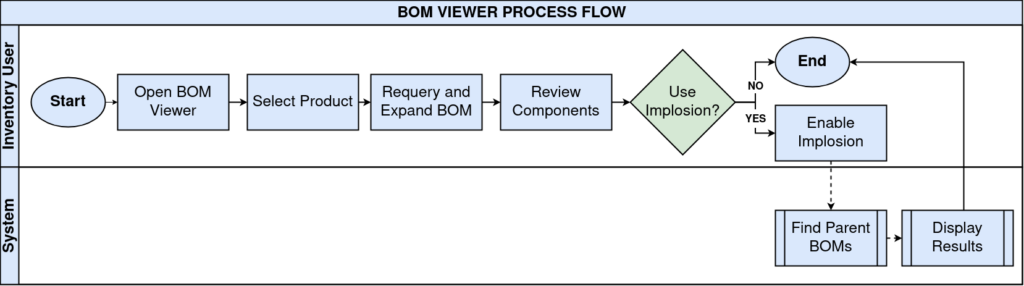
Process Flow
Business Rules
- Only active BOM lines appear in the component grid on the right panel.
- The Implosion checkbox reverses the view to show where a product is used as a component.
- Quantity reflects the number of units required to build one unit of the parent product.
- UOM defines the unit of measure applied to each component line, independent of the parent UOM.
- BOM Viewer is read-only; component changes must be made from the Product BOM & Formula tab.
- Line No determines the sequence in which components are listed for a given parent product.
Prerequisites
- Parent (kit) Product created with the Bill of Materials flag enabled.
- Component products created and set to Active in the Product window.
- BOM lines defined under Product → BOM & Formula tab for the parent product.
- UOM configured on both parent and component products.
Navigation
Menu → Manufacturing → BOM Viewer
Configuration Steps
Step 1: Select the Parent Product
In the Product field, search and select the kit, for example GH-001_Premium Gift Hamper. The tree panel updates to show the parent node with its pack quantity.

Step 2: Expand the Component Tree
Click the arrow beside the parent node, or check Expand Tree at the bottom left to expand all levels automatically.
Step 3: Review Component Line Details
Check each row in the right-hand grid for Active status, Product, UOM, and Quantity before approving the kit for sale.
Field Reference Table
| Field | Sample Value | Description |
| Active | Checked | Indicates the BOM line is currently valid for use |
| Line No | 10, 20, 30… | Sequence number controlling display order of components |
| Product | COF-250_Coffee Powder (250 g) | Component product included in the kit |
| UOM | Ea | Unit of measure for the component quantity |
| Quantity | 1.00, 2.00 | Number of component units needed per parent unit |
Step 4: Use Implosion to Trace Component Usage
Select a component product, check the Implosion box, and review the resulting list of parent kits that consume it.
Common Issues and Resolutions
| Issue | Cause | Resolution |
| Product not found in search | Bill of Materials flag not enabled on product | Enable the Bill of Materials checkbox on the Product window |
| Component list appears empty | No BOM lines defined for the product | Add lines under Product → BOM & Formula tab |
| Inactive component still visible | Grid not refreshed after deactivation | Click the refresh icon to reload the current view |
| Implosion shows no results | Product is not used as a component anywhere | Confirm the product is added as a line in another BOM |
| Wrong UOM displayed on a line | Component UOM differs from Product master setup | Update UOM on the Product window and re-check the line |
| Tree does not expand automatically | Expand Tree option left unchecked | Check the Expand Tree box at the bottom left of the window |
Next Steps
- Configure Product BOM & Formula tab for new kit products.
- Set up Price List entries for the bundled kit product.
- Review Product Master setup for all component items.
- Configure Inventory or Production settings if kits are assembled in-house.