How Does Work Label Printer Window in iDempiere
The Label Printer window in iDempiere is used to define printers dedicated to producing labels, such as product, shipment, or barcode labels. It stores the printer identity along with the specific print functions the device supports.
It is used in standard business processes wherever labels are generated during warehouse, shipping, or production operations.
Process Flow
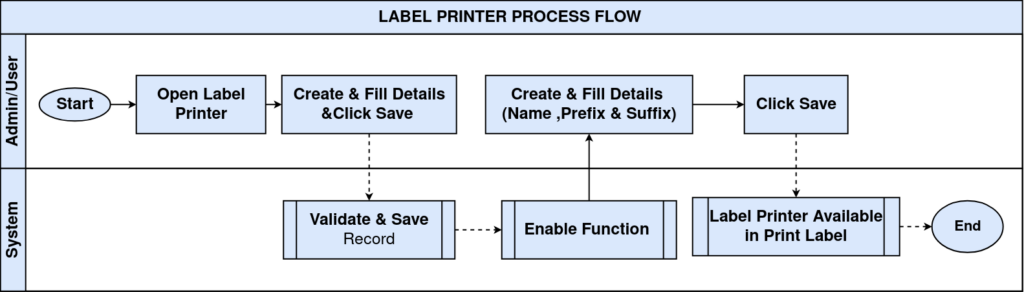
Business Rules
- A Label Printer record defines a physical or logical printer used to print product or shipment labels.
- Each Label Printer must have a unique Name within its Client and Organization scope.
- The Function sub-tab defines print functions (commands) that the label printer executes, such as barcode or text output.
- Only Active Label Printer records are available for selection during label printing.
- Function Prefix and Function Suffix define the printer command characters sent before and after the printed text.
- The XY Position flag indicates whether a function uses coordinate-based placement on the label.
Prerequisites
- User must have Role access to the Application Dictionary / Label Printer window.
- The physical or virtual printer must be installed and reachable from the iDempiere print process.
- Printer command syntax (prefixes, suffixes, coordinates) should be confirmed with the label printer’s documentation before setup.
Navigation
Menu → Application Dictionary → Label Printer. Users see the Label Printer header details along with the Function sub-tab.
Configuration Steps
Step 1: Access the Label Printer Window
Opening the window is the starting point for creating or reviewing a label printer definition.Search for Label Printer from the main menu, or open an existing record from the list to review its setup.
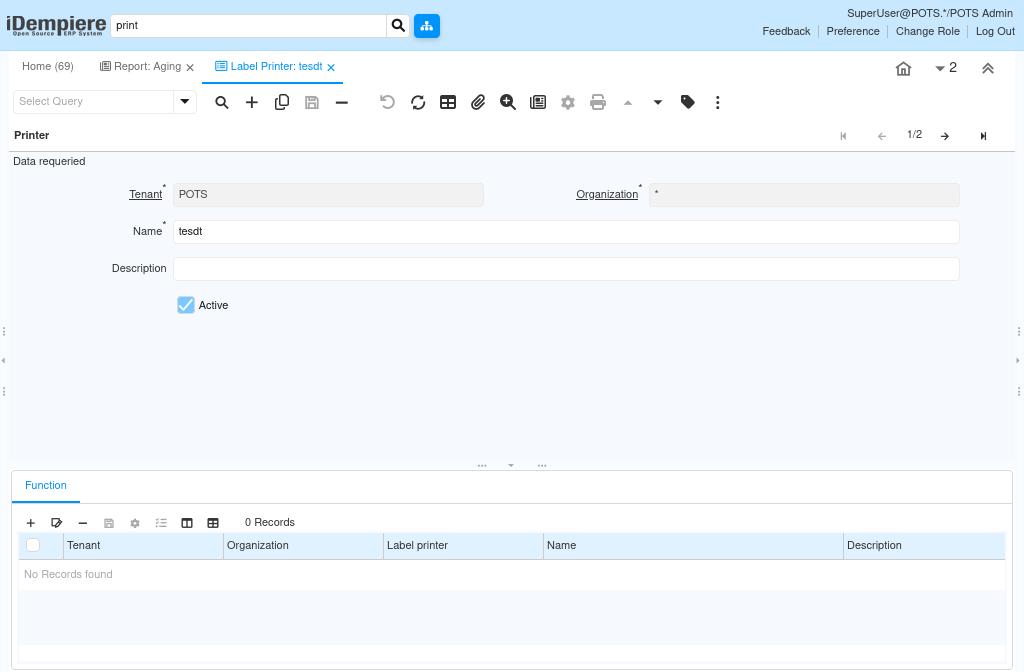
Screenshot Placeholder – Label Printer – header view iDempiere loads the selected Label Printer header along with its Function sub-tab.
Step 2: Define the Label Printer Header
The header identifies the printer and controls whether it is available for use.Enter a unique Name and optional Description, then confirm the Active flag to make the printer available for selection.
A new Label Printer record is created under the current Tenant and Organization once saved.
Step 3: Add a Print Function
Print Functions define the specific commands the label printer executes, such as printing a barcode or fixed text.
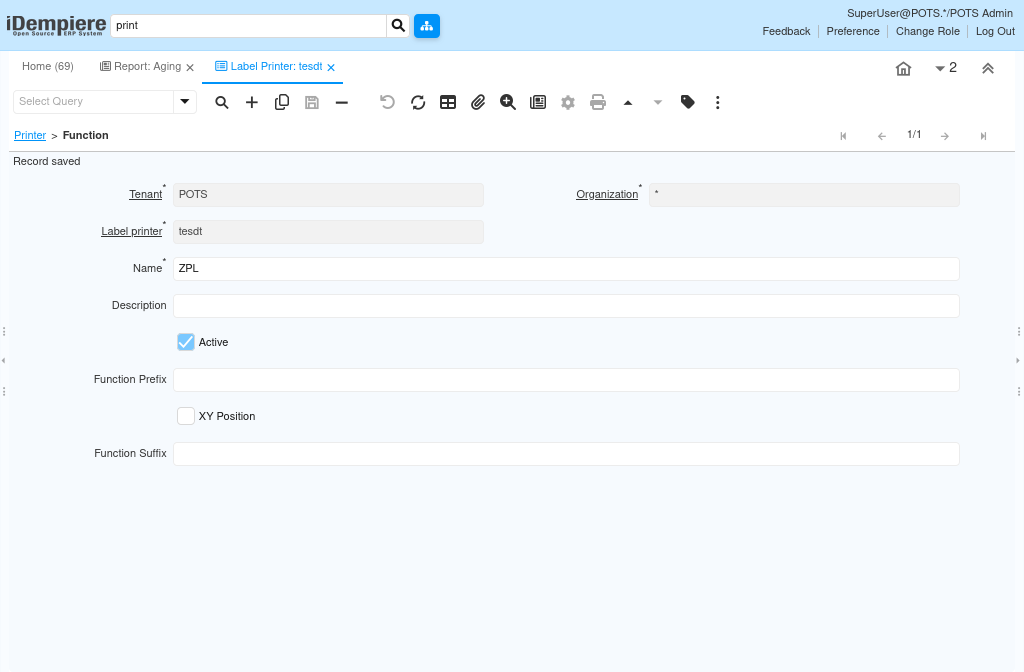
Open the Function tab, click New, and enter a Name for the function along with its Function Prefix and Function Suffix.Each function is stored under its parent Label Printer and becomes selectable when designing label layouts.
Step 4: Configure Function Positioning
Some printer commands require coordinate-based placement to position text or barcodes accurately on the label. Enable XY Position if the function requires coordinate placement, then confirm the function is Active.
After completing the configuration, the Label Printer and its functions are ready for use in standard iDempiere label printing.
Field Reference
The tables below list the fields visible on each tab of the Label Printer window — Printer (Header) and Function.
Printer (Header)
| Field | Sample Value | Description |
| Tenant | POTS | Client that owns the Label Printer record. |
| Organization | * | Organization scope; * indicates all organizations. |
| Name | tesdt | Unique name identifying the label printer. |
| Description | (blank) | Optional description of the label printer. |
| Active | Checked | Indicates the label printer is available for use. |
Function
| Field | Sample Value | Description |
| Tenant | POTS | Client that owns the print function. |
| Organization | * | Organization scope; * indicates all organizations. |
| Label printer | tesdt | Parent Label Printer this function belongs to. |
| Name | ZPL | Name identifying the print function. |
| Description | Optional description of the print function. | |
| Active | Checked | Indicates the function is available for use. |
| Function Prefix | Command characters sent before the printed text. | |
| XY Position | Unchecked | Indicates whether the function uses coordinate-based placement. |
| Function Suffix | (blank) | Command characters sent after the printed text. |
Common Issues and Resolutions
| Issue | Cause | Resolution |
| Label printer does not appear in the print selection list | The Active flag is unchecked on the Label Printer record | Activate the Label Printer record and retry |
| Print function does not produce the expected output | Function Prefix or Function Suffix does not match the printer’s command syntax | Verify the correct command codes with the printer’s technical documentation |
| Barcode or text prints in the wrong position | XY Position is not enabled, or coordinates are not configured for the function | Enable XY Position and confirm the coordinate values for the function |
| New Label Printer record cannot be saved | The mandatory Name field is empty | Enter a unique Name before saving the record |
| Duplicate label printer names cause confusion | No naming convention was followed when creating records | Adopt a consistent naming convention for Label Printer records |
| Function does not appear under the correct printer | The function was created without selecting the correct parent Label Printer | Confirm the Label printer field on the Function record before saving |
Next Steps
- Print Format window – link the label printer’s output to a specific document layout.
- Warehouse and Product windows – confirm where labels are used in inventory and shipping processes.
- Shipment / Shipper Configuration – review how label printing integrates with shipping documents.