How to Configure Workflow Editor in iDempiere
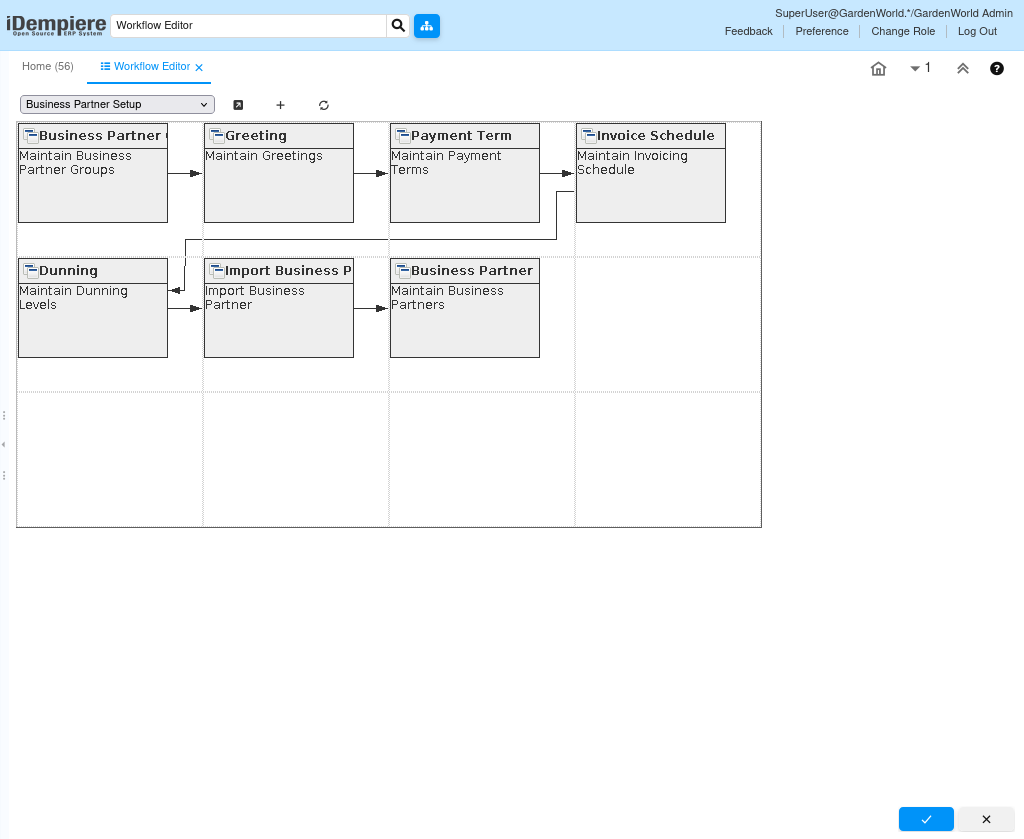
The Workflow Editor is a graphical design tool used to create, review, and maintain workflow definitions in iDempiere. It allows administrators to visualize workflow nodes, transitions, and execution paths.
Retail organizations use Workflow Editor to automate approvals, document processing, inventory operations, and other business activities. Proper workflow configuration standardizes operations, reduces manual intervention, and improves process control.
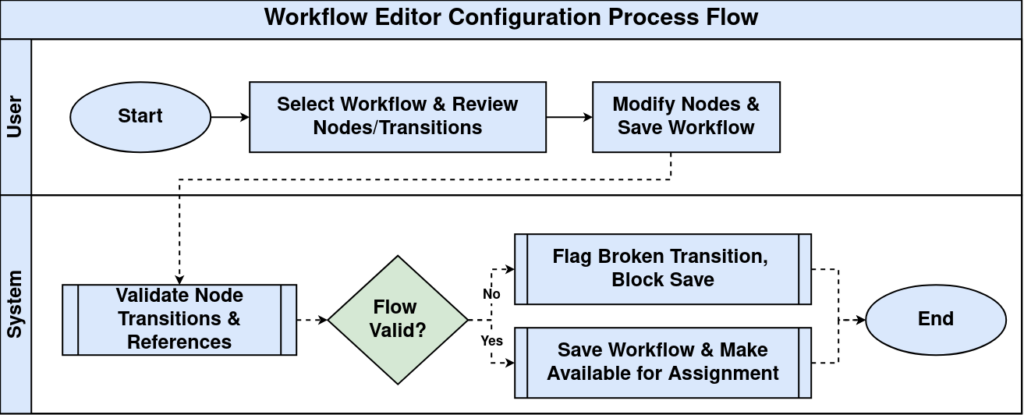
Work Flow
Business Rules
- Only authorized users should modify workflows.
- Inactive workflows cannot execute.
- Workflow nodes require valid transitions.
- Referenced windows, reports, forms, and processes must exist.
- Changes affect future workflow executions.
- Test workflows before production deployment.
- Save workflow after every modification.
- Workflow should reflect approved business processes.
Prerequisites
- System Administrator role.
- Organization and Tenant configured.
- Workflow definition available.
- Related windows, forms, reports, and processes configured.
- Appropriate security permissions assigned.
Navigation
Menu → Application Dictionary → Workflow Rules → Workflow Editor
Configuration Steps
Step 1: Open Workflow
Select the required workflow.
Step 2: Review Workflow
Verify nodes and transitions.
Step 3: Modify Workflow
Add, edit, or remove workflow nodes.
Step 4: Validate Flow
Check execution order and conditions.
Step 5: Save and Test
Save changes and test using sample transactions.
Common Issues and Resolutions
| Issue | Cause | Resolution |
| Workflow not visible | Inactive | Activate workflow |
| Broken transition | Missing node link | Reconnect nodes |
| Access denied | Insufficient role | Grant permission |
| Process not executed | Invalid node | Review node setup |
| Changes not applied | Workflow not saved | Save and reopen |
Next Steps
- Assign workflow to documents or processes.
- Test end-to-end execution.
- Deploy to production.
- Monitor and maintain workflow changes.