How Delete Trace Logs Process Works in iDempiere
Introduction
Delete Trace Logs is a system process in iDempiere that removes old application log files stored on the server. Administrators use it to keep the log folder clean after a defined number of days.
It is used in routine system maintenance and housekeeping activities, typically run by IT or system administrators rather than business users. Running it does not affect business transactions, accounting entries, or reports, but it helps maintain server performance and disk space by removing outdated diagnostic files.
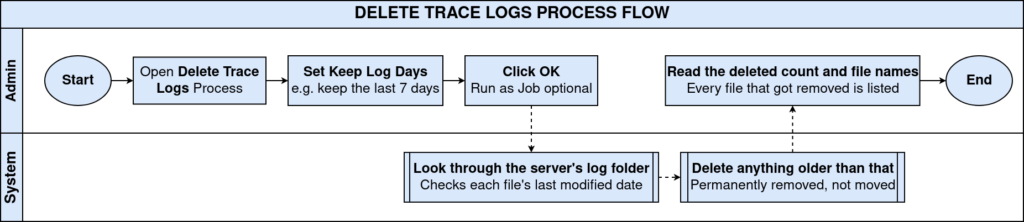
Process Flow
Business Rules
- Log files older than the entered number of days are permanently deleted.
- The Keep Log Days field is mandatory and must be a whole number.
- Only files inside the system log directory are evaluated for deletion.
- Deleted files cannot be recovered once the process completes.
- The process can run immediately or be scheduled using Run as Job.
- A confirmation list of deleted file names is displayed after the process runs.
- If no log files exceed the retention period, no files are deleted.
Prerequisites
- System Administrator role access.
- Access to the Delete Trace Logs process window.
- Server log directory must contain existing log files.
- Scheduler configured in advance if Run as Job is used.
Navigation
Menu → System Admin → General Rules → Server → Delete Trace Logs
After opening the window, users see a short description of the process, a Keep Log Days field with a default value, and a Run as Job checkbox. The OK button starts the process.

Configuration Steps
Step 1: Set the Keep Log Days Value
This step defines how many days of log history to retain. Files older than this value are removed when the process runs.
Instructions
Enter the number of days to keep in the Keep Log Days field. The default value is 7. Increase the value to retain logs longer, or reduce it to clear space faster.
| Field | Sample Value | Description |
| Keep Log Days | 7 | Number of days of log files to retain before deletion. |
Step 2: Choose the Run Mode
This step decides whether the process runs right away or is scheduled to run automatically in the background.
Instructions
Leave Run as Job unchecked to run the process immediately. Check it to submit the process as a background job for later or recurring execution.
| Field | Sample Value | Description |
| Run as Job | Unchecked | Runs the process immediately in the current session. |
| Run as Job | Checked | Submits the process to run in the background or on a schedule. |
Step 3: Execute the Process and Review Results
This step runs the cleanup and confirms which log files were removed.
Instructions
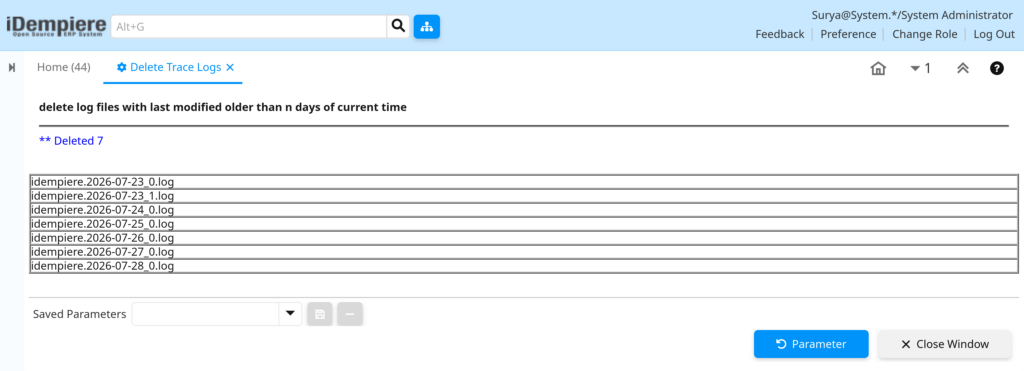
Click OK to start the process. A result message shows the total number of files deleted, followed by a list of the deleted file names.
Common Issues and Resolutions
| Issue | Cause | Resolution |
| Keep Log Days field is empty | Mandatory field left blank before clicking OK. | Enter a valid whole number of days before running the process. |
| No files were deleted | No log files are older than the entered retention period. | Reduce the Keep Log Days value or verify log file dates. |
| Process appears to do nothing | Run as Job was checked and the job has not executed yet. | Check the scheduled job status or run the process again without Run as Job. |
| Needed log file was deleted | Retention period was set too low for troubleshooting needs. | Increase Keep Log Days before running, and back up important logs beforehand. |
| Process fails to run | User does not have System Administrator access. | Log in with a role that has System Administrator privileges. |
| Log directory not found | Server log folder path is missing or inaccessible. | Verify the server log directory exists and is configured correctly. |
| Job does not repeat automatically | No recurring schedule was set for the job. | Configure a recurring schedule when submitting the job for automatic cleanup. |
Note: Deleted log files cannot be restored. Confirm the retention period is correct before running the process on a production server.Next Steps
- Review the System Admin menu for other server maintenance processes.
- Set up a recurring schedule if regular log cleanup is required.
- Check server disk space usage after running the process.