How to Configure Counter Document in iDempiere
Introduction
The Counter Document window in iDempiere defines the automatic creation of a matching document in another organization when a source document is completed, such as generating a Purchase Order from a Sales Order.
It is used in multi-organization retail and distribution setups where one organization sells to another internal organization, avoiding manual re-entry of the counter transaction.
This configuration directly impacts document accuracy, inter-org reporting, and transaction speed by linking Document Types across organizations automatically.
Process Flow Diagram

Business Rules
- Active records are available for use in Document Type configuration.
- A Counter Document Type must belong to a different organization than the source Document Type.
- Create Counter Document must be checked to trigger automatic generation.
- Document Action determines the status applied to the newly created counter document.
- Only Valid combinations of Document Type and Counter Document Type are processed.
- A source Document Type can have only one active Counter Document configuration.
- Counter documents inherit quantities, products, and pricing from the source document.
Prerequisites
- Organization configured for both source and counter organizations.
- Document Type configured for the source transaction (e.g., Sales Order).
- Document Type configured for the counter transaction (e.g., Purchase Order).
- Business Partner records linking both organizations, if used for inter-org billing.
- Product and Price List setup for accurate counter document pricing.
Navigation
Menu → Performance Analysis and Accounting → Accounting Rules → Counter Document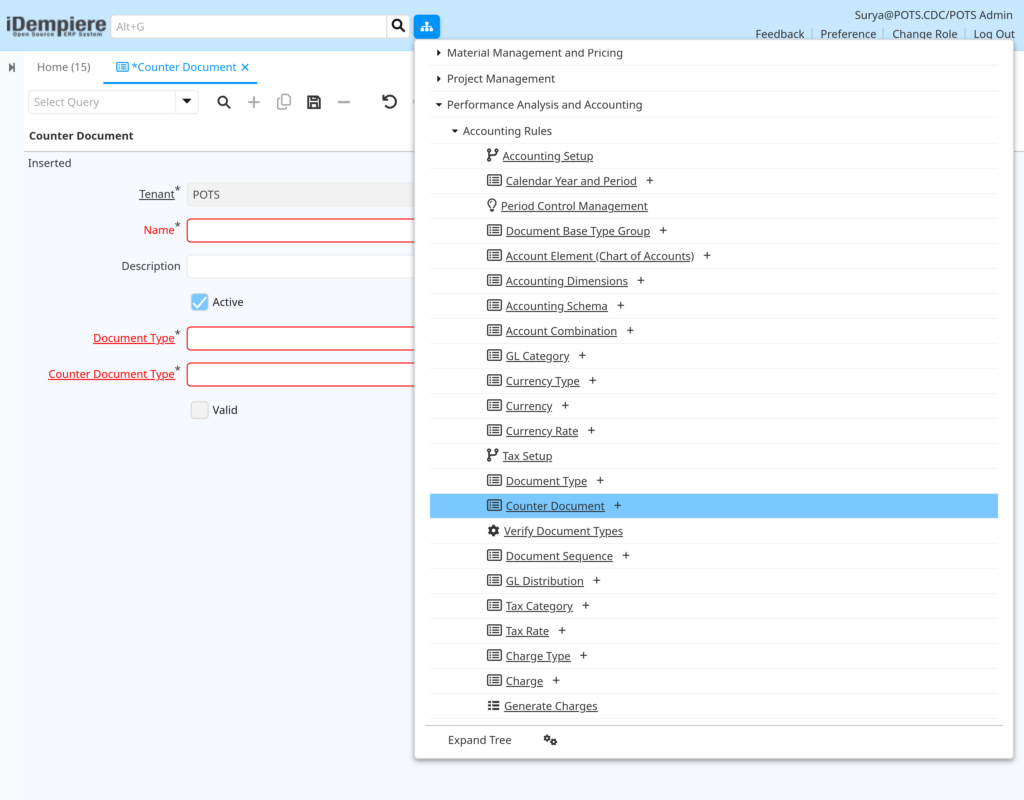
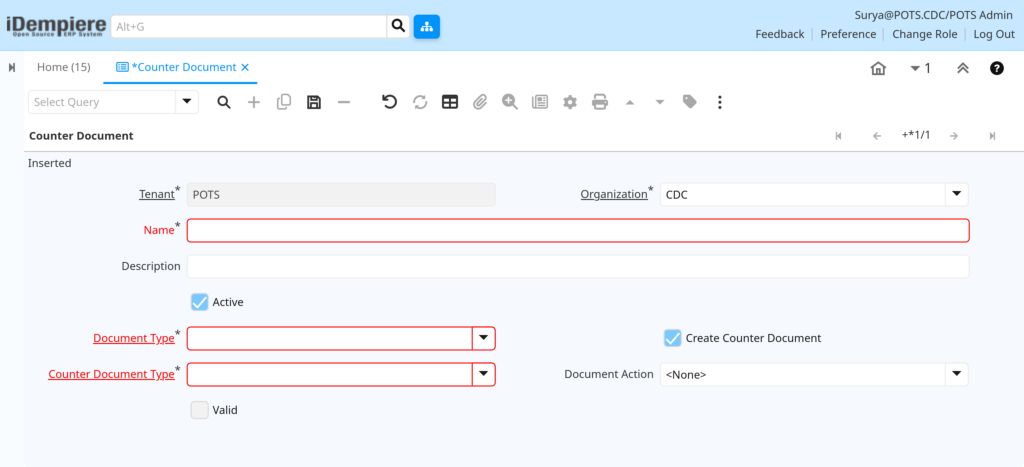
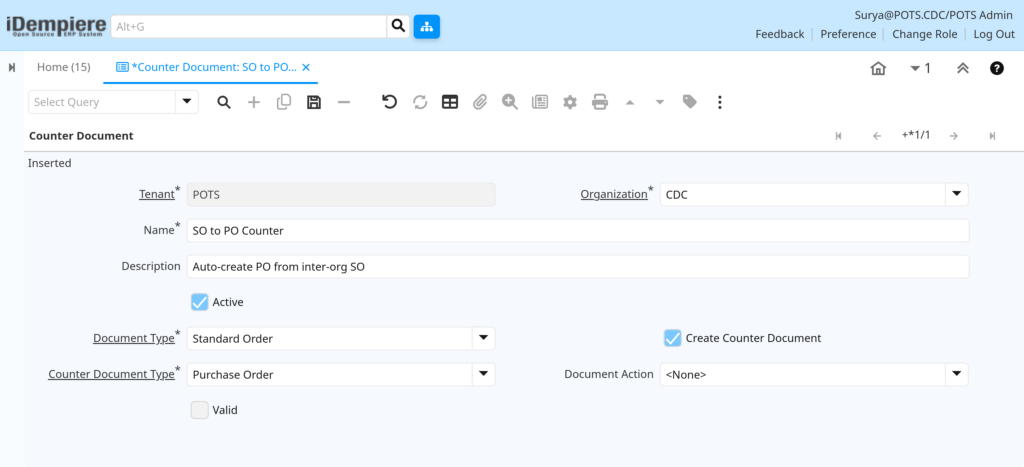
Opening this window displays a new or existing Counter Document record with Tenant, Organization, Name, Document Type, Counter Document Type, and control checkboxes for Active, Create Counter Document, and Valid.
Configuration Steps
Step 1: Enter Basic Record Details
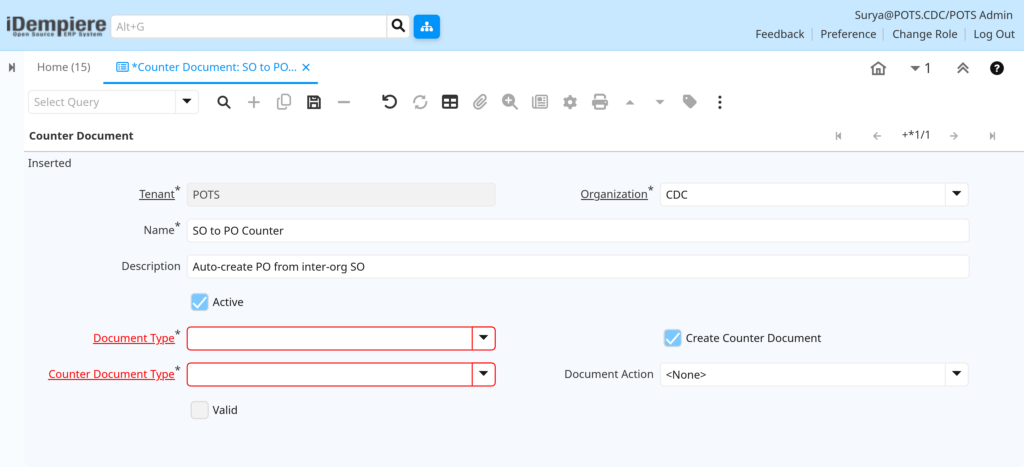
The Name identifies the Counter Document rule, and Organization determines which org this rule applies to.
Instructions
Select the Organization for the source document. Enter a descriptive Name such as “SO to PO Counter”. Add an optional Description.
| Field | Sample Value | Description |
| Organization | HQ | Organization that owns the source Document Type. |
| Name | SO to PO Counter | Identifies the counter document rule. |
| Description | Auto-create PO from inter-org SO | Optional free-text explanation. |
| Active | Checked | Controls whether this rule is available for use. |
Step 2: Select the Source Document Type
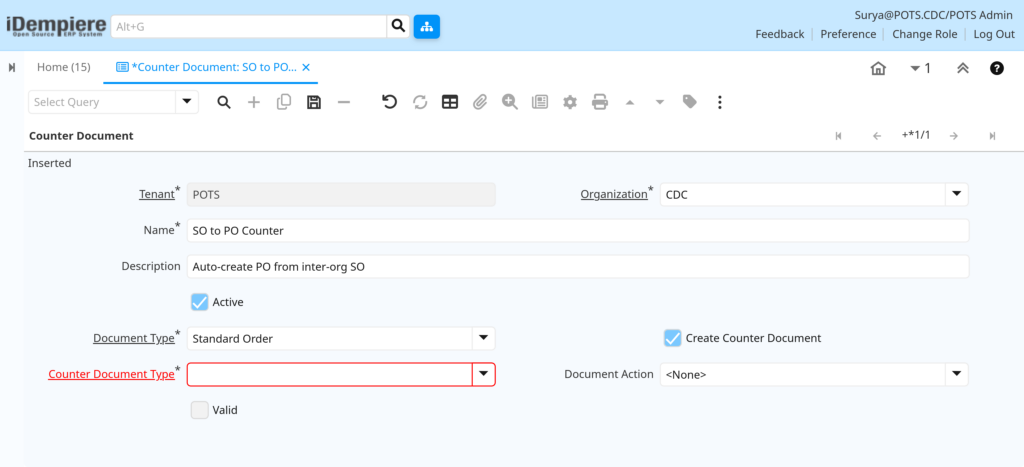
Document Type identifies the transaction that will trigger the counter document creation.
Instructions
Choose the Document Type that initiates the process, such as Sales Order. This is the document users will complete to trigger generation.
| Field | Sample Value | Description |
| Document Type | Standard Order | Source transaction type that triggers the counter document. |
Step 3: Select the Counter Document Type
Counter Document Type defines the document created in the counter organization.
Instructions
Select the Document Type belonging to the counter organization, such as Purchase Order. This must differ from the source Document Type’s organization.
| Field | Sample Value | Description |
| Counter Document Type | Purchase Order | Document Type created automatically in the counter organization. |
Step 4: Enable Automatic Creation
Create Counter Document must be enabled for the system to generate the counter transaction automatically.
Instructions
Check Create Counter Document. Leave unchecked only if the rule is being prepared but not yet active for processing.
| Field | Sample Value | Description |
| Create Counter Document | Checked | Enables automatic generation of the counter transaction. |
Step 5: Set the Document Action
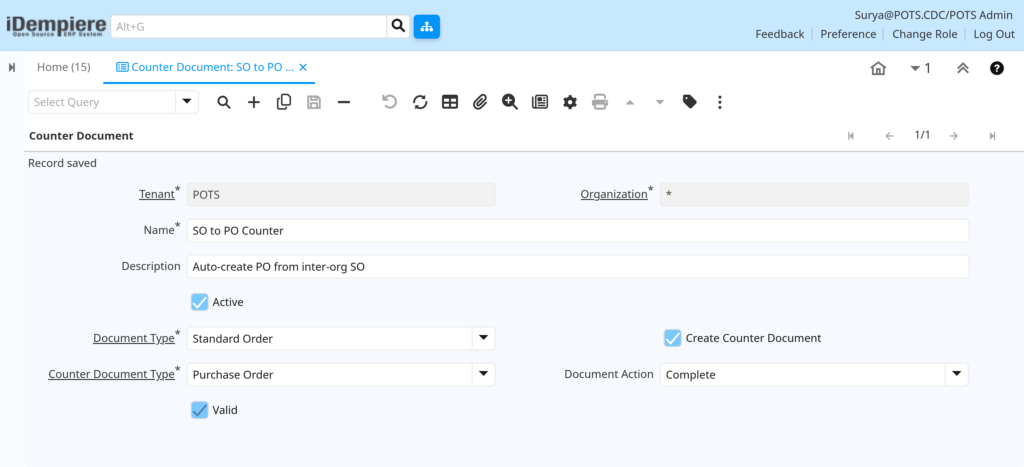
Document Action defines the status applied to the newly created counter document, such as Complete.
Instructions
Select a Document Action, for example Complete, so the counter document is processed without manual intervention. Leave <None> to keep it in Draft.

| Field | Sample Value | Description |
| Document Action | Complete | Action automatically applied to the generated counter document. |
Step 6: Save and Validate the Record
Saving triggers system validation of the Document Type and Counter Document Type combination, marking the record as Valid.
Instructions
Click Save. Confirm the Valid checkbox is set after saving; an unchecked Valid indicates a configuration conflict that must be corrected.
Common Issues and Resolutions
| Issue | Cause | Resolution |
| Valid checkbox remains unchecked | Document Type and Counter Document Type belong to the same organization | Assign the Counter Document Type to a different organization. |
| Counter document not created | Create Counter Document checkbox is unchecked | Enable Create Counter Document and save the record. |
| Duplicate counter document rule error | Another active rule exists for the same Document Type | Deactivate or update the existing rule before creating a new one. |
| Counter document stuck in Draft | Document Action left as <None> | Set Document Action to Complete or the required status. |
| Pricing mismatch on counter document | Price List not configured for the counter organization | Configure a matching Price List for the counter organization. |
| Counter document created in wrong organization | Incorrect Organization selected on the source Document Type | Verify Organization assignment on both Document Types. |
| Record cannot be saved | Mandatory fields Name, Document Type, or Counter Document Type left blank | Complete all mandatory (red-labeled) fields before saving. |
Next Steps
- Configure Document Type window for both source and counter transactions.
- Review Organization window to confirm inter-org relationships.
- Set up Price List and Product records for accurate counter pricing.
- Test the flow by completing a source Sales Order and verifying Purchase Order creation.