How to Process Automatic Account Reconciliation in iDempiere
Automatic Account Reconciliation is a core iDempiere process that reconciles posted transaction lines on a General Ledger account against a predefined reconciliation rule.
It is used in Finance and Accounting operations to match clearing accounts, suspense accounts, bank accounts, and intercompany accounts during period-end activities.
Running this process marks matched GL Journal lines as reconciled, which keeps account balances accurate for financial reporting and audit tracking.
Process Flow
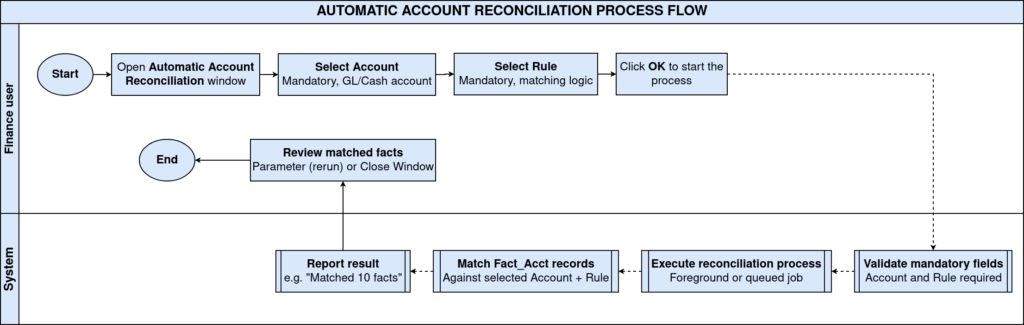
Business Rules
- Only Active GL accounts are available for selection in the Account field.
- A Reconciliation Rule must exist for the account before the process can run.
- Only unreconciled transaction lines are evaluated during each run.
- “Run as Job” executes the process asynchronously in the background.
- Matched lines are flagged as reconciled and excluded from future runs.
- Reconciliation logic is driven entirely by the selected Rule definition.
- Process results are available in Process Info after completion.
Prerequisites
- GL Account configured in the Chart of Accounts / Accounting Schema.
- Account has posted transactions with a reconciliation status of unreconciled.
- Reconciliation Rule defined and linked to the account.
- Active Accounting Schema and open Calendar Period.
- User role has access to the Automatic Account Reconciliation window.
Navigation
Menu → Performance Analysis and Accounting → Automatic Account Reconciliation
Opening the window displays a parameter form with Account and Rule fields, a Run as Job checkbox, and a Saved Parameters bar. OK executes the process; Cancel closes the window.
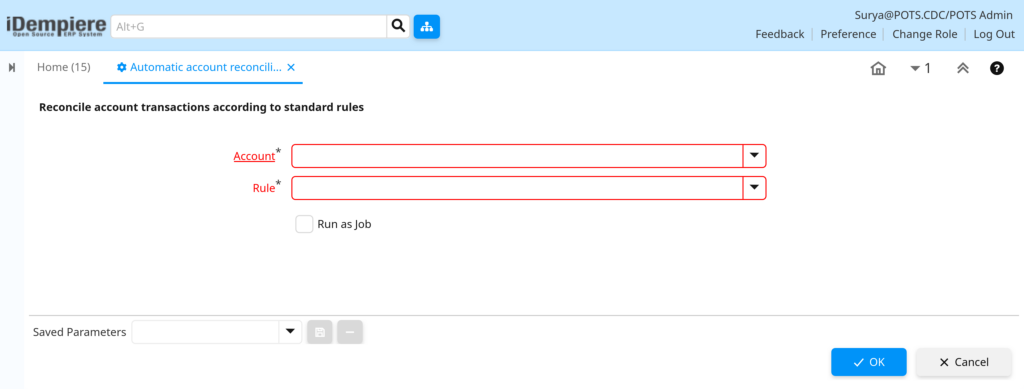
Configuration Steps
Step 1: Select the Account
Identify the GL account whose unreconciled transactions need to be matched.
Instructions
Click the Account field and select the GL account to reconcile, such as a bank or clearing account, from the lookup.
Field Reference
| Field | Sample Value | Description |
| Account | B_PAYMENTSELECT_Payment selection | GL account whose transactions will be reconciled |
Step 2: Select the Reconciliation Rule
The Rule determines the matching logic applied to the account’s transaction lines.
Instructions
Click the Rule field and choose a previously defined reconciliation rule for the selected account.
Field Reference
| Field | Sample Value | Description |
| Rule | Payment Clearing (unallocated cash/payment selection) | Reconciliation rule that defines the matching criteria |
Step 3: Choose the Run Mode
Large accounts with high transaction volume benefit from background processing.
Instructions
Check Run as Job to process reconciliation asynchronously, or leave it unchecked to run immediately in the foreground.
Field Reference
| Field | Sample Value | Description |
| Run as Job | Unchecked | Runs process in background as a scheduled job when checked |
Step 4: Execute the Process
Running the process applies the rule and updates the reconciliation status of matched lines.
Instructions
Click OK to execute. Review the Process Info summary to confirm how many transaction lines were reconciled.

Common Issues and Resolutions
| Issue | Cause | Resolution |
| Process completes with zero reconciled lines | No unreconciled transactions exist for the account | Verify unreconciled GL Journal lines exist for the account |
| OK button shows mandatory field error | Account or Rule field left blank | Select both Account and Rule before running |
| Process takes very long to complete | High transaction volume on the account | Enable Run as Job to process in the background |
| Reconciled balance not reflected in reports | Report was generated before process completion | Re-run the financial report after the job finishes |
| Wrong account gets reconciled | Incorrect account selected in the parameter field | Verify the Chart of Accounts entry before executing |
| Window not accessible to user | Role lacks access to the reconciliation window | Grant window access to the role in Role Maintenance |
Next Steps
- Configure reconciliation rules in the GL Reconciliation Rule window.
- Review reconciled and unreconciled lines in the GL Journal window.
- Verify updated balances in the Account Balance or Trial Balance report.
- Set up recurring background jobs for periodic reconciliation runs.