How to Use Import Report Line Set Window in iDempiere
Introduction
The Import Report Line Set window is a staging screen used to bring report line definitions into iDempiere in bulk, since a ready-made loading screen for this data is not part of the standard system.
It supports the setup of Report Line Sets, which are used to structure financial statements and management reports, letting a team load many report lines from a prepared file instead of creating each line one at a time.
Once the loaded records are reviewed and processed, the report lines become part of the Report Line Set structure used across financial and performance reports, so accurate loading directly affects reporting quality.
Process Flow

Business Rules
- Each record must include a Report Line Set Name and a Line Name before it can be accepted.
- A record already marked Imported is skipped in later import runs and is not loaded again.
- Previously imported records can be cleared first so a file can be reloaded cleanly.
- A blank Organization value is automatically set to the top Organization.
- A blank Summary Level setting defaults to unchecked, making the line a detail line.
- A blank Printed setting defaults to checked, so the line prints on the report.
- A blank Line Type defaults to Segment Value.
- The Account Element value must match a configured account unless the line is a Calculation line.
- A blank Sequence value is filled in automatically using the record’s own reference number.
- A record with unresolved errors is held back and does not appear in the Report Line Set.
Prerequisites
- Report Line Set created or named, ready to receive imported lines.
- Chart of Accounts and Account Elements configured for validation.
- Import file prepared with values arranged in the required column order.
- User access granted to the Performance Analysis import screens.
- Tenant and Organization setup completed.
Navigation
Menu → System Admin → Data → Data Import → Import Report Line Set
Opening the window shows a blank staging record with an Import Error Message field, Report Line Set Name, Line details, and Imported/Processed status boxes. A separate Import File Loader screen is used first to bring a prepared file into this staging window for review.

Configuration Steps
Step 1: Prepare the Import File
A ready-made loading screen for report lines is not available, so the file must be arranged in the exact order the system expects before it can be brought in.
Instructions
Arrange one report line per row in a text file, separating each value with a comma, following the column order shown below.
| Field | Sample Value | Description |
| Organization | 0 | Organization the line belongs to; 0 loads to the top Organization. |
| Report Line Set Name | Test | Name of the Report Line Set the line will be added to. |
| Name | Test | Short name of the report line. |
| Description | Test | Description shown for the report line. |
| Sequence | 10 | Print order of the line within the Report Line Set. |
| Summary Level | N | Marks the line as a summary line when checked. |
| Printed | Y | Controls whether the line prints on the report. |
| Posting Type | Actual | Type of posted amount the line reports on. |
| Amount Type | Balance (accounted sign) | Type of amount value used for the line. |
| Period Type | Period | Reporting period the line’s amount covers. |
| Line Type | Calculation | Defines whether the line is an account segment or a calculation. |
| Calculation | Add (Op1+Op2) | Calculation applied when Line Type is Calculation. |
| Account Element | AP | Account value the line reports amounts against. |
Step 2: Load the File Using Import File Loader
This step brings the prepared file into the staging window so each row can be checked before it is added to the Report Line Set.
Instructions
Open Import File Loader, select the prepared file, confirm the file encoding, choose the matching Import Format, and confirm to load the rows into the staging window.
Step 3: Review Staged Records
Checking the loaded record confirms the values came in correctly and highlights anything missing before the report line is created.
Instructions
Open each staged record in the Import Report Line Set window and review the fields against the source file, paying attention to the Import Error Message field.
| Field | Sample | Purpose |
| Report Line Set Name | (required) | Report Line Set the line belongs to; must be filled in. |
| Name | (required) | Line name; a blank value causes the row to be skipped. |
| Sequence | 10 | Controls the order the line appears in the report. |
| Summary Level | Unchecked | Detail line when unchecked; summary line when checked. |
| Printed | Checked | Line appears on the printed report. |
| Line Type | Segment Value | Identifies the line as an account segment or calculation line. |
| Element Key | 13445 | Internal reference number for the account value on this row. |
| Account Element | (blank until valid) | Matched account value once the entry is recognised. |
| Processed | Unchecked | Set once the record has been converted into a report line. |
| Import Error Message | ERR=Invalid ReportLineSet, Ignored=NoLineName, | Describes why a record could not be imported. |

Step 4: Correct Data Errors Before Import
Rows missing required values are ignored or marked with an error, so correcting them here avoids repeating the whole loading step.
Instructions
Fill in the missing Report Line Set Name and Name fields, confirm the Account Element value is correct, save the record, and re-check the Import Error Message field.
Step 5: Run the Import Report Line Process
Running the process turns confirmed staging records into report lines and links them to the correct account values.
Instructions
Run the Import Report Line process, review the confirmation log for the number of lines added or updated, and confirm the Imported box is checked for each successful record.
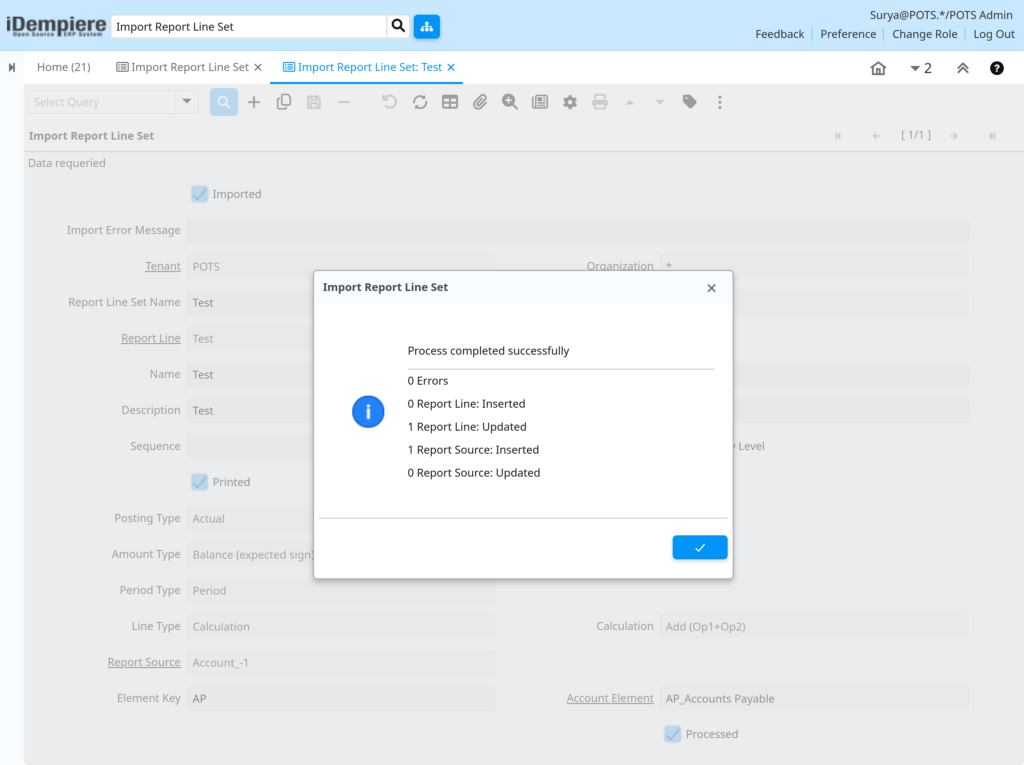
Step 6: Verify Results in Report Line Set
A final check confirms the new lines are ready for use in financial and performance reports.
Instructions
Open the Report Line Set window, confirm the new lines appear in the correct sequence, and verify each line’s account mapping is correct.

Common Issues and Resolutions
| Issue | Cause | Resolution |
| Error message shows Invalid ReportLineSet | Report Line Set Name is blank or does not match an existing Report Line Set. | Enter the correct Report Line Set Name in the file or record and reload. |
| Row shows Ignored, NoLineName | The Line Name value was left blank in the source row. | Add a Line Name value to the row and reload the file. |
| Account Element not recognised | The account value in the file does not match a configured account. | Correct the value so it matches an existing Account Element. |
| Line does not appear after running import | The record still carries an unresolved error and the Imported box remains unchecked. | Review the Import Error Message field, correct the data, and re-run the import. |
| Duplicate lines appear after reloading a file | Previously imported records were not cleared before the file was reloaded. | Clear earlier imported records before loading the file again. |
| Report lines print in the wrong order | Sequence values were left blank in the source file. | Provide explicit Sequence values for each row before loading. |
| Posting Type, Amount Type, or Period Type rejected | The value used does not match an option supported by the window. | Use only values that match the drop-down options in the window. |
Next Steps
- Configure a Report Column Set to pair with the newly loaded Report Line Set.
- Build or update the financial or performance report that uses this Report Line Set.
- Review the Chart of Accounts and Account Elements for accuracy.