How to Use Export Format Generator in iDempiere
Learn how the Export Format Generator window in iDempiere automatically creates Export Format and Export Format Line records from a selected window.
Introduction
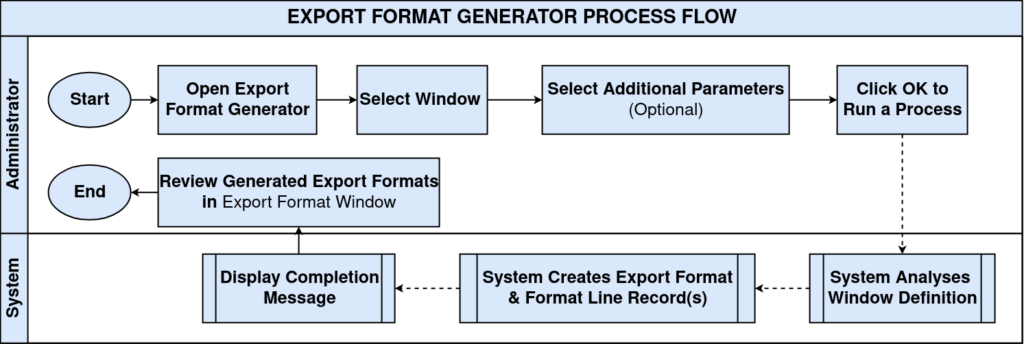
The Export Format Generator is a standard iDempiere process that automatically creates Export Format and Export Format Line records based on the structure of a selected application window, removing the need to build these records manually.
It is used during system setup, primarily within the Replication and Export configuration area, to prepare data structures used later for tasks such as XML export or data replication.
Process Flow
Business Rules
- Selecting a Window is mandatory before running the process.
- The process automatically creates one or more Export Format records.
- Export Format Lines are generated automatically for the selected window.
- Generated Export Formats are stored permanently in the Export Format window.
- Generated Export Formats can be reviewed and modified after generation.
- Previously generated records remain available until manually deleted.
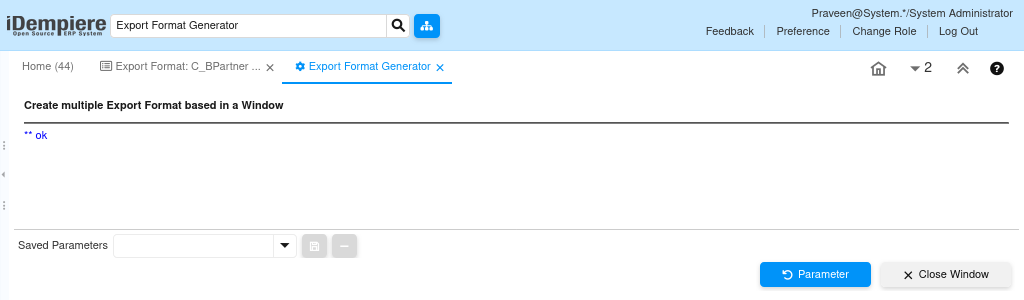
- The system displays a completion message once generation finishes.
- The process can optionally be executed as a background job.
Prerequisites
- User must have System Administrator or equivalent role access.
- The target application window must already exist in the Application Dictionary.
- Access to the Export Format window is required to review generated records.
- Familiarity with Replication and Export configuration is recommended.
Configuration Steps
Step 1: Open Export Format Generator
This step is required to launch the process that automatically generates Export Format records.
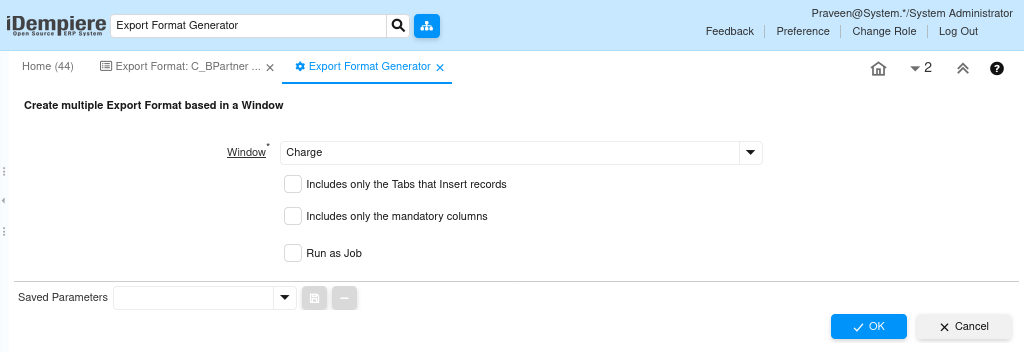
Navigate to Menu → Export Format Generator. The process parameter window opens, ready for the user to specify the source window and optional settings.
| Field | Sample Value | Description |
| Window | Charge | Application window used as the source for generation (mandatory). |
| Includes only the Tabs that Insert records | Unchecked | Optional parameter to limit generation scope. |
| Includes only the mandatory columns | Unchecked | Optional parameter to limit generation scope. |
| Run as Job | Unchecked | Optional parameter to run the process as a background job. |
Step 2: Select Window
This step defines which application window will be analyzed to generate the Export Format structure.
Use the Window field to search for and select the required window, for example Charge. The selected window becomes the source for the generation process.
| Field | Sample Value | Description |
| Window | Charge | Application window selected as the basis for Export Format generation. |
Step 3: Execute Process
This step runs the process so the system can generate the Export Format and Export Format Line records.
Click OK to start the process. The system analyses the selected window and displays a completion message once generation finishes.
| Field | Sample Value | Description |
| Action | OK | Button used to start the Export Format generation process. |
Step 4: Review Generated Export Formats
This step confirms that the Export Format records and their lines were created correctly.
Open the Export Format window to view the generated records. One or more Export Format records appear together with their automatically created Export Format Lines.
| Field | Sample Value | Description |
| Search Key | C_Charge | Identifies the generated Export Format record. |
| Name | Charge | Name assigned to the generated Export Format. |
| Table | C_Charge_Charge | Source table linked to the generated Export Format. |
| Export Format Line | C_Charge_ID | Individual column mapped as an Export Format Line. |

Common Issues and Resolutions
| Issue | Cause | Resolution |
| Window not selected | Mandatory field left blank | Select a Window before executing the process. |
| Expected Export Format not found | Process not completed or wrong area reviewed | Confirm the completion message appeared, then check the Export Format window. |
| Generated Export Format requires adjustment | Auto-generated structure does not match exact export needs | Manually modify the generated Export Format or its Lines. |
| Duplicate Export Formats appear | Process executed more than once for the same window | Review the Export Format window and remove duplicate records manually. |
| Process completes but no records are visible | Wrong window or organization context reviewed | Open the Export Format window and search using the source window name. |
| Cannot access Export Format window | User role lacks required window access | Assign the appropriate role access to the Export Format window. |
| Background job status unclear | Run as Job option was selected | Check the process or scheduler monitor before reviewing results. |
Next Steps
- Review the generated Export Format records for accuracy.
- Verify the automatically generated Export Format Lines.
- Modify the generated Export Format manually if adjustments are required.
- Use the generated Export Format within an Export Model or Replication configuration.