How to Synchronize Print Format in iDempiere
This process updates a Print Format from a selected Report View, ensuring report columns and layouts stay synchronized.
Business Rules
- Source is mandatory.
- Report View is mandatory.
- Language can be selected.
- Run as Job is optional.
- Existing Print Format can be synchronized.
Process Flow
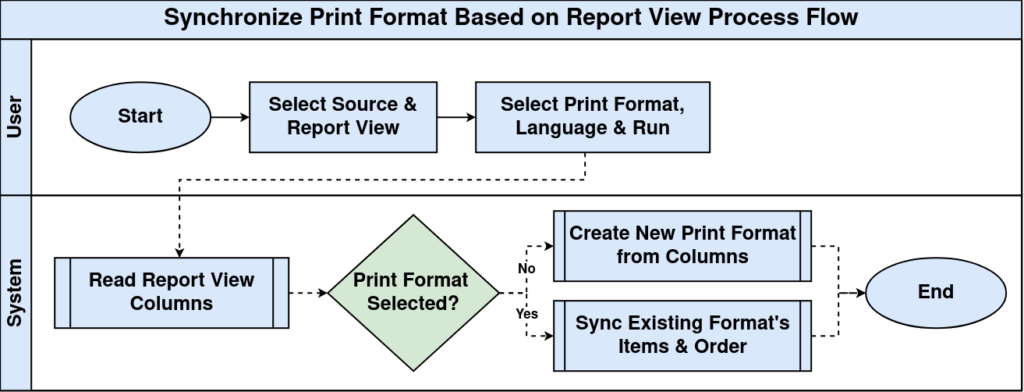
Prerequisites
- Report View available.
- Print Format available.
- User has process access.
Navigation
Menu → System Admin → Print → Synchronize Print Format Based on Report View

Configuration Steps
Step 1: Select Source
Configure the required values and click OK.
Screenshot Placeholder – Select Source
Step 2: Select Report View
Configure the required values and click OK.
Screenshot Placeholder – Select Report View
Step 3: Select Print Format
Configure the required values and click OK.
Screenshot Placeholder – Select Print Format
Step 4: Choose Language
Configure the required values and click OK.
Screenshot Placeholder – Choose Language
Step 5: Run Process
Configure the required values and click OK.
Common Issues and Resolutions
| Issue | Cause | Resolution |
| Missing report | No Report View | Select Report View |
| Process error | Invalid source | Verify Source |
| Wrong language | Language mismatch | Select AD Language |
| Layout unchanged | Old format | Re-run sync |
| Job pending | Run as Job | Wait for completion |
Next Steps
- Review Print Format.
- Preview report.
- Adjust display order if needed.