How to Create Workflow Activities (all) in iDempiere
Workflow Activities (all) monitors every workflow activity created by iDempiere. It displays the workflow process, current node, responsible user, approvers, workflow state, related business record and processing history. Retail organizations use this window to monitor approval-based processes such as Business Partner, Purchase Order, Product and Price approvals, ensuring pending activities are completed and fully traceable.
Work Flow
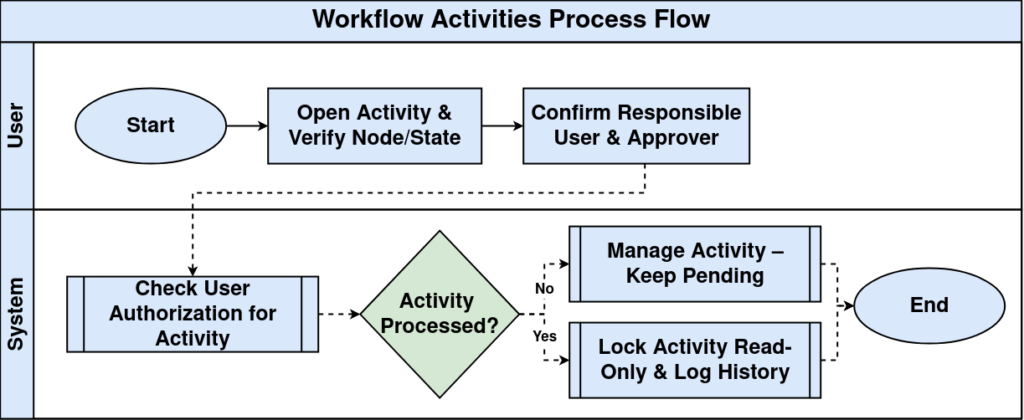
Business Rules
- Workflow activities are created automatically when workflows are triggered.
- Each activity belongs to one workflow process.
- Only authorized users can process assigned activities.
- Workflow state indicates current execution status.
- Processed activities become read-only.
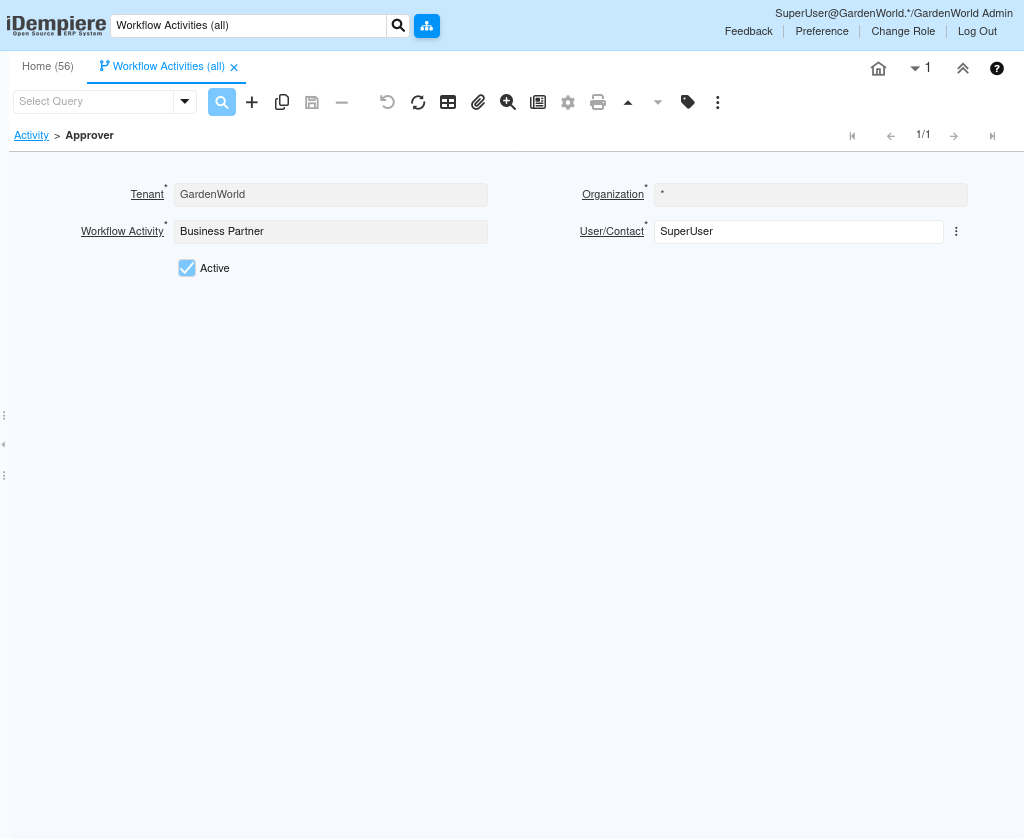
- Approver assignments control approval responsibility.
- Messages and alerts are retained for auditing.
- Each activity references its originating business record.
Prerequisites
- Workflow configured.
- Workflow nodes created.
- Responsible users assigned.
- Access roles configured.
- Business document workflow enabled.
Navigation
Menu → Application Dictionary → Workflow → Workflow Activities (all)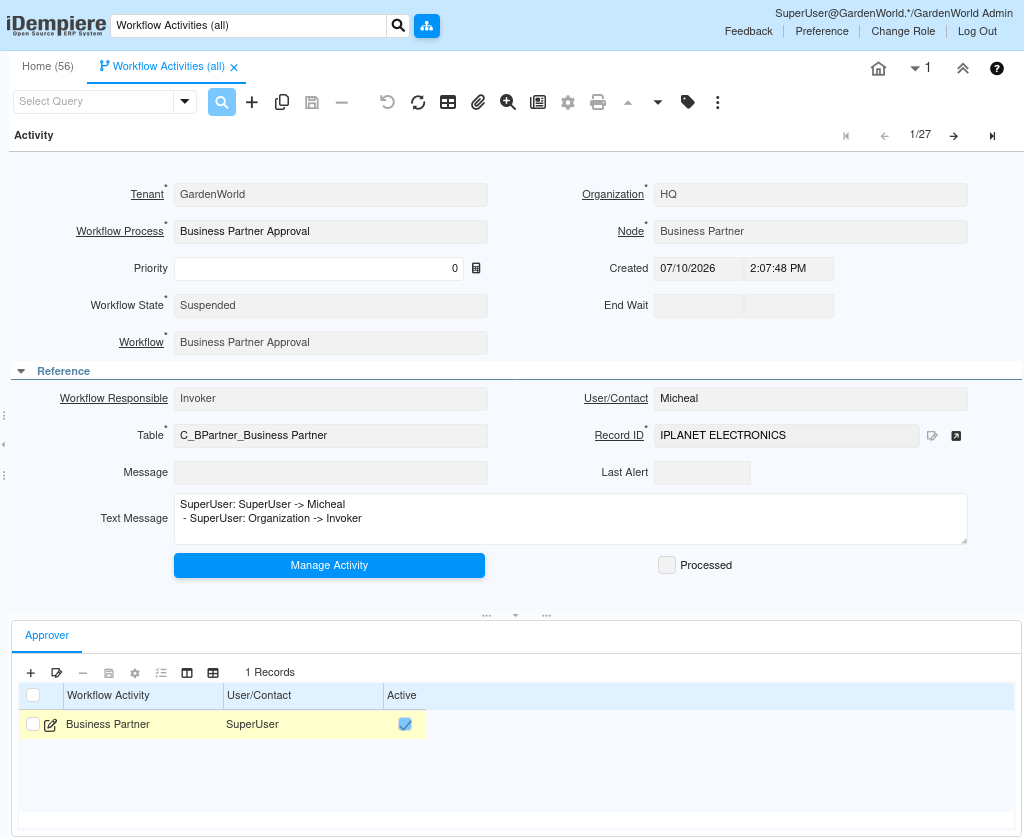
Configuration Steps
Step 1
Open the required workflow activity.
Step 2
Verify workflow process, node and workflow state.
Step 3
Confirm responsible user and approved.
Step 4
Review related business record and messages.
Step 5
Use Manage Activity to process pending work.
Common Issues and Resolutions
| Issue | Cause | Resolution |
| Activity not generated | Workflow not triggered | Verify workflow configuration. |
| Pending approval | Approver unavailable | Assign correct approver. |
| Cannot process | Missing permission | Grant workflow access. |
| Workflow suspended | Execution stopped | Resume workflow. |
| Wrong record | Trigger issue | Validate document workflow. |
Next Steps
- Review Workflow Process.
- Configure Workflow Editor.
- Maintain Workflow Definitions.
- Test approval workflow.
- Monitor workflow history.