How to Configure Accounting Processor in iDempiere
Introduction
The Accounting Processor window lets a business set up an automatic task that keeps accounting related log records clean inside iDempiere.
It supports finance and system administration teams who want housekeeping done without manual effort, working alongside the wider accounting setup.
Running on a fixed schedule, it clears out old log entries, keeps reporting screens responsive, and alerts a supervisor whenever a run fails.
Process Flow

Business Rules
- Only an Accounting Processor record marked Active runs on its assigned schedule.
- Log entries older than the configured retention period are removed automatically.
- The assigned Supervisor is notified whenever a scheduled run reports an error.
- A record can be limited to one Organization or applied across the whole tenant.
- Every run adds a Log entry showing its summary, reference number, and status.
- The Next Run date is recalculated automatically once the current run completes.
Prerequisites
- Organization structure already configured.
- A user account available to assign as Supervisor.
- Accounting Schema configured, if the task should target a specific schema.
- System Administrator access to open and maintain this window.
Navigation
Menu → System Admin → General Rules → Server → Accounting Processor
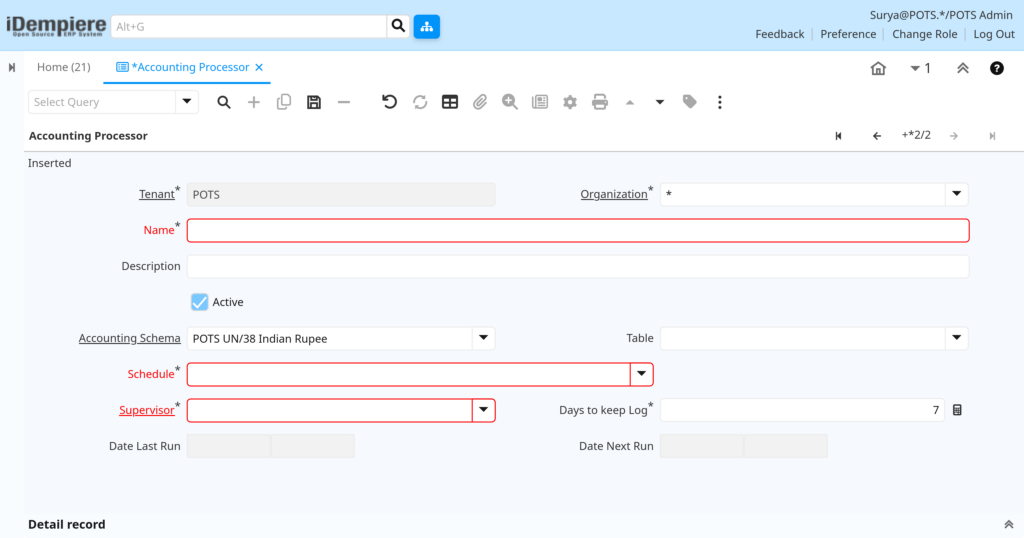
Opening the window shows the Data Required section at the top, where the task name, schedule, and supervisor are set, with a Log tab below listing every past run.
Configuration Steps
Step 1: Create the Accounting Processor Record
This step names the task and confirms it is switched on to run.
Instructions
Enter a clear Name and Description, then confirm the Active box is checked. A record left inactive is never picked up for scheduled runs.
| Field | Sample Value | Description |
| Name | POTS – Accounting Processor | Identifies the task in lists and log entries. |
| Description | (optional) | Short note on what the task covers. |
| Active | Checked | Turns the scheduled run on or off. |
Step 2: Set the Accounting Schema and Table Scope
This step narrows the task to specific accounting data when needed.
Instructions
Choose an Accounting Schema and Table only when the task should focus on particular accounting records. Leave both blank to cover the whole tenant.
| Field | Sample Value | Description |
| Accounting Schema | (blank = all schemas) | Limits the task to one accounting schema. |
| Table | (blank = all tables) | Limits the task to one data table. |
Step 3: Set the Run Schedule
This step controls how often the task runs on its own.
Instructions
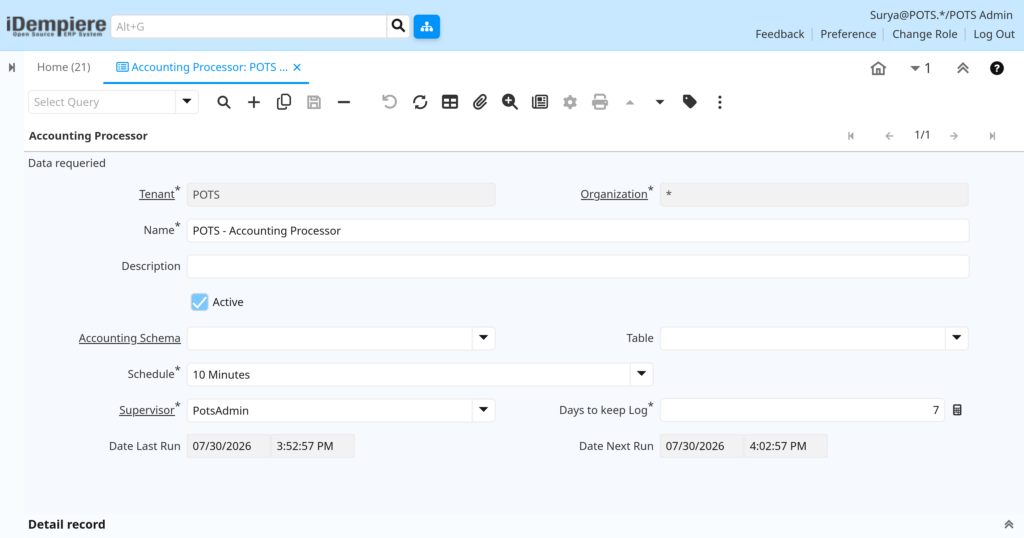
Pick a Schedule value, such as every 10 Minutes, that matches how often log entries need review without placing extra load on the system.
| Field | Sample Value | Description |
| Schedule | 10 Minutes | Sets how often the task repeats automatically. |
Step 4: Assign a Supervisor
This step makes sure someone is told if a run fails.
Instructions
Select a user in the Supervisor field. This person is notified when a run reports an error, so problems are caught quickly.
| Field | Sample Value | Description |
| Supervisor | PotsAdmin | User notified when a run reports an error. |
Step 5: Set Log Retention
This step keeps the Log tab from growing without limit.
Instructions
Enter a value in Days to keep Log. Log entries older than this number of days are cleared out automatically during each run.
| Field | Sample Value | Description |
| Days to keep Log | 7 | Number of days a log entry is kept before removal. |
Step 6: Review the Log Tab
This step confirms the task is running as expected and shows its history.
Instructions
Open the Log tab after a run to check the Created date, Summary, Error status, Reference, and Text Message for that run.
| Field | Sample Value | Description |
| Created | 07/23/2026 10:53:55 AM | Date and time the run took place. |
| Summary | Logs deleted=0 | Short outcome of the run. |
| Error | Unchecked | Marked when the run ran into a problem. |
| Reference | #280 – 0’00:00:00.487 | Internal run reference and duration. |
| Text Message | (blank unless an error occurs) | Detail shown when a run reports an error. |

Common Issues and Resolutions
| Issue | Cause | Resolution |
| Task never runs | Active box is not checked | Check Active and save the record. |
| Log list keeps growing | Days to keep Log left blank or set too high | Lower the retention value to a practical number. |
| No alert received on failure | Supervisor field left empty | Assign a valid user as Supervisor. |
| Task runs more often than needed | Schedule set to a very short interval | Increase the Schedule interval. |
| Next Run date does not change | Record just created or schedule just changed | Save the record and allow one run to complete. |
| Summary always shows zero deletions | No log entries currently exceed the retention limit | Normal behavior; no action needed. |
| Error box checked on a log entry | The scheduled run hit a problem | Open the entry and review the Text Message. |
Next Steps
- Configure the Scheduler window for other automatic tasks.
- Review the Alert Processor for wider system notifications.
- Set up the Email Processor if notifications should be sent by email.
- Confirm Organization and Accounting Schema setup before adding more tasks.