How to Use Export Processor in iDempiere
Learn how the Export Processor window in iDempiere configures replication delivery, connecting an Export Processor Type to a Replication Strategy.
Introduction
The Export Processor window in iDempiere defines the destination used to deliver replication data after an XML document has been generated. It does not create the XML itself; it acts as the runtime configuration that tells the replication engine how and where to send it.
This window is used within standard iDempiere replication and data-exchange processes, typically by Distribution, Wholesale, and multi-branch organizations that synchronize records such as Business Partners between systems.
It directly impacts business operations by determining whether replicated transactions are successfully delivered to an external file, folder, or messaging destination.
Process Flow
Business Rules
- Export Processor must be Active to be available for use.
- An Export Processor must reference an Export Processor Type.
- The selected Export Processor Type determines which Java class executes the export.
- Replication Strategy must reference an Export Processor to enable replication.
- Different Export Processor Types require different runtime parameters.
- The HDD Export Processor requires runtime parameters to determine the output file location.
- Host, Port, Account, and Password fields are available for processors that require connection details.
- The standard HDD Export Processor does not use the Host, Port, Account, or Password fields.
Prerequisites
- An Export Processor Type must be created and linked to a valid Java processor class.
- The Export Format required for the replicated table must already be configured.
- A Replication Strategy must exist so the Export Processor can be assigned to it.
- The destination location (for example, a server folder) must be accessible and writable.
- The Client must have ExportModelValidator configured as a Model Validation Class.
Configuration Steps
Step 1: Create an Export Processor Type
This step is required to register the Java class that will perform the actual export. Without a processor type, no Export Processor can be created.
Navigate to Replication → Export Processor Type and create a new record. Provide a Search Key, Name, and the Java Class that implements the export logic, then save the record.
| Field | Sample Value | Description |
| Tenant | GardenWorld | Tenant that owns the Export Processor Type |
| Organization | * | Organization scope of the record |
| Search Key | HDD Export Processor Type | Unique identifier for the processor type |
| Name | HDD Export Processor Type | Display name of the processor type |
| Description | Adempiere HDD Export Processor Type | Optional descriptive text |
| Active | Checked | Enables the processor type for selection |
| Java Class | org.adempiere.process.rpl.exp.HDDExportProcessor | Java class that executes the export |

Step 2: Create an Export Processor
This step creates the runtime processor configuration that the Replication Strategy will use. It links the processor type to a named, reusable configuration record.
Navigate to Replication → Export Processor and create a new record. Enter a Search Key and Name, then select the Export Processor Type created in Step 1. Save the record.
| Field | Sample Value | Description |
| Tenant | GardenWorld | Tenant that owns the Export Processor |
| Organization | * | Organization scope of the record |
| Search Key | HDD Export Processor1 | Unique identifier for the processor |
| Name | HDD Export Processor1 | Display name of the processor |
| Export Processor Type | HDD Export Processor Type | Selects the processor implementation |
| Description | HDD Export Processor Description | Optional descriptive text |
| Active | Checked | Enables the processor for selection |
| Host | 192.168.0.183 | Connection information used by some processor types |
| Port | (blank) | Connection information used by some processor types |
| Account | (blank) | Authentication information used by some processor types |
| Password Info | (blank) | Authentication information used by some processor types |

Step 3: Configure Processor Parameters
This step provides the processor-specific runtime values that the selected Export Processor Type needs to deliver the XML. Required parameters differ by processor type.
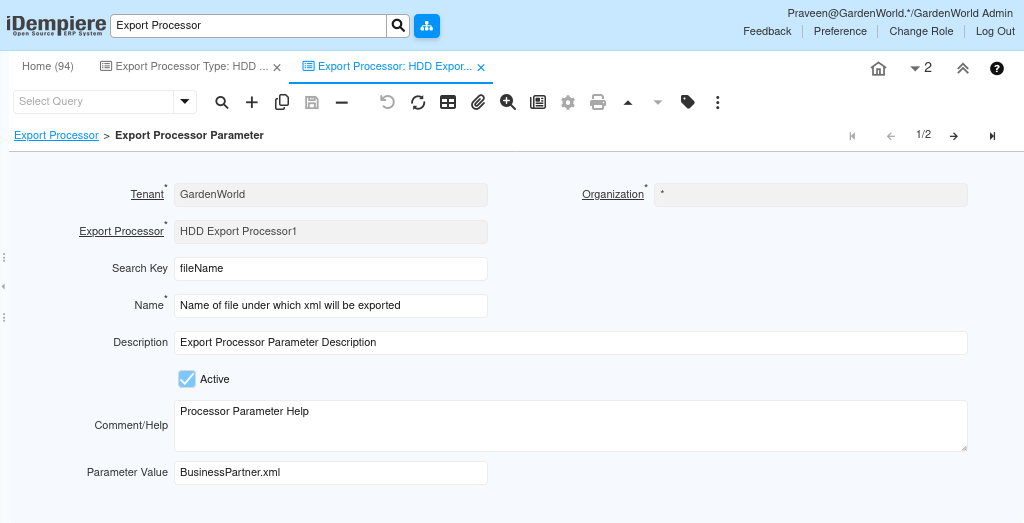
In the Export Processor Parameter tab, add a row for each required parameter. For the HDD Export Processor, enter the fileName and folder parameters with their values, then save.
| Field | Sample Value | Description |
| Search Key | fileName | Parameter name expected by the HDD processor |
| Search Key | folder | Parameter name expected by the HDD processor |
| Name | Name of file to export | Descriptive label for the parameter |
| Parameter Value | BusinessPartner.xml | Output XML file name |
| Parameter Value | /home/dev078/Downloads/ | Destination folder for the output file |
| Active | Checked | Enables the parameter for use at runtime |
The processor combines the folder and fileName values to determine the output file location. The folder value should end with a directory separator so the resulting path is valid. If a required parameter such as fileName is missing, the processor cannot write the XML.
Step 4: Assign the Export Processor to a Replication Strategy
This step connects the processor configuration to the replication process. Replication cannot deliver data unless a Replication Strategy references a valid Export Processor.
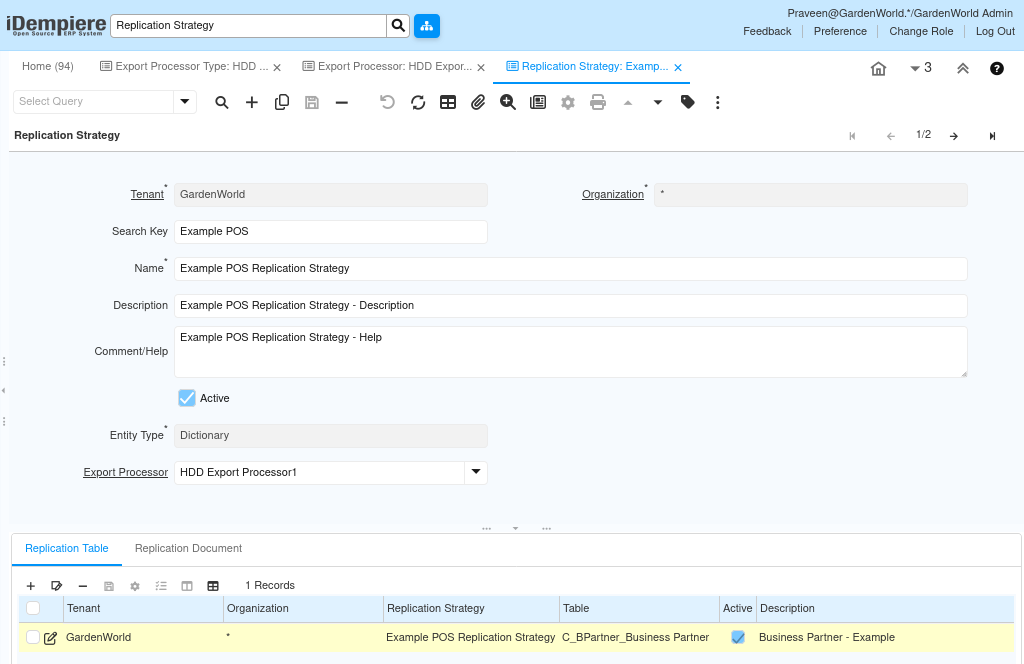
Open the Replication Strategy window, select the target strategy, and choose the Export Processor created in Step 2 from the Export Processor field. Save the record.
| Field | Sample Value | Description |
| Search Key | Example POS | Unique identifier for the Replication Strategy |
| Name | Example POS Replication Strategy | Display name of the strategy |
| Export Processor | HDD Export Processor1 | Export Processor used when this strategy runs |
| Active | Checked | Enables the strategy for replication |
Once saved, the strategy uses the selected Export Processor whenever a record configured in its Replication Table is created, updated, or completed.
Common Issues and Resolutions
| Issue | Cause | Resolution |
| Export Processor not available for selection | The record is not Active | Verify the Export Processor record is marked Active |
| Processor cannot execute | Export Processor Type does not reference a valid Java class | Verify the Java Class field points to a valid, deployed processor implementation |
| XML not written by the HDD processor | fileName or folder parameters are missing or incorrect | Verify the parameters are configured correctly and the server has write permission to the destination directory |
| Replication does not export data | Replication Strategy does not reference the correct Export Processor | Verify the Replication Strategy points to the intended Export Processor |
| No export occurs at all | Client is not assigned the Replication Strategy or ExportModelValidator is not configured | Confirm the Client has the Replication Strategy assigned and ExportModelValidator set as a Model Validation Class |
| Wrong file delivered to the wrong location | folder parameter does not end with a directory separator | Update the folder value so it ends with a valid directory separator |
Next Steps
- Assign the configured Export Processor to the relevant Replication Strategy.
- Configure the Export Format required for the tables being replicated.
- Ensure the Client is assigned the Replication Strategy and ExportModelValidator.
- Perform an end-to-end replication test to confirm XML generation and delivery.