How Does Quarterly Invoice Customer by Vendor Work in iDempiere
The Quarterly Invoice Customer by Vendor report provides a customer-level view of invoiced retail activity by vendor for a selected date range.
Retail teams use it to review customer purchases, vendor contribution, invoice counts, line amounts, discounts, margins, and related limits.
It supports quarterly sales review and vendor/customer analysis without changing the underlying invoice transactions.
Business Rules
- Date Invoiced defines the reporting period used for the invoice analysis.
- Business Partner filters the report to the selected customer.
- Vendor filters customer purchases to the selected supplier.
- The report can be reviewed for a customer, vendor, or both selected filters.
- Only invoice data matching the selected reporting criteria is included in the result.
- Margin and discount values are shown with the invoice results for retail review.
- Run as Job is available when the report should be executed as a background job.
- Summary controls whether the report is presented using the available summary option.
Prerequisites
- Business Partner records are configured for customers.
- Vendor Business Partner records are configured for suppliers.
- Products used on sales invoices are configured.
- Completed sales invoices exist for the reporting period.
- The user role has access to the report and required Business Partner/Vendor records.
Navigation
Menu → Reports → Quarterly Invoice Customer by Vendor
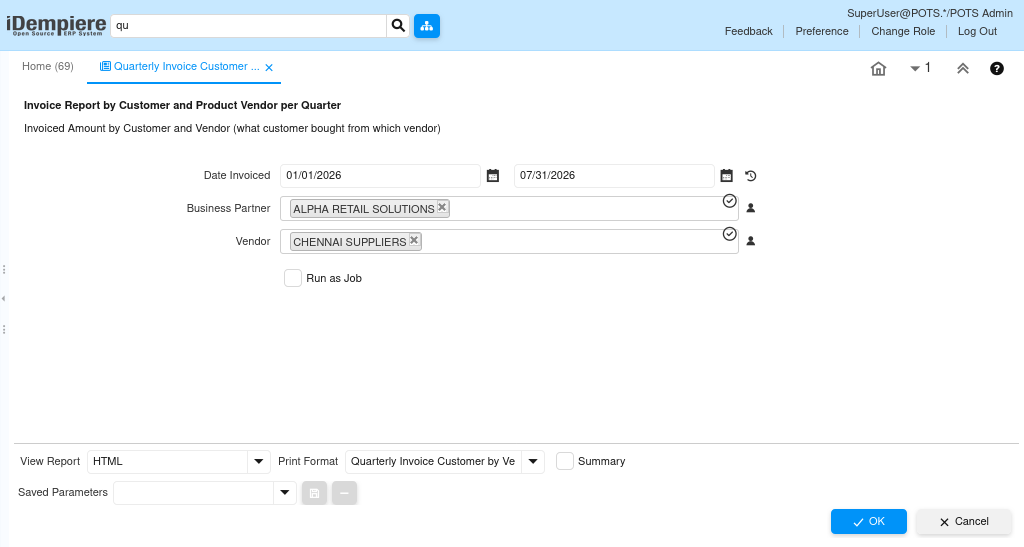
After opening the report, users see Date Invoiced, Business Partner, Vendor, Run as Job, View Report, Print Format, and Summary controls. The report output displays customer and vendor invoice metrics.
Configuration Steps
Step 1: Set the Invoice Date Range
- Enter the start and end dates in Date Invoiced. For a quarterly review, select the complete quarter, such as 01/01/2026 through 07/31/2026 for the sample report.
Step 2: Select the Business Partner
- Select the customer in Business Partner when the report is required for a specific retail customer. Leave the filter broad when customer-level analysis is required across available invoice data.
Step 3: Select the Vendor
- Select the supplier in Vendor to identify what the selected customer purchased from that vendor. In the sample, CHENNAI SUPPLIERS is selected.
Step 4: Choose Report Execution Options
- Use Run as Job when background execution is required. Select the required View Report format and Print Format. Use Summary when a summarized presentation is needed.
Step 5: Execute and Review the Report
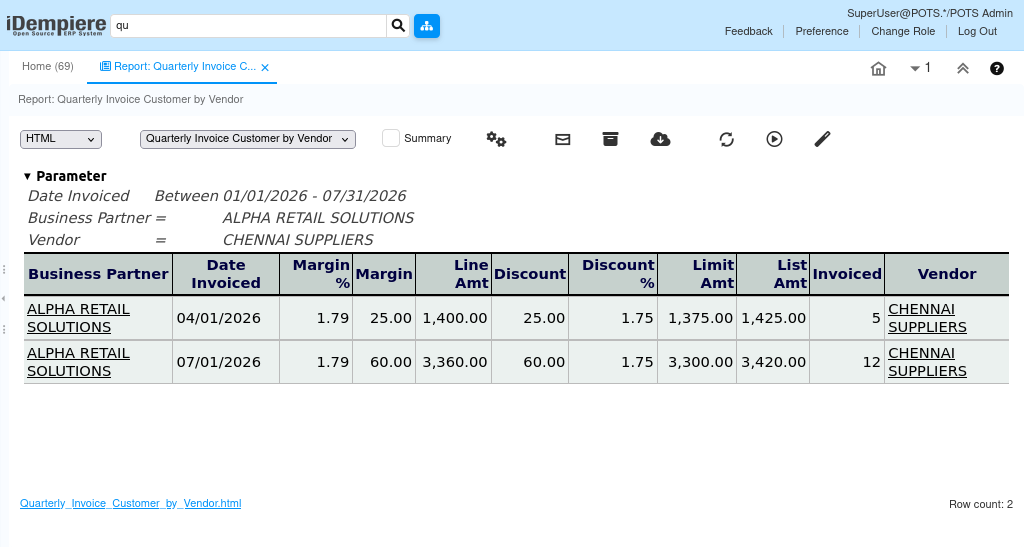
- Click OK to run the report. Review Business Partner, Date Invoiced, Margin, Line Amt, Discount, Limit Amt, List Amt, Invoiced, and Vendor values in the output.
Field Reference Table
| Field | Sample Value | Description |
|---|---|---|
| Date Invoiced | 01/01/2026 – 07/31/2026 | Defines the invoice reporting period. |
| Business Partner | ALPHA RETAIL SOLUTIONS | Filters the report to a selected customer. |
| Vendor | CHENNAI SUPPLIERS | Filters purchases to a selected supplier. |
| Run as Job | Unchecked | Runs the report as a background job when selected. |
| View Report | HTML | Controls the report viewing format. |
| Print Format | Quarterly Invoice Customer by Vendor | Selects the report print/output definition. |
| Summary | Unchecked | Controls the available summary presentation. |
Report Output Reference
| Output Field | Business Meaning |
|---|---|
| Business Partner | Customer shown in the report result. |
| Date Invoiced | Invoice date used for the reported activity. |
| Margin % / Margin | Margin percentage and amount displayed by the report. |
| Line Amt | Reported invoice line amount. |
| Discount / Discount % | Discount amount and percentage shown in the result. |
| Limit Amt | Limit amount displayed by the report. |
| List Amt | List amount displayed for comparison. |
| Invoiced | Invoice quantity/count value shown by the report. |
| Vendor | Supplier associated with the reported customer activity. |
Common Issues and Resolutions
| Issue | Cause | Resolution |
|---|---|---|
| No rows returned | No invoice data matches the date/filter criteria. | Widen Date Invoiced and verify the Business Partner and Vendor selections. |
| Wrong customer results | Business Partner filter is incorrect or too broad. | Clear the filter or select the intended customer. |
| Wrong vendor results | Vendor filter is incorrect. | Verify the selected supplier and rerun the report. |
| Unexpected invoice period | Start or end date is incorrect. | Check both Date Invoiced values before executing. |
| Report format not as expected | Incorrect View Report or Print Format selected. | Select the required format and print definition. |
| Background run not used | Run as Job was not selected. | Select Run as Job when background execution is required. |
| Summary output differs | Summary option is enabled or disabled. | Review Summary before running and compare with detailed output. |
Next Steps
- Review Sales Invoice and Invoice Line data for detailed transaction verification.
- Use Business Partner information to investigate customer purchasing patterns.
- Review vendor/product purchasing relationships for quarterly retail analysis.
- Export or print the report when the results are required for management review.