How to Configure the Greeting Window in iDempiere
The Greeting window in iDempiere stores the salutation text, such as “Dear,” that is merged with a contact’s name on printed and emailed retail documents. Store teams use it to keep invoices, quotations, and marketing letters consistent and professional. Because greetings link directly to Business Partners and Users, a correctly configured record affects how every customer-facing document reads across the organization.
Process Flow

Business Rules
- Active greetings are available for selection on Business Partner and User records.
- Only one greeting per Organization should be marked Default to avoid conflicts.
- Default greeting is automatically applied when a Business Partner has none assigned.
- Greeting text merges with the contact name field on invoices, quotations, and emails.
- First Name Only limits the printed salutation to the contact’s first name.
- Organization set to * makes the greeting available to all organizations in the tenant.
Prerequisites
- Tenant (Client) configured, e.g. POTS.
- Organization configured, or use * for tenant-wide availability.
- Business Partner or User records available to which the greeting will apply.
Navigation
Menu → General Rules → Business Partner Rules → Greeting
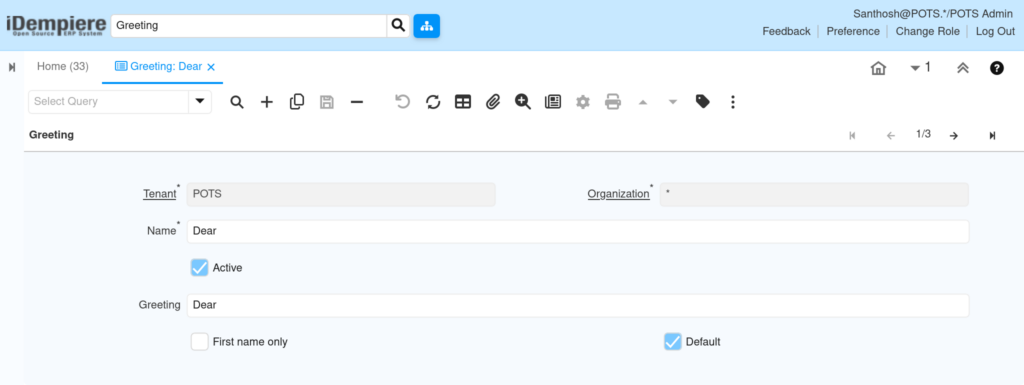
Opening the window shows a single-record form with Tenant, Organization, Name, Active, Greeting text, First name only, and Default fields, as seen in the POTS tenant example below.
Configuration Steps
Step 1: Create a New Greeting Record
Click New, then set Tenant and Organization. Use * for Organization if the greeting should be shared across all stores or branches.
Step 2: Enter the Greeting Name and Text
Enter a short, descriptive Name such as “Dear”. Enter the exact salutation text in the Greeting field, for example “Dear”.
Step 3: Set First Name Only Preference
Check First name only for casual communications. Leave unchecked to print the full Business Partner or contact name.
Step 4: Mark as Default (If Applicable)
Check Default only on the greeting that should apply automatically. Uncheck Default on any other record for the same Organization.
Step 5: Activate the Record
Confirm the Active checkbox is ticked, then click Save.
Field Reference Table
| Field | Sample Value | Description |
| Tenant | POTS | Client that owns this greeting record. |
| Organization | * | Scope of availability; * means all organizations. |
| Name | Dear | Internal identifier shown in selection lists. |
| Active | Checked | Controls whether the greeting is selectable. |
| Greeting | Dear | Salutation text merged into printed documents. |
| First name only | Unchecked | Prints first name only when checked. |
| Default | Checked | Automatically applied when no greeting is set. |
Common Issues and Resolutions
| Issue | Cause | Resolution |
| Greeting missing from BP dropdown | Active checkbox is unchecked | Enable Active on the greeting record. |
| Wrong greeting prints on invoices | Multiple records marked Default | Keep only one Default greeting per Organization. |
| Greeting unavailable to other stores | Organization set to a specific branch | Set Organization to * for shared use. |
| Full name prints instead of first name | First name only left unchecked | Enable First name only on the record. |
| Duplicate or confusing greeting names | No naming convention followed | Adopt clear names, e.g. Formal, Casual, VIP. |
| Greeting field blank on printed document | No greeting linked to the Business Partner | Assign a greeting on the Business Partner or User window. |
| Recent changes not visible in print | Client-side cache not refreshed | Log out and back in, or refresh the role cache. |
Next Steps
- Configure the Business Partner window to link greetings to customers and vendors.
- Configure the User window to assign greetings to individual contacts.
- Review invoice and quotation print formats that reference the Greeting field.