How to Configure Invoice Payment Schedule in iDempiere
The Invoice Payment Schedule window in iDempiere records due dates, discount dates, and amounts for each invoice, supporting Payment Rules such as Mixed POS Payment and Immediate terms.
It directly affects receivables aging, discount calculations, and payment allocation accuracy, keeping cash flow reporting reliable across stores and organizations.
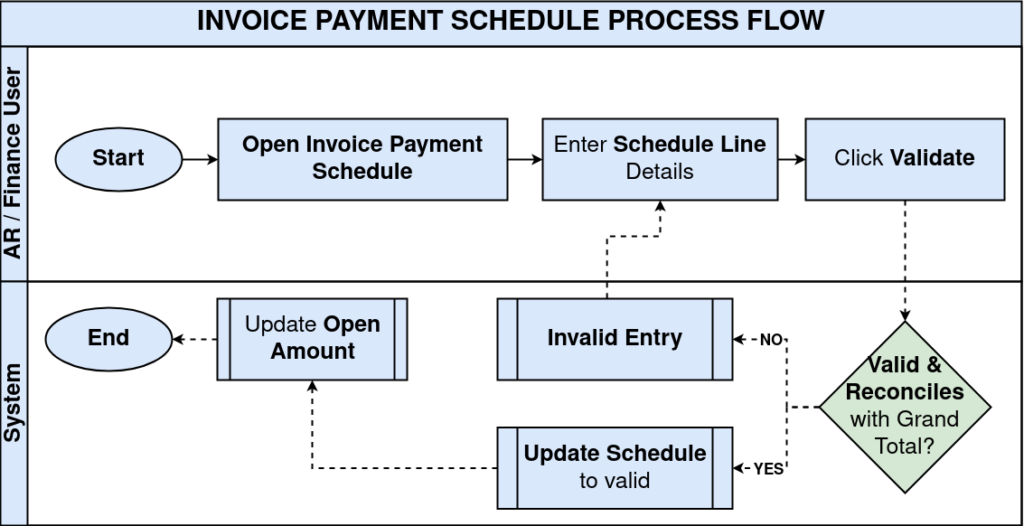
Process Flow
Business Rules
- Active payment schedule lines are used for due date and discount tracking on an invoice.
- Each schedule line belongs to one invoice and cannot be reused across invoices.
- Due Date and Discount Date are mandatory fields before a line can be validated.
- The Validate action confirms a schedule line is correctly configured and ready for use.
- The Valid checkbox reflects whether the schedule line has passed the validation check.
- Sum of all schedule line amounts should reconcile with the invoice Grand Total.
Configuration Steps
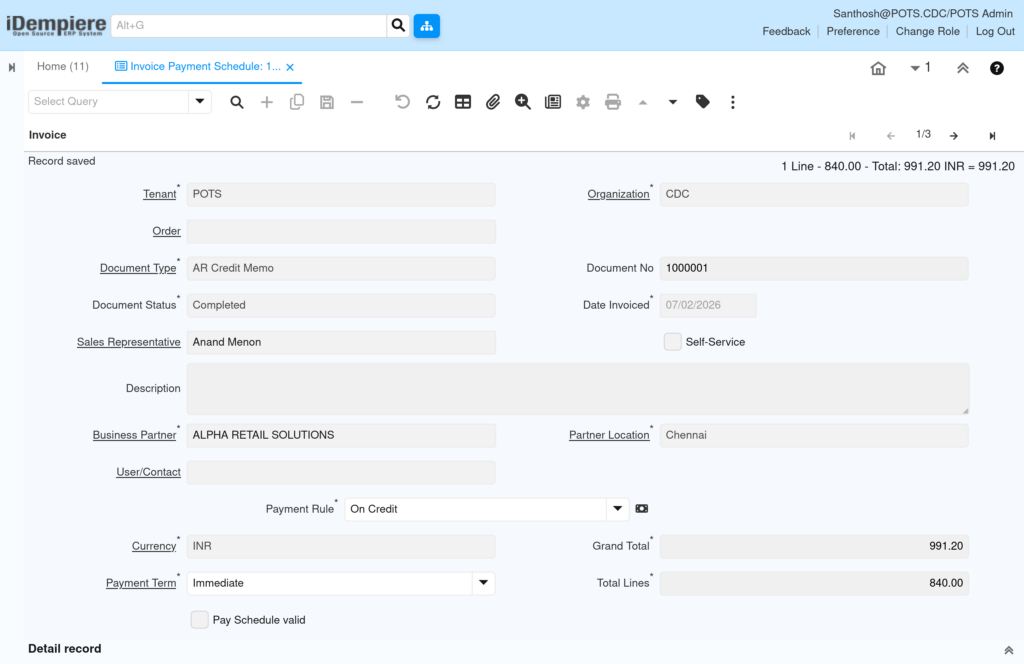
Step 1: Review Invoice Header Details
Open the invoice, e.g., Document No 1000001 for ALPHA RETAIL SOLUTIONS. Verify Payment Rule is Mixed POS Payment and Grand Total is 991.20 INR before proceeding.
| Field | Sample Value | Description |
| Business Partner | ALPHA RETAIL SOLUTIONS | Retail partner linked to the invoice |
| Payment Rule | Mixed POS Payment | Determines how payment schedule lines are split |
| Payment Term | Immediate | Default payment terms applied to the invoice |
| Grand Total | 991.20 | Total invoice amount to reconcile with schedule lines |
Step 2: Open the Payment Schedule Tab
Scroll to the Payment Schedule tab under the invoice. If no lines exist, the grid shows “No Records Found,” meaning a new line must be created.
Step 3: Create a New Payment Schedule Line
Click the (+) New icon in the Payment Schedule tab. The system auto-fills Tenant, Organization, and Invoice reference, e.g., 1000001_07/02/2026_991.20.

Step 4: Enter Due Date and Discount Date
Enter Due Date, e.g., 20/02/2026, and Discount Date, e.g., 12/02/2026. Both fields are required (shown in red) before the line can be validated.
Step 5: Enter Amount Due and Discount Amount
Enter Amount due, e.g., 991.20, and Discount Amount, e.g., 20.00, if an early payment discount applies to this schedule line.
| Field | Sample Value | Description |
| Due Date | 20/02/2026 | Date payment is due for this schedule line |
| Discount Date | 12/02/2026 | Last date a discount applies |
| Amount due | 991.20 | Payable amount for this schedule line |
| Discount Amount | 20.00 | Discount value if paid before Discount Date |
| Active | Checked | Marks the schedule line as usable |
Step 6: Validate the Payment Schedule Line
Click the Validate button. The system checks Due Date, Discount Date, and Amount fields, then enables the Valid checkbox once the data is correct.
Step 7: Save and Confirm Valid Status
Click Save. Confirm the Valid checkbox is ticked; if not, review Due Date and Amount due before re-validating.
Common Issues and Resolutions
| Issue | Cause | Resolution |
| Payment Schedule tab shows No Records Found | No schedule line created yet for the invoice | Click (+) New to add a schedule line manually |
| Valid checkbox stays unchecked | Amount due is 0.00 or dates are invalid | Enter correct Amount due and valid dates, then re-validate |
| Amount due does not match Grand Total | Manual entry error when splitting Payment | Recalculate schedule amounts to match the invoice Grand Total |
| Payment Schedule dropdown is empty | No schedule template linked to Payment Term | Configure schedule templates in the Payment Term window |
| Cannot edit schedule line on completed invoice | Document status restricts changes | Reverse or reactivate the invoice before editing |
| Discount Amount always shows 0.00 | No discount percentage defined in Payment Term | Set discount percentage and days in the Payment Term configuration |
Next Steps
- Configure Payment Term
- Set up Dunning Letter rules for overdue payment schedules.