How Does Income Statement Report Works in iDempiere
The Income Statement report in iDempiere is generated through the Financial Report window, using a predefined Report Line Set (Income Statement) and Report Column Set (e.g. Statement of Cash Flows) to organize and display account activity. It presents the organization’s Revenue and Expenses for the selected accounting period, rolling up through Gross Margin and Total Expenses to arrive at Net Income Before Taxes, providing essential information for financial analysis and decision-making.
Business Rules
- The Income Statement is generated based on the selected Accounting Schema and Calendar.
- The report uses the Report Line Set “Income Statement” to determine which Revenue and Expense account groups are included, rolling up to Gross Margin, Total Expenses, and Net Income Before Taxes.
- Unlike Balance Sheet accounts, Revenue and Expense accounts reset each fiscal year, so balances are shown as period or year-to-date activity rather than a cumulative running total.
- The Report Column Set determines which columns are displayed — typically Beginning period, Net period, End period, Period debits, and Period credits only.
- Gross Margin is calculated as Sales less Cost of Goods Sold; Gross Margin less Expenses derives Net Other Income before arriving at Net Income Before Taxes.
- The report processes only posted accounting transactions according to the selected accounting period.
- Enabling List Sources and List Transactions displays the source accounts and underlying transactions that contribute to each line balance.
- Exclude Adjustment Periods controls whether adjustment periods are included when calculating balances.
- The Create Report action supports optional restrictions by Period, Business Partner, Product, Project, Sales Region, and Campaign, and an alternative Reporting Hierarchy.
- Reports can be viewed as HTML immediately or Run as Job in the background.
- A predefined Print Format is used to display the report in a structured financial layout.
Report Parameters
Parameter Window (Financial Report Setup)
Create Report Parameters
The Income Statement Create Report dialog allows users to restrict and format the report before generation.

Income Statement Report – Create Report Parameter Window
| Parameter | Purpose | Filtering Behavior | Sample Value |
| Period | Select the reporting Period | Restricts the Income Statement to the selected accounting period; defaults to the current period. | Jun-01 |
| Organization | Select the Organization | Restricts the report to accounting data for the selected organization. | HQ |
| Business Partner | Select Business Partner | Restricts balances to transactions involving the selected Business Partner. | ABC Retail Store – Chennai |
| Product | Select Product | Restricts balances to transactions involving the selected Product. | 10000001_JCP TRUCK 100010 |
| Project | Select Project | Restricts balances to transactions linked to the selected Project. | 10000000_Construction |
| Sales Region | Select Sales Region | Restricts balances to transactions within the selected Sales Region. | South India |
| Campaign | Select Campaign | Restricts balances to transactions tied to the selected Campaign. | Standard |
| Run as Job | Execute in Background | Runs the report generation as a background job instead of immediately. | Unchecked |
| View Report | Select Output Format | Determines the on-screen output format used to render the report. | HTML |
| Print Format | Select Print Format | Determines the print layout used for this run. | Income Statement Current Month |
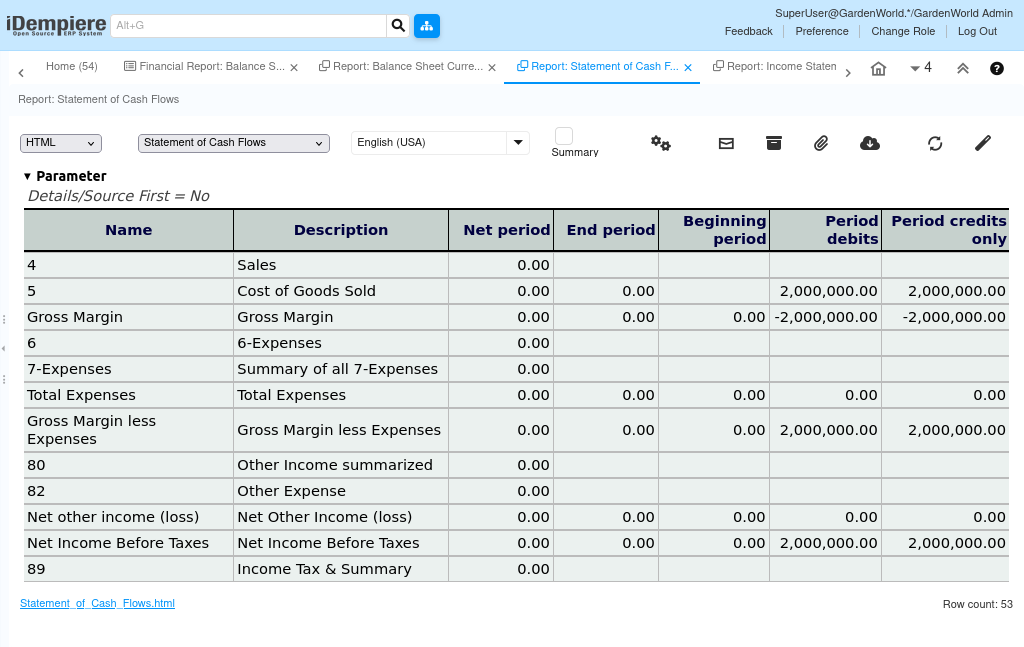
Report Output
The Income Statement report displays the organization’s Revenue and Expenses for the selected reporting period. Each line represents an account group or individual account (e.g. Sales, Cost of Goods Sold, Gross Margin, 7-Expenses, Total Expenses, Other Income, Other Expense), rolling up to Net Income Before Taxes and Income Tax & Summary. Balances are shown across the columns defined by the Report Column Set. When List Sources and List Transactions are enabled, supporting source accounts and individual transactions are listed beneath each account to allow drill-down analysis. The generated report can be viewed, printed, or exported for financial analysis, management review, and statutory reporting.