How to Use the Expenses (Not Reimbursed) Window in iDempiere
The Expenses (Not Reimbursed) window in iDempiere lists processed employee expense report lines that have not yet been linked to a purchase invoice.
Process Flow
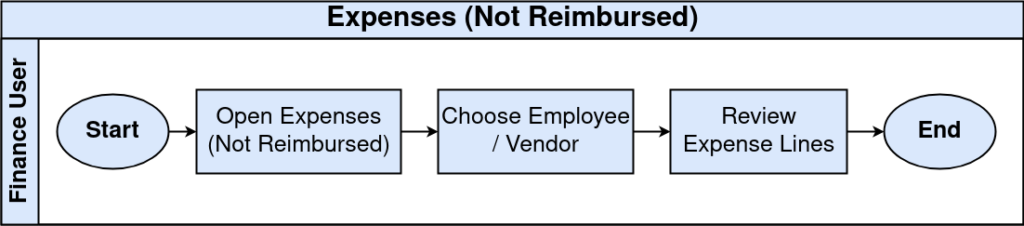
Business Rules
- Only processed expense report lines with a non-zero converted amount are listed.
- Lines already linked to a purchase invoice line are excluded from the list.
- Records are filtered by the Employee.
Prerequisites
- Business Partner record configured with the Employee or Vendor checkbox enabled.
- Expense Type or Product configured for expense claim categories.
- Expense Report created, submitted, and processed (Processed = Y).
- Organization (Store) assigned correctly on each expense report line.
- Currency and conversion rate configured for the expense date.
Navigation
Menu → Partner Relation → Services → Expenses (Not Reimbursed)
Configuration Steps
Open the Business Partner record, tick the Employee checkbox, and confirm Vendor is left unticked unless the same partner also supplies goods.
| Field | Sample Value | Description |
| Search Key | SR017 | Unique identifier for the employee record |
| Name | Ganesh Prabhu | Employee display name |
| Employee | Checked | Marks the partner as eligible to submit expenses |
| Vendor | Unchecked | Not used for reimbursement-only staff |
| Open Balance | 0.00 | Outstanding amount owed to the employee |

Step 2: Record and Process the Expense Report Line
Enter Expense Date, Product, Quantity, and Expense Amount on the report line, then process the parent Expense Report to set Processed = Y.
| Field | Sample Value | Description |
| Expense Report | 1000001_Ganesh Prabhu_07/20/2026 | Parent document for the claim |
| Line No | 10 | Sequence of the line in the report |
| Expense Date | 07/20/2026 | Date the expense was incurred |
| Product | BRI-GDBC-200_Britannia Good Day Butter Cookies — 200g | Item purchased for store use |
| Quantity | 1 | Units purchased |
| Expense Amount | 200.00 | Claimed amount before reimbursement |
| Currency | INR | Transaction currency |
| Converted Amount | 200.00 | Amount converted to store currency |
| Processed | Checked | Confirms the line is finalized and visible in this window |
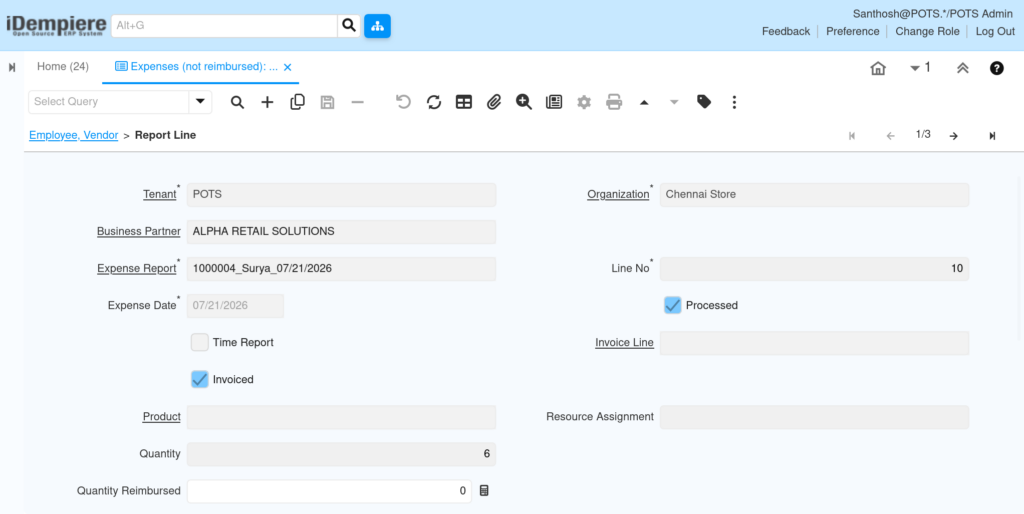
Step 3: Review Unreimbursed Lines by Business Partner
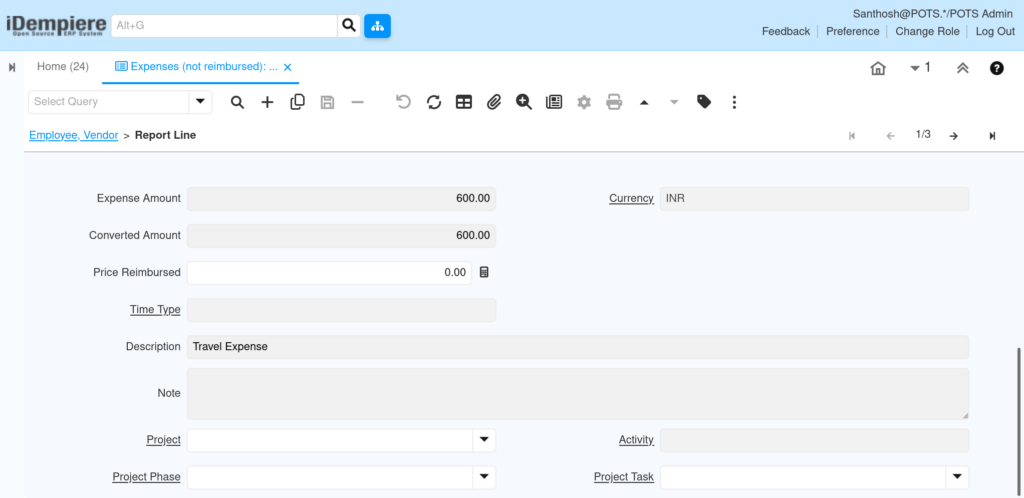
Search for the Employee or Vendor, open the Report Line tab, and review each line’s Expense Amount, Quantity Reimbursed, and Price Reimbursed.
| Field | Sample Value | Purpose |
| Organization | Chennai Store | Store where the expense originated |
| Business Partner | ALPHA RETAIL SOLUTIONS | Partner linked to the report line |
| Quantity Reimbursed | 0 | Units already paid back to the claimant |
| Price Reimbursed | 0.00 | Amount already paid back per unit |
| Invoiced | Checked | Indicates whether an invoice has referenced the line |
Common Issues and Resolutions
| Issue | Cause | Resolution |
| Expense line missing from the window | Expense Report not processed | Complete and process the Expense Report |
| Line still appears after invoicing | Invoice not generated from the expense line | Regenerate the invoice from the expense report instead of entering it manually |
| Converted Amount shows as zero | Missing currency conversion rate | Configure the Currency Conversion Rate for the expense date |
Next Steps
- Configure the Invoice (Vendor) window to reimburse the employee.
- Set up the Expense Type window for standard retail expense categories.
- Review the Business Partner window to confirm Open Balance accuracy.