How to Configure Report Cube in iDempiere
Introduction
The Report Cube window in iDempiere defines a multidimensional data cube used within Performance Analysis Rules for OLAP-style reporting.
It is used by finance and reporting teams to pre-aggregate transactional and accounting data across dimensions such as Product, Business Partner, and Sales Region.
Report cubes speed up performance analysis reports and dashboards by reducing the need to query large volumes of Fact Accounting data directly.
Process Flow Diagram

Business Rules
- Active report cubes are available for use in Performance Analysis Rule reporting.
- Calendar assignment defines the fiscal periods used for report cube recalculation.
- Only checked dimension checkboxes are included in the cube’s aggregated data.
- Report cube name must be unique within the Tenant and Organization.
- Last Recalculated date updates only after the recalculation process runs.
- Inactive report cubes are excluded from reporting selection lists.
- Report cubes follow standard Tenant and Organization data security rules.
Prerequisites
- Tenant and Organization configured.
- Calendar configured under General Rules.
- Accounting dimensions (Product, Business Partner, Activity, Project) set up as applicable.
- Role has window access to Report Cube.
Navigation
Menu → Performance Analysis and Accounting → Financial Reporting → Report Cube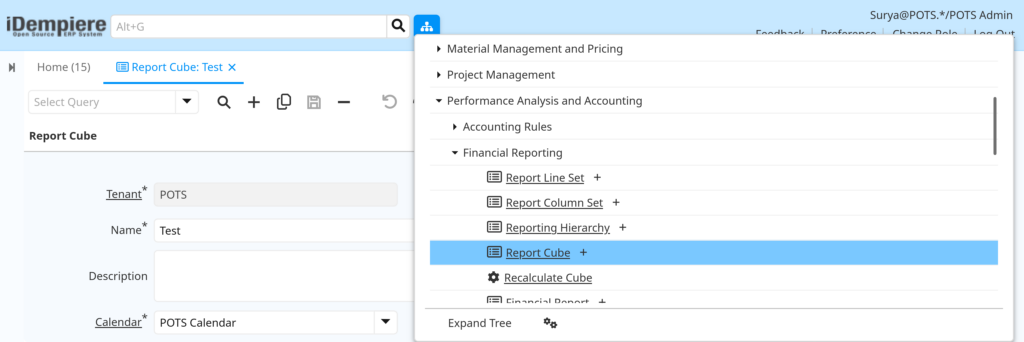
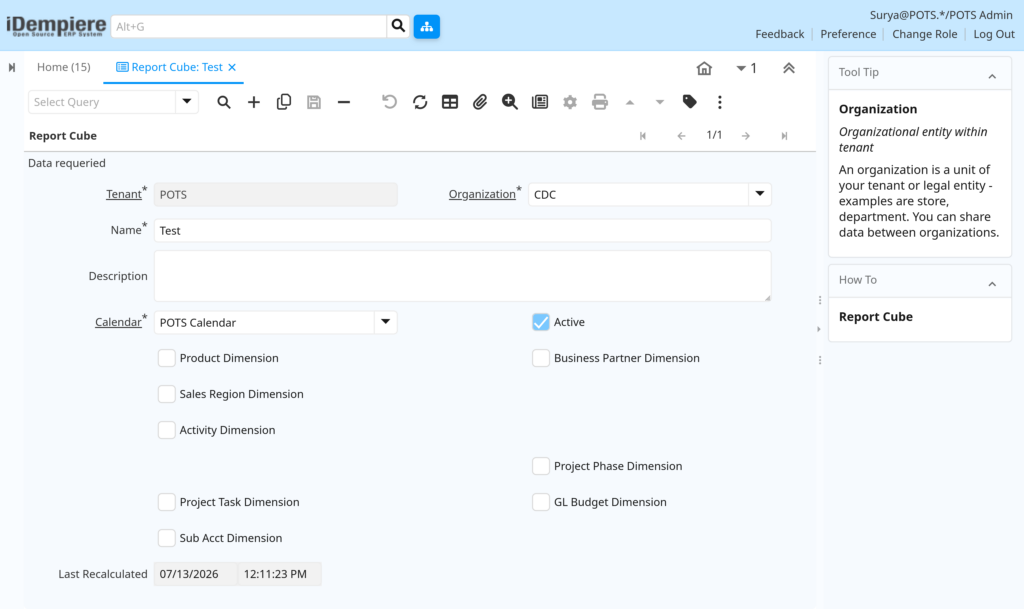
Opening the window displays the Report Cube list. Selecting or creating a record opens the detail form showing Tenant, Organization, Name, Description, Calendar, Active flag, dimension checkboxes, and the Last Recalculated timestamp.

Configuration Steps
Step 1: Create a New Report Cube Record
Establishes the base record that stores cube settings before dimensions and calendar are assigned.
Instructions
Click the New icon on the toolbar. Enter a unique Name and optional Description to identify the report cube for reporting users.
| Field | Sample Value | Description |
| Name | Test | Identifies the report cube in reporting selections |
| Description | (blank) | Provides additional context about the cube’s purpose |
Step 2: Assign Tenant and Organization
Determines the data scope and security context for the report cube.
Instructions
Confirm the Tenant field and select the Organization that owns this report cube. These values control who can access the cube.
| Field | Sample Value | Description |
| Tenant | POTS | Defines the client-level ownership of the cube |
| Organization | CDC | Defines the organizational scope for the cube |
Step 3: Assign Calendar
The calendar determines which fiscal year and period structure the cube uses during recalculation.
Instructions
Select a Calendar from the dropdown. This must match the calendar used by the related accounting schema for accurate period-based aggregation.
| Field | Sample Value | Description |
| Calendar | POTS Calendar | Defines fiscal periods used for cube recalculation |
Step 4: Select Dimensions
Dimensions define how transactional data is grouped and summarized within the cube.
Instructions
Check the dimension boxes needed for reporting, such as Product, Business Partner, Sales Region, Activity, Project Phase, Project Task, Sub Acct, or GL Budget.
| Field | Sample Value | Description |
| Product Dimension | Unchecked | Includes Product-level grouping in the cube |
| Business Partner Dimension | Unchecked | Includes Business Partner-level grouping |
| Sales Region Dimension | Unchecked | Includes Sales Region grouping |
| Activity Dimension | Unchecked | Includes Activity-based grouping |
| Project Phase Dimension | Unchecked | Includes Project Phase grouping |
| Project Task Dimension | Unchecked | Includes Project Task grouping |
| Sub Acct Dimension | Unchecked | Includes Sub Account grouping |
| GL Budget Dimension | Unchecked | Includes GL Budget comparison data |
Only active report cubes are available for selection in Performance Analysis Rules.
Instructions
Check the Active checkbox, then Save the record. Deactivating later removes the cube from reporting selection lists.
| Field | Sample Value | Description |
| Active | Checked | Controls cube availability in reporting |
Step 6: Recalculate the Report Cube
The cube must be recalculated to populate aggregated data before it can be used in reports.
Instructions
Save the record, then run the Recalculate process. The Last Recalculated field updates with the completion date and time.
| Field | Sample Value | Description |
| Last Recalculated | 07/13/2026 12:11:23 PM | Shows when the cube data was last refreshed |
Common Issues and Resolutions
| Issue | Cause | Resolution |
| Report Cube missing from selection lists | Active checkbox unchecked | Check Active and save the record |
| Calendar dropdown is empty | No Calendar configured for the Organization | Configure a Calendar under General Rules |
| Last Recalculated date not updating | Recalculation process not executed | Run the Recalculate process manually |
| Duplicate Name error on save | Name already exists in the Tenant | Enter a unique report cube Name |
| Selected dimension missing from report output | Dimension saved but cube not recalculated | Save changes then recalculate the cube |
| Report cube performance is slow | Too many dimensions selected on large datasets | Limit dimensions to those needed for reporting |
| Window not visible in menu | Role lacks access to the Report Cube window | Grant window access through Role Window Access |
Next Steps
- Configure a Performance Analysis Rule that references this Report Cube.
- Review GL reporting or dashboard content that uses cube data.
- Set up additional Report Cube records for other analysis needs.