How to Generate Invoices in iDempiere
The Generate Invoices window in iDempiere automates AR Invoice creation from completed Sales Orders, removing the need to build every customer invoice manually.
It directly affects Accounts Receivable, revenue posting, and shipment reconciliation, since invoices are only created once the invoice rule and delivery conditions are satisfied.
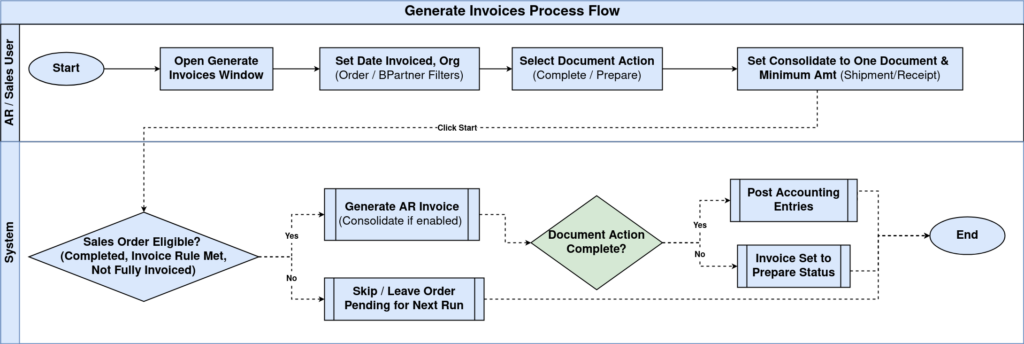
Process Flow Diagram
Business Rules
- Only completed Sales Orders are eligible for invoice generation.
- Orders that are already fully invoiced are excluded automatically.
- The Invoice Rule on the Sales Order determines when invoicing is allowed.
- Immediate rule invoices directly from order lines without requiring a shipment.
- After Delivery rule requires a completed Customer Shipment before invoicing.
- After Complete Order rule waits until the entire order has been delivered.
- Consolidate to One Document merges multiple eligible orders into a single invoice.
- Minimum Amt skips invoice creation when the total is below the configured value.
- Shipment lines are marked Invoiced automatically to prevent duplicate billing.
- Payment Term and due dates are copied from the Sales Order to the invoice.
- Document Action Complete posts accounting entries immediately after generation.
Prerequisites
- Business Partner configured with a valid Payment Term and Price List.
- Sales Order completed with the Invoice Rule field set.
- Customer Shipment completed for After Delivery or After Complete Order rules.
- Document Type for AR Invoice configured for the organization.
- Organization and Warehouse configured for the selling location.
Configuration Steps
Step 1: Set the Invoice Date
Enter or accept the default Date Invoiced. Use the current billing date that matches your open accounting period.
| Field | Sample Value | Description |
| Date Invoiced | 07/03/2026 | Accounting date applied to all generated invoice documents |
Step 2: Filter the Orders to Process
Select an Organization or leave it as * for all branches. Optionally choose a single Order or Business Partner to restrict the run.
| Field | Sample Value | Description |
| Organization | * | Restricts invoice generation to one branch or all organizations |
| Order | 10000 | Generates an invoice for a single selected Sales Order only |
| Business Partner | Alpha retail solutions | Generates invoices only for the selected customer |
Step 3: Choose the Document Action
Set Document Action to Complete to post the invoice immediately, or Prepare to review it before completion.
| Field | Sample Value | Description |
| Document Action | Complete | Defines the invoice status after generation: Complete or Prepare |
Step 4: Enable Consolidate to One Document
Check Consolidate to One Document to merge eligible orders for the same customer into one invoice. Leave unchecked for one invoice per order.
| Field | Sample Value | Description |
| Consolidate to one Document | Checked | Merges multiple orders of the same customer into a single invoice |
Step 5: Set a Minimum Invoice Amount
Enter a value in Minimum Amt. Orders totaling below this amount are skipped and remain uninvoiced until combined with future orders.
| Field | Sample Value | Description |
| Minimum Amt | 1000 | Skips invoice creation if the eligible total is below this value |
Step 6: Run as Job and Start the Process
Check Run as Job for background processing on large data sets, then click Start. Review the process log for the created invoice count.
| Field | Sample Value | Description |
| Run as Job | Unchecked | Executes the process asynchronously as a background job |
Common Issues and Resolutions
| Issue | Cause | Resolution |
| No invoices generated | Invoice Rule is After Delivery but shipment not completed | Complete the Customer Shipment before running the process |
| Order not billed again | Shipment lines already marked Invoiced | Check existing invoices; no action needed if already billed |
| Orders merged unexpectedly | Consolidate to One Document was checked | Uncheck the option to generate one invoice per order |
| Small orders never invoiced | Order total is below the configured Minimum Amt | Lower the threshold or wait until combined orders exceed it |
| Invoice stuck in Prepare status | Document Action was set to Prepare | Manually complete the invoice or rerun with Complete selected |
| Wrong payment terms on invoice | Business Partner Payment Term changed after order creation | Update the Sales Order Payment Term before invoicing |
| Process shows zero created count | No Sales Orders match Completed status with open quantity | Confirm the Sales Orders are completed and not already fully invoiced |
Next Steps
- Configure Payment Selection to apply customer payments to the generated invoices.