How Product Attribute Grid Works in iDempiere
Introduction
The Product Attribute Grid is an iDempiere Core window that displays product stock or price data as a matrix built from two product attributes, such as Color and Capacity.
It is used in retail and distribution operations that sell variant-based products, letting warehouse and sales staff view availability across an entire attribute range in one screen.
This consolidated view speeds up stock checks, quoting, and order entry, reducing the need to open individual product records for every variant combination.
Process Flow Diagram
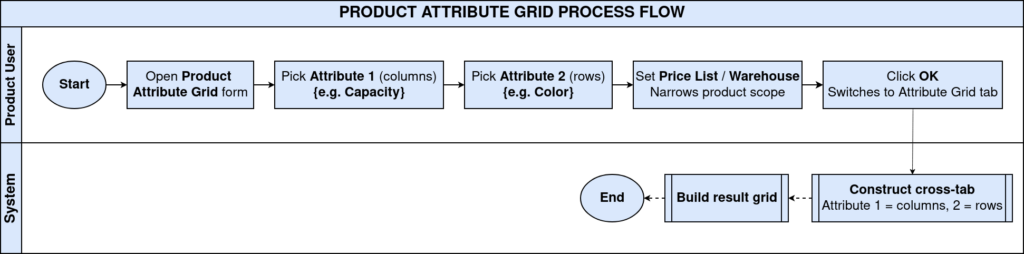
Business Rules
- Only active Attribute Set Instances (ASI) appear in the grid.
- Attribute 1 and Attribute 2 must belong to the product’s Attribute Set to show data.
- Grid values are filtered by the selected Warehouse and Price List combination.
- Mode on the Attribute Grid tab decides whether cells show quantity on hand or price.
- Combinations with no stock or no price show as blank cells.
- The grid refreshes based on the Selection tab criteria confirmed before switching tabs.
Prerequisites
- Attribute Set configured with at least two Attributes (e.g., Color, Capacity).
- Attribute Set assigned to the relevant Products.
- Attribute Set Instances created through receipts or product setup.
- Warehouse configured and active.
- Price List configured with an active Price List Version.
- Products included in the selected Price List Version.
Navigation
Menu → Material Management and Pricing → Product Attribute Grid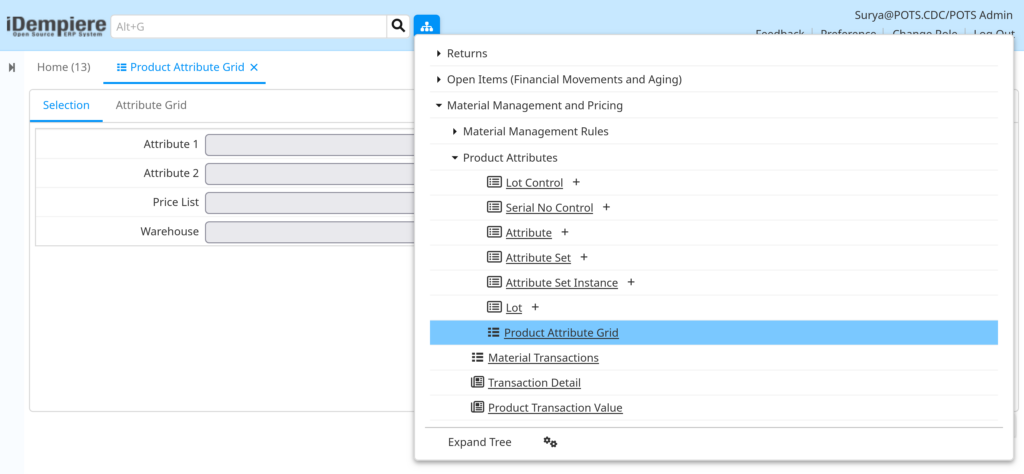
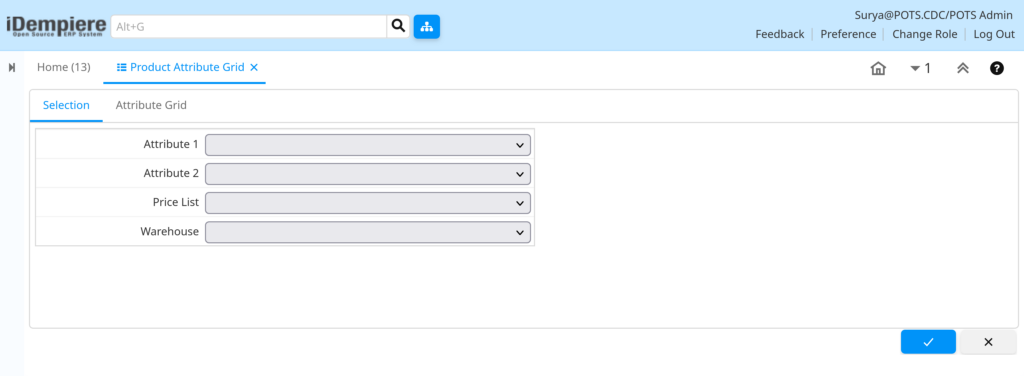
Opening the window shows the Selection tab with four dropdown fields: Attribute 1, Attribute 2, Price List, and Warehouse. No data displays until these are chosen and confirmed.
Configuration Steps
Step 1: Open the Product Attribute Grid Window
This step loads the Selection tab where the attribute pair and filter criteria are defined before any matrix data is generated.
Instructions
Navigate to the Product Attribute Grid. The window opens directly on the Selection tab.
Step 2: Choose Attribute 1 and Attribute 2
These two attributes define the row and column axis of the matrix, so they must be picked before generating the grid.
Instructions
Open the Attribute 1 dropdown and pick the row attribute (e.g., Color). Open Attribute 2 and pick the column attribute (e.g., Capacity).
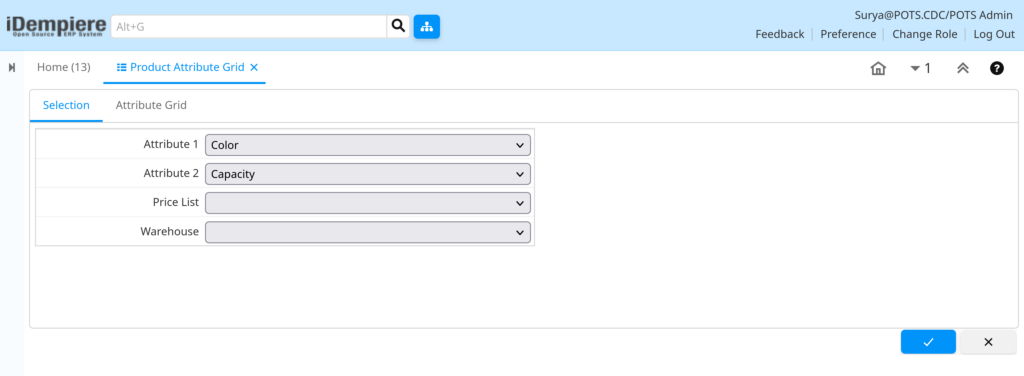
| Field | Sample Value | Description |
| Attribute 1 | Color | Attribute used as the row axis of the grid |
| Attribute 2 | Capacity | Attribute used as the column axis of the grid |
Step 3: Select Price List and Warehouse
These filters scope the grid to one price list and one warehouse so the displayed figures are business-relevant and accurate.
Instructions
Select the applicable Price List, then select the Warehouse to check. Confirm the Selection tab using the checkmark button.

| Field | Sample Value | Description |
| Price List | Standard | Price list used to filter pricing data shown in the grid |
| Warehouse | HQ Warehouse | Warehouse used to filter stock quantities shown in the grid |
Note: Selecting the same attribute for both Attribute 1 and Attribute 2 produces a matrix with no meaningful comparison.Step 4: Switch to the Attribute Grid Tab
The Attribute Grid tab renders the actual matrix, so the Selection tab criteria must be confirmed first.
Instructions
Click the Attribute Grid tab. Set Mode to choose between quantity or price view, then review the generated matrix.

| Field | Sample Value | Description |
| Mode | View | Determines whether the grid readonly or editable |
| Row Header | BLACK, BLUE, BROWN, GREEN, GREY, NAVY BLUE | Values of Attribute 1 displayed as rows |
| Column Header | 64 GB, 128 GB, 256 GB, 512 GB | Values of Attribute 2 displayed as columns |
Common Issues and Resolutions
| Issue | Cause | Resolution |
| Grid displays empty | No Attribute Set Instance exists for the combination | Receive stock or create the ASI for that combination |
| Attribute 1 / Attribute 2 list is empty | Attribute Set not assigned to any product | Assign the Attribute Set to relevant Products |
| Warehouse dropdown has no options | Warehouse inactive or Organization access missing | Activate the Warehouse and check user Organization access |
| Price values missing in grid | Product not listed in the selected Price List Version | Add the product to the Price List Version |
| Quantities do not match physical count | Grid reflects last processed transaction only | Complete pending Material Receipt or Inventory Move documents |
| Matrix looks meaningless | Same attribute chosen for Attribute 1 and Attribute 2 | Select two distinct attributes |
| Mode change has no effect | Selection tab not confirmed before switching tabs | Confirm the Selection tab, then reopen the Attribute Grid tab |
Next Steps
- Product Attribute Set window – define attributes and values.
- Product window – assign the Attribute Set to products.
- Price List and Price List Version – maintain pricing per variant.
- Warehouse and Locators – configure storage for variant stock.
- Material Receipt / Inventory Count – record stock for new combinations.