How to Reopen Request in iDempiere
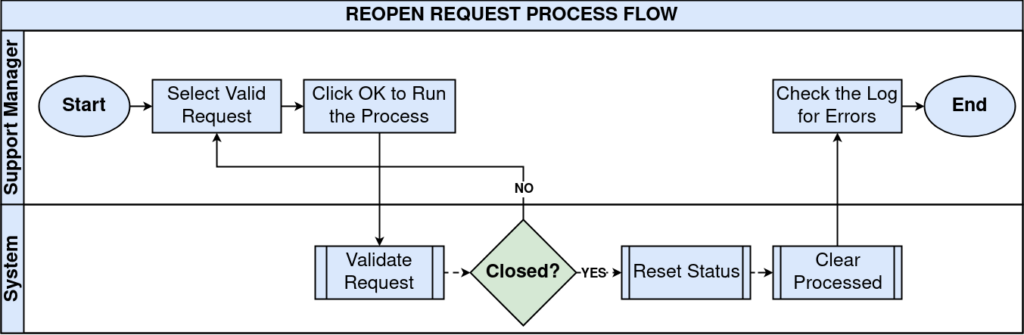
The Reopen Request process in iDempiere reactivates a closed or completed Request/Ticket without creating a new record. Retail stores use it in customer service and after-sales support when a resolved issue resurfaces, such as a returned repair or an unresolved complaint. Running this process resets the ticket to its default open status and clears the Processed flag, so support staff can continue updates while keeping the full history, activities, and customer communication intact for accurate service tracking and reporting.
Process Flow
Business Rules
- Only closed or completed requests need reopening; active requests are unaffected by this process.
- The reopened request always returns to the default status configured for its Request Type.
- The Processed flag is set to No, marking the request as active again.
- Reopening preserves all prior activities, comments, and communication history on the ticket.
- The process requires a valid Request ID; invalid IDs are rejected with a Not Found error.
- Requests can be reopened individually or scheduled to run as a background job.
- No new request record is created; the original document number remains unchanged.
Prerequisites
- Request Type configured with a valid default (open) status.
- Request Management module set up under the CRM / Help Desk menu.
- At least one closed or completed Request record exists in the system.
- User has role access/permission to run the Reopen Request process.
Navigation
Menu → Partner Relation → Request → Reopen Request (Process)
Configuration Steps
Step 1: Enter the Request Reference
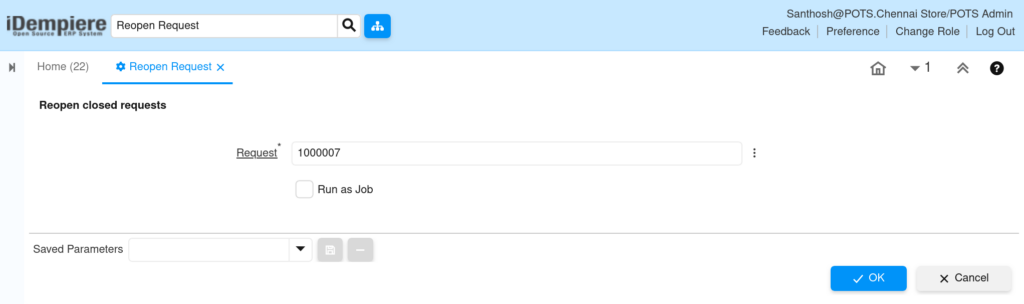
Open Reopen Request from the CRM menu. In the Request field, search for the document number of the closed ticket, for example 1000007, and select it from the lookup.
| Field | Sample Value | Description |
|---|---|---|
| Request | 1000007 | Document number of the closed or completed ticket to reopen |
| Run as Job | Unchecked | Runs the process immediately; check to schedule as a background job |
Step 2: Choose the Execution Mode
Leave Run as Job unchecked for immediate reopening during store hours. Check it only when scheduling the reopen as a background task.
Step 3: Execute the Process
Click OK to run the process. iDempiere displays “** OK” confirming the request status was reset and the Processed flag cleared.

Common Issues and Resolutions
| Issue | Cause | Resolution |
|---|---|---|
| “Request Not Found” error | Request ID entered does not exist or was mistyped | Search and select the document via the lookup instead of typing it manually |
| Reopened ticket shows an unexpected status | Request Type has no default status configured | Set a default status on the Request Type window |
| Ticket looks unchanged after running | Old browser tab or cached Request window view | Refresh or reopen the Request window |
| OK button appears disabled | Mandatory Request field left empty | Select a valid request from the lookup before clicking OK |
| Reopened request closes again automatically | A workflow or document action rule reassigns the status | Review the Request Type workflow configuration |
| Bulk reopening slows down the screen | Multiple requests reopened one by one in the foreground | Enable Run as Job for batch processing |
| User cannot access the process | Role lacks access to the Reopen Request process | Grant process access to the role in the Role window |
Next Steps
- Review the reopened request in the Request window and add follow-up activities.
- Notify the customer or assigned support representative of the reopened status.
- Check Request Type configuration if default statuses need adjustment.
- Set up Request Processing rules for recurring reopen scenarios.