How to use UnLink Business Partner Org in iDempiere
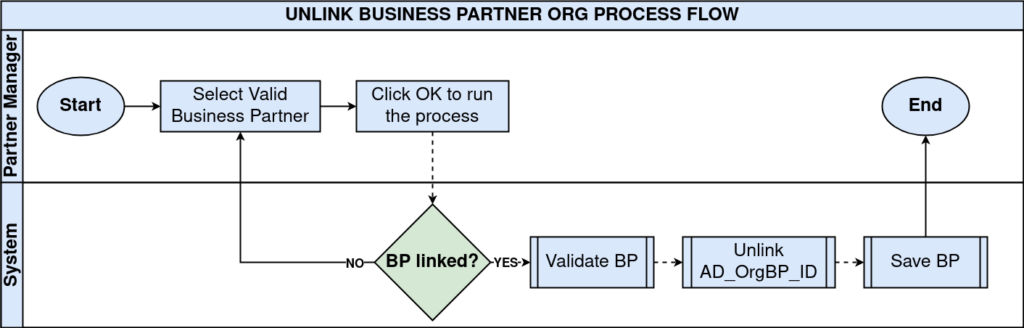
The UnLink Business Partner Org Process removes the link between a Business Partner and an Organization by clearing the AD_OrgBP_ID field. Running it does not delete any record it only clears the relationship, keeping historical transactions and reporting intact.
Business Rules
- Only a Business Partner currently linked to an Organization can be unlinked.
- The process requires a valid Business Partner to run.
- Unlinking clears AD_OrgBP_ID only; the Business Partner and Organization records remain.
- A Business Partner already unlinked cannot be processed again.
Process Flow
Prerequisites
- Business Partner record configured and linked to an Organization (AD_OrgBP_ID set).
- Organization configured in the Application Dictionary.
- User role has access to run the UnLink Business Partner Org process.
Navigation
Menu → Partner Relation → Business Partner Rules → UnLink Business Partner Org
Configuration Steps
Step 1: Open the Business Partner Record
Open the Business Partner window, search for the store’s Business Partner record, and confirm it is currently linked to an Organization.

Step 2: Launch the UnLink Business Partner Org Process
From the Business Partner window, open the Process menu and select UnLink Business Partner Org. The parameter screen opens with the Business Partner pre-populated.
Field Reference
| Field | Sample Value | Description |
| Business Partner | FIVE TECHNOLOGIES PRIVATE LIMITED | Business Partner record to be unlinked from its Organization |
| Run as Job | Unchecked | Runs the process immediately instead of scheduling it as a background job |
Step 3: Execute and Confirm the Unlink
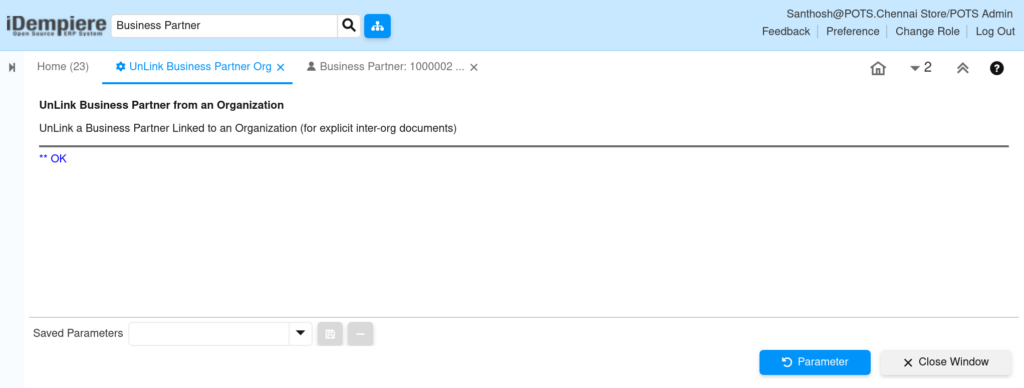
Review the Business Partner field, leave Run as Job unchecked for immediate execution, and click OK. The system displays an OK confirmation once AD_OrgBP_ID is cleared by clicking the gear icon for the partner in Business Partner Window.
Common Issues and Resolutions
| Issue | Cause | Resolution |
| “Business Partner not changed” | Save failed due to validation rule or record lock | Check for open documents on the Business Partner and retry |
| Link still appears after running | Window or report using cached data | Refresh the Business Partner window or re-query the record |
| Process option not visible | User role lacks access to the process | Grant role access to UnLink Business Partner Org |
Next Steps
- Configure the Organization window when setting up a new retail store entity.
- Re-link the Business Partner to an Organization from the Business Partner window if reassigning.
- Review Inter-Org Document configuration for stores that trade across organizations.
Note: This process only clears AD_OrgBP_ID. It does not affect Business Partner balances, invoices, or Organization setup.