How to use My Unprocessed Documents in iDempiere
Learn how the My Unprocessed Documents window in iDempiere helps users track and complete draft business documents.
Introduction
The My Unprocessed Documents window in iDempiere is a monitoring tool that lists documents still in Drafted status across sales, purchasing, and financial tables. It gives users a single place to review pending work instead of searching each source window.
It is used in standard business processes wherever documents follow a Draft-to-Complete lifecycle, such as invoicing, ordering, and journal entry.
Process Flow
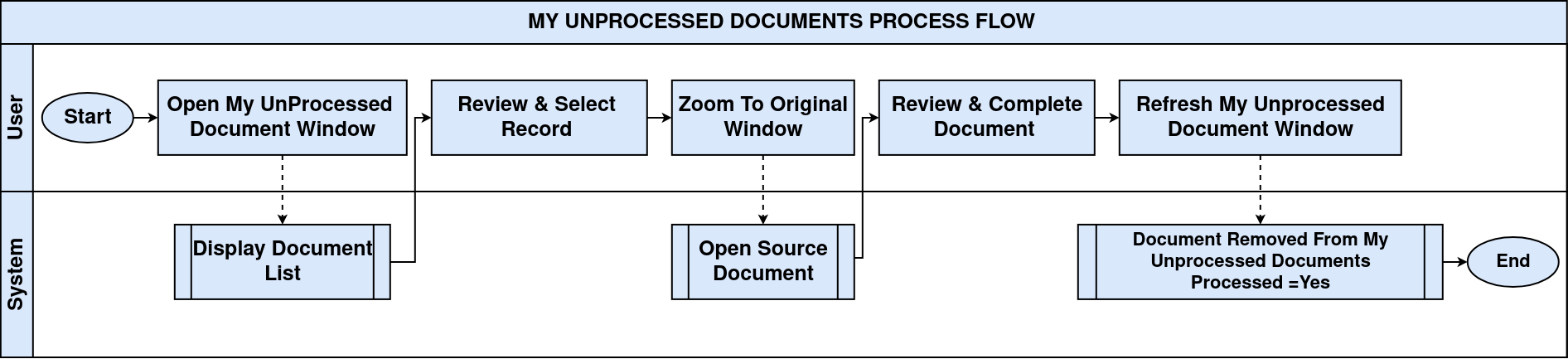
Business Rules
- The window lists only records currently in Drafted or unprocessed status across configured document tables.
- Records shown are restricted to the logged-in user’s Client, Role and Organization access rights.
- The Processed checkbox reflects whether the underlying document has completed its standard workflow.
- The Process Now checkbox lets a user trigger completion of the document directly from this window.
- Sales Transaction indicates whether the source record belongs to a sales-side or purchase-side document.
- The Active flag follows standard iDempiere logic; inactive records are excluded from normal transaction lists.
- Document Date and Account Date follow the standard iDempiere accounting date rules for each source table.
- Selecting a row allows direct navigation (zoom) to the originating document for review or completion.
Prerequisites
- User must have an active iDempiere login with a Role that has access to the relevant Client and Organization.
- The Table and Window Access for the source documents (e.g., Sales Invoice, Sales Order) must be granted to the Role.
- Underlying documents (invoices, orders, journals, etc.) must already exist in Drafted or unprocessed status.
- Standard document types and document sequences must be configured for the source tables being monitored.
- Organization and Warehouse setup must be completed for the entities that generate the unprocessed documents.
Configuration Steps
Step 1: Access the Unprocessed Documents Window
This window gives users a single view of all draft documents awaiting action, avoiding the need to search each source window individually.
Open the Home page and click the My Unprocessed Documents panel, or search for it from the main menu. The window opens with a list of pending records.
iDempiere automatically populates the list based on the logged-in user’s Client and Organization access.
Step 2: Review the Source Document Reference
Users need to know which table and record the unprocessed entry belongs to before taking action.
Check the Table and Record ID fields to identify the originating document type and its unique reference in the database.
The Record ID lets users zoom directly into the originating document window.
Step 3: Verify Document Identification Details
Confirming the document number and dates ensures the correct record is being reviewed before processing.
Review the Document No, Document Date, and Account Date to confirm the transaction period and reference.
Dates default from the source document and follow standard iDempiere accounting date validation.
Step 4: Check the Document Status
The status field confirms the current lifecycle stage of the document and whether action is required.
Review the Document Status field, typically shown as Drafted for records appearing in this list.

Only documents that have not reached a completed or closed status appear in this list.
Step 5: Complete or Process the Document
Processing the document moves it through the standard iDempiere document lifecycle and updates related records.
Select Process Now to trigger the standard Complete action, or open the source document to process it manually.
Checking Process Now runs the same Document Action logic used in the source window, subject to standard validations.
Step 6: Confirm Transaction Type and Active Status
These flags help users distinguish sales-side documents from purchase-side documents and confirm the record is still valid.
Review the Sales Transaction checkbox to identify the transaction direction, and confirm Active is checked for valid records.
After completing the configuration, the window is ready for use in standard iDempiere transactions.
Field Reference
The table below consolidates every field visible on the My Unprocessed Documents window.
| Field | Sample Value | Description |
| Tenant | POTS | Client (Tenant) that owns the unprocessed record. |
| Organization | Chennai Store | Business unit or store where the document originated. |
| Table | C_Invoice_Invoice | Source database table generating the unprocessed record. |
| Record ID | 1000019_12/28/2025_295.0 | Unique identifier linking back to the source document. |
| Document No | 1000019 | System or manually assigned reference number of the document. |
| Document Date | 12/28/2025 | Date the transaction was created. |
| Account Date | 12/28/2025 | Date used for accounting and financial posting. |
| Document Status | Drafted | Current lifecycle stage of the source document. |
| Processed | Unchecked | Indicates whether the document has completed processing. |
| Process Now | Unchecked | Triggers the standard Complete action from this window. |
| Sales Transaction | Unchecked | Indicates whether the record is a sales-side document. |
| Active | Checked | Confirms the record is valid and available for standard processing. |
Common Issues and Resolutions
| Issue | Cause | Resolution |
| Document does not disappear from the list after processing | The Processed flag has not been refreshed or the underlying document failed to complete | Refresh the window and verify the source document status is Completed |
| Expected document is missing from the list | User’s Role does not have access to the Organization or Table of that document | Grant the required Organization and Table Access to the user’s Role |
| Process Now does not complete the document | Mandatory fields on the source document are missing or a standard validation failed | Open the source document and resolve the validation error before reprocessing |
| Record ID appears as a combined text string | This is standard behaviour combining key values from the source table | Use the zoom action to open the actual source document instead of reading the raw ID |
| Duplicate-looking entries for the same Document No | Multiple related records (e.g., invoice lines or schedules) reference the same header | Confirm each row against its Table and Record ID before taking action |
| Account Date differs from Document Date | The accounting period differs from the transaction date per standard date logic | Verify the correct accounting period is open before processing |
| Window loads with no records | All documents for the user’s Client and Organization are already processed | This is expected behaviour; no action is required |
Next Steps
- Sales Invoice window – review and complete invoice-related unprocessed documents.
- Sales Order window – review and complete order-related unprocessed documents.
- Payment window – process related unprocessed payment allocations.
- GL Journal window – review unprocessed general ledger entries.
- Document Action / Workflow Activities – track approval status of related documents.