How to Use Active Session in iDempiere
Learn how the Active Session window works in iDempiere — monitor live logins, view user, role and connection details in real time.
Introduction
The Active Session window in iDempiere displays all user logins that are currently active on the system. It is a read-only monitoring window used by administrators to verify who is logged in, from which machine, and on which application server.
By providing real-time visibility into active logins, the window helps administrators confirm system usage, investigate connectivity issues, and decide when to review historical session data.
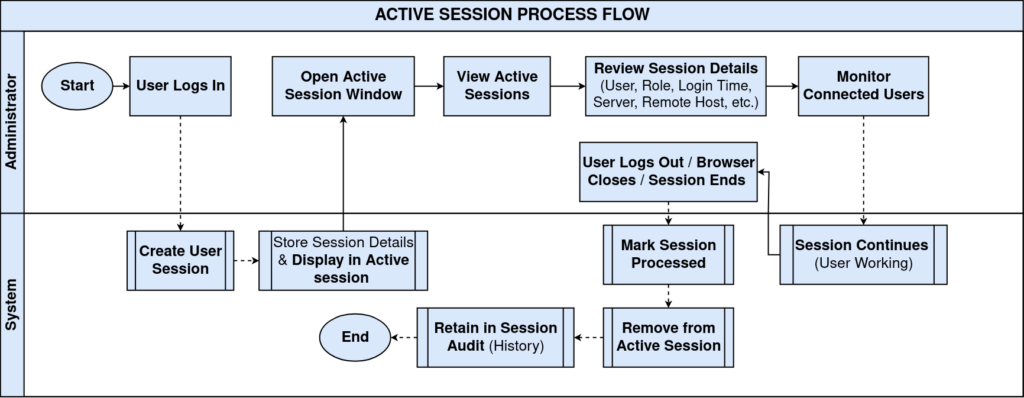
Process Flow
Business Rules
- A new session record is created automatically for every successful iDempiere login.
- Each login generates a unique Session ID, even for the same user logging in twice.
- Only unprocessed sessions (Processed = ‘N’) are displayed in this window.
- When a user logs out, the session is marked processed and disappears from this window.
- All fields in this window are read-only; no data can be entered or edited here.
- Session data is retrieved from a database view, not directly from the session table.
- Multiple users can appear simultaneously when multiple active sessions exist.
- The Login Date reflects the ERP business date, not the exact login time.
- Historical or completed sessions are not shown here; they appear in Session Audit.
Prerequisites
- User must have System Administrator or equivalent role-based access to Security windows.
- The Active Session window must be accessible from the System Admin menu tree.
- At least one active user login must exist for records to appear in the window.
- Standard iDempiere Role and Client/Organization setup must be completed for accurate display of Tenant, Organization and Role fields.
Configuration Steps
Since the Active Session window is a read-only monitoring window, the following steps describe how to navigate to it and interpret the information it displays.
Step 1: Open the Active Session Window
This step is required to access real-time session monitoring data.
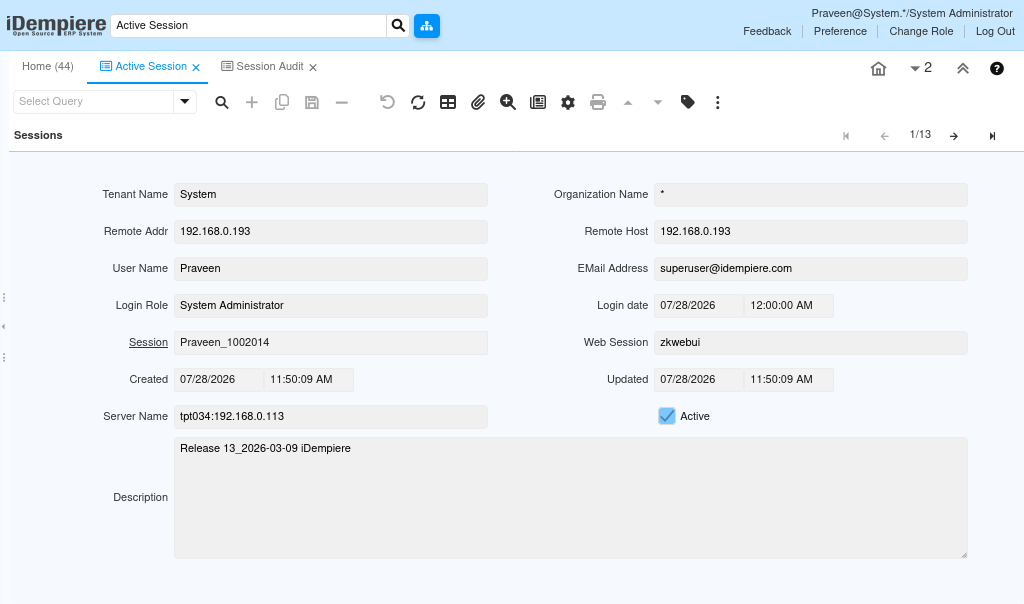
Navigate to System Admin → General Rules → Security → Active Session. The window opens and lists all currently active login sessions retrieved from the system.
Step 2: Review Session Identification Details
This step helps confirm which user, tenant, organisation and role are associated with the session.
Check the Tenant Name, Organization Name, User Name, Login Role and Email Address fields to identify the account behind the active session.
| Field | Sample Value | Description |
| Tenant Name | System | Tenant in which the user is currently logged in. |
| Organization Name | * | Organisation selected during login; blank if logged in at System/all-org level. |
| User Name | Praveen | Display name of the logged-in user. |
| Login Role | System Administrator | Security role used during login; determines user permissions. |
| Email Address | superuser@idempiere.com | Email address of the logged-in user. |
Step 3: Review Connection and Server Details
This step is required to identify the source machine and application server handling the session.
Review the Remote Address, Remote Host, Server Name and Web Session fields to determine where the user connected from and which server is servicing the session.
| Field | Sample Value | Description |
| Remote Addr | 192.168.0.193 | IP address of the client machine from which the user connected. |
| Remote Host | 192.168.0.193 | Client host name or IP address, used for network identification. |
| Server Name | tpt034:192.168.0.113 | Application server currently servicing the session. |
| Web Session | zkwebui | Identifies the WebUI browser connection context for the session. |
These values are useful in clustered or multi-server deployments to trace which server handled a login.
Step 4: Review Session Timestamps
This step confirms when the session was created and last updated.
Check the Login Date, Created and Updated fields to understand the session timeline.
| Field | Sample Value | Description |
| Login date | 07/28/2026 12:00:00 AM | ERP business date associated with the login. |
| Created | 07/28/2026 11:50:09 AM | Actual date and time the session record was created. |
| Updated | 07/28/2026 11:50:09 AM | Last time the session record was updated. |
The Login Date always displays 12:00:00 AM as it stores only the business date, while Created records the exact login time.
Step 5: Verify Session Status
This step confirms whether the session is status and reviews any additional session notes.
| Field | Sample Value | Description |
| Session | Praveen_1002014 | Unique identifier combining user name and session ID. |
| Active | Checked | Indicates the session record is currently active. |
| Description | Release 13_2026-03-09 iDempiere | Additional information recorded when the session was created. |
When a user logs out, Processed is updated to ‘Y’ and the record no longer appears in this window.
Common Issues and Resolutions
| Issue | Cause | Resolution |
| Session not visible in the window | The session has already been processed (Processed = ‘Y’). | Check the Session Audit window for historical session records. |
| Login Date differs from Created time | Login Date stores the ERP business date, not the exact login timestamp. | Refer to the Created field for the precise login time. |
| Remote Host shows the same value as Remote Address | DNS host name resolution is unavailable in the network. | Configure DNS resolution, or treat the IP address as the host identifier. |
| Web Session always shows ‘zkwebui’ | The field stores the WebUI application context, not a unique browser ID. | Use the Session field to distinguish between individual user sessions. |
| Organization Name appears blank | The user logged in at the System tenant or an all-organization context. | This is expected standard behaviour; no action is required. |
| Session still visible after logout | The logout request has not yet updated the Processed flag. | Refresh the window; the session should disappear once processing completes. |
| Cannot find the Active Session menu item | The logged-in user does not have System Administrator access. | Log in with a role that has access to System Admin → Security windows. |
Next Steps
- Review the corresponding Session Audit record after the session ends.
- Analyse related Change Audit entries associated with the session.
- Investigate user activity using the recorded Session ID.
- Use the session information to troubleshoot login or connectivity issues.