How to use Online Transaction History in iDempiere
Online Transaction History is the audit log window in iDempiere that records every response returned by a card payment gateway after a Process Online action on a Payment.
Each record links back to the originating Payment Transaction, giving finance and support teams a reliable trail for reconciliation, dispute handling, and gateway troubleshooting.
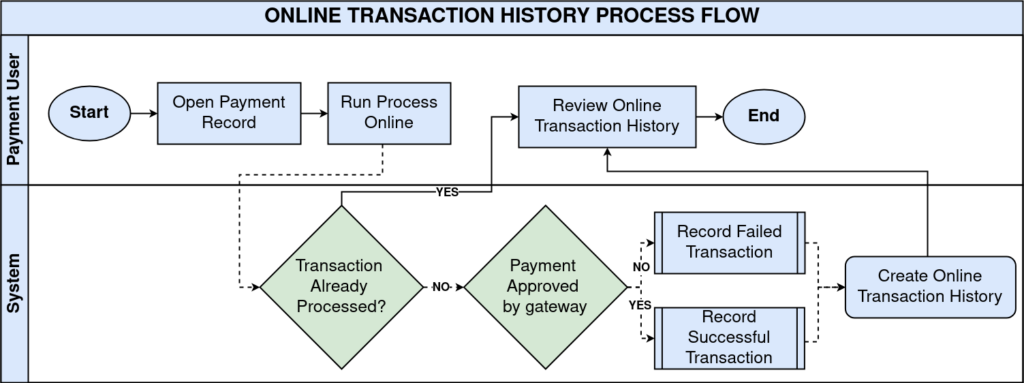
Process Flow
Business Rules
- Active records reflect valid, retained gateway response entries for a transaction.
- Each history record is linked to one Table and Record ID, typically Payment Transaction.
- Text Message stores the raw gateway response, success or failure detail.
- Error is checked automatically when the gateway declines or fails a transaction.
- Processed is set once iDempiere finishes writing the transaction outcome.
- History records are created automatically; users do not enter them manually.
- Every Process Online attempt generates a corresponding transaction history entry.
Prerequisites
- Bank Account Processor configured and linked to the store’s bank account.
- Payment Processor configured with a valid gateway class and host address.
- Business Partner and Payment record created for the sale, refund, or void.
- Credit card or tender details captured on the Payment window.
- Organization and Tenant (Client) set up for the retail store location.
Navigation
Menu → Payment Processor → Online Transaction History
Opening the window shows a list of history records. Each row displays the Tenant, Organization, linked Table, Record ID, and Processed/Error flags, with Text Message holding the gateway detail.
Configuration Steps
Step 1: Confirm Payment Processor Setup Is Complete
Open Payment Processor, verify Pay Processor Class and host details are filled in, then confirm the Bank Account Processor links this processor to the store’s bank account.
Step 2: Process a Payment Online
Open the Payment window, enter card details, and click Process Online. iDempiere sends the request to the gateway and generates the history record automatically.
Step 3: Open the Online Transaction History Window
Navigate to Payment Processor → Online Transaction History, then locate the newest record using Created date or the Record ID from the Payment Transaction.
Field Reference Table
| Field | Sample Value | Description |
| Tenant | GardenWorld Retail | Client that owns the transaction record. |
| Organization | Downtown Store | Store or branch where the payment occurred. |
| Created | 14/07/2026 10:42 | Date and time the history record was generated. |
| Table | C_PaymentTransaction | Reference table the record is linked to. |
| Record ID | 1000123 | ID of the linked Payment Transaction record. |
| Active | Checked | Marks the history record as valid and retained. |
| Text Message | Approved – Auth Code 445extra | Raw gateway response returned for the transaction. |
| Error | Unchecked | Indicates the gateway declined or failed the request. |
| Processed | Checked | Confirms iDempiere finished recording the outcome. |
Step 4: Review Error and Processed Flags
If Error is checked, read the Text Message for the decline reason. If Processed is unchecked, treat the payment as incomplete and re-verify with the gateway before retrying.
Step 5: Cross-check with Payment Transaction and Payment
Use the Record ID to open the matching Payment Transaction, then trace it to the originating Payment for amount, business partner, and tender details.
Common Issues and Resolutions
| Issue | Cause | Resolution |
| No history record after Process Online | Bank Account Processor or Payment Processor not found for the tender type | Verify processor configuration matches currency, tender type, and amount used |
| Error checked but Text Message is blank | Gateway response fields were not mapped by the processor implementation | Check the payment processor class handling and gateway integration logs |
| Duplicate history records for one payment | Process Online was triggered more than once for the same transaction | Confirm Payment isApproved or isVoided status before reprocessing |
| Record ID does not match expected Payment Transaction | Table reference points to a different AD_Table_ID than expected | Confirm the processor is writing to C_PaymentTransaction consistently |
| Processed stays unchecked after a successful sale | Gateway response evaluation did not complete before saving | Re-run Process Online and check gateway connectivity and timeout settings |
| Text Message shows generic error only | Processor did not capture Authorization Code or Reference fields | Review processor mapping of R_AuthCode, R_PnRef, and R_RespMsg fields |
| Users cannot find related payment quickly | Record ID requires manual lookup with no direct zoom | Train staff to search Payment Transaction by ID from this window |
Next Steps
- Configure or review Bank Account Processor settings.
- Configure or review Payment Processor gateway class and credentials.
- Review Payment Transaction records for full transaction snapshots.
- Check Payment window for the originating sale, refund, or void.