How to Use Import Inventory in iDempiere
Learn how the Import Inventory window in iDempiere imports Physical Inventory, Internal Use, and Cost Adjustment records into standard inventory documents.
Introduction
Import Inventory is a standard iDempiere window that loads external inventory data and converts it into Physical Inventory, Internal Use, or Cost Adjustment documents.
The process reduces manual entry, speeds up reconciliation, and ensures inventory transactions follow the standard iDempiere document lifecycle.
Process Flow
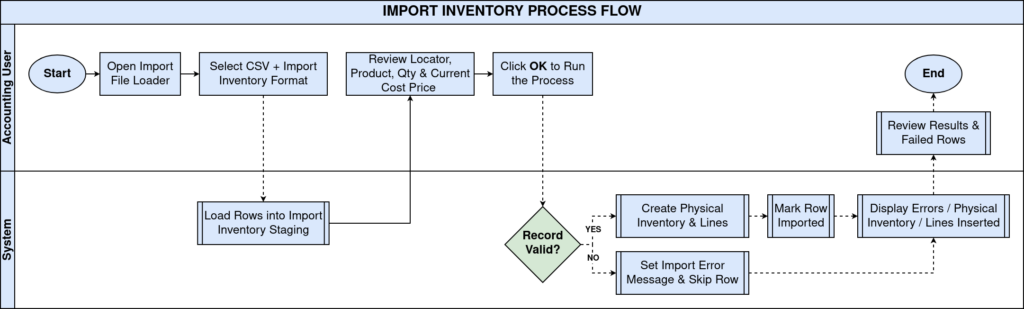
Business Rules
- Process parameters act only as default values and never overwrite existing import data.
- One inventory header is created for each unique document grouping in the import table.
- Each valid, validated import record generates exactly one inventory line.
- Products can be resolved using Search Key, UPC/EAN, or Product ID.
- Locators can be resolved using Locator Key, Locator ID, or Warehouse information.
- Successfully imported records are automatically flagged as Imported = Yes.
- Validation errors are recorded in the Import Error Message field for review.
- Duplicate Inventory, Locator, Product, and Attribute Set Instance combinations are rejected.
Prerequisites
- An Import Format is configured for mapping source data to the Inventory import table (I_Inventory).
- Valid Organization, Warehouse, and Locator records exist in iDempiere.
- Products referenced in the import file exist in Product Info.
- Charge records are configured for Internal Use or Cost Adjustment transactions, where applicable.
- For Cost Adjustment imports, Accounting Schema, Cost Type, and Cost Element are defined.
- The user has access rights to the Import Inventory window and the Import Inventory process.
Configuration Steps
Step 1: Prepare and Load Import Data
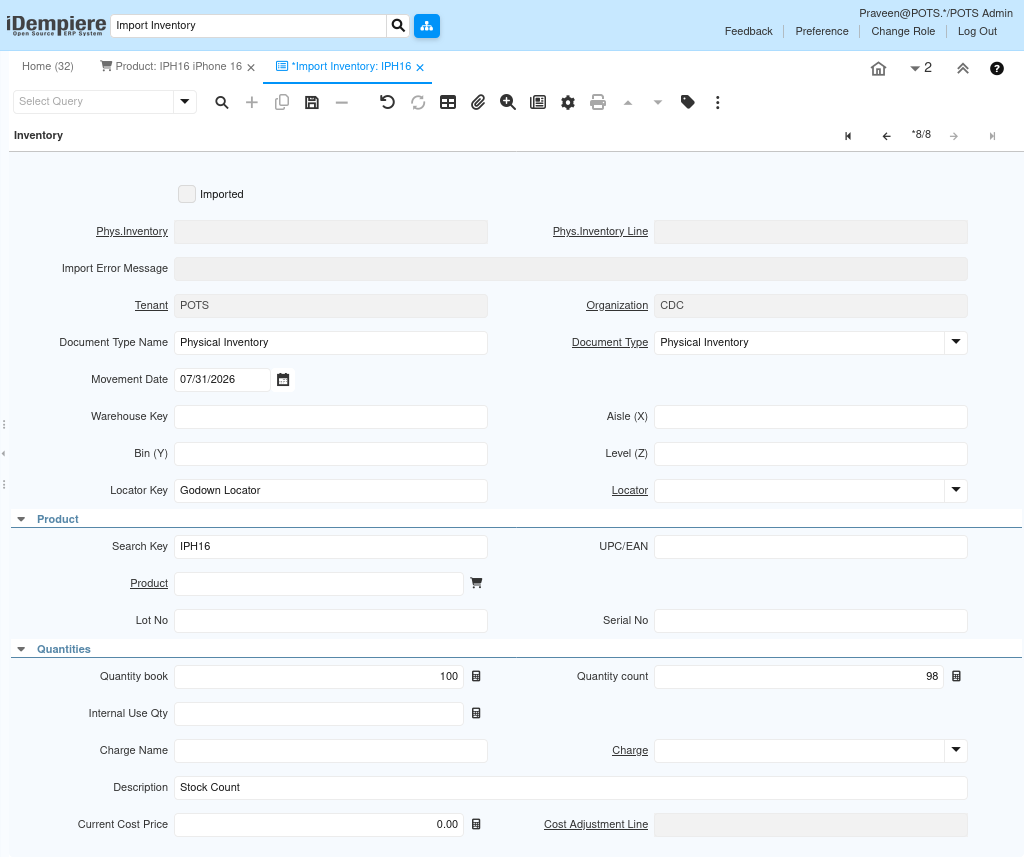
This step brings inventory data into iDempiere so it can be validated and converted into an inventory document. Records can be loaded manually or through the Import File Loader using a configured Import Format.
Open the Import Inventory window and enter or verify the record details, including product, locator, and quantity information, before running the import.
| Field | Sample Value | Description |
| Search Key | IPH16 | Product search key used to resolve the item during import. |
| Locator Key | Godown Locator | Text value used to resolve the storage locator. |
| Quantity Book | 100 | System (book) quantity before the count. |
| Quantity Count | 98 | Physically counted quantity submitted for import. |
| Description | Stock Count | Free-text description carried onto the inventory document. |
| Document Type Name | Physical Inventory | Determines which inventory document the record will create. |
Step 2: Verify Imported Data
Before running the process, users confirm that key fields are correctly populated so the process can resolve master data without errors.
Review the Data Requered section, including Organization, Locator, Product, Document Type, and Quantities, for accuracy and completeness.
| Field | Sample Value | Description |
| Phys.Inventory | 620012 | Populated automatically once the record is imported successfully. |
| Phys.Inventory Line | 10_98_620012 | Populated automatically once the inventory line is created. |
| Locator Key | InTransit Locator | Locator value used to resolve the storage location. |
| Document Type | Physical Inventory | Standard document type applied to the generated document. |
| Imported | Checked | Indicates the record has already been processed successfully. |
Step 3: Run the Import Inventory Process
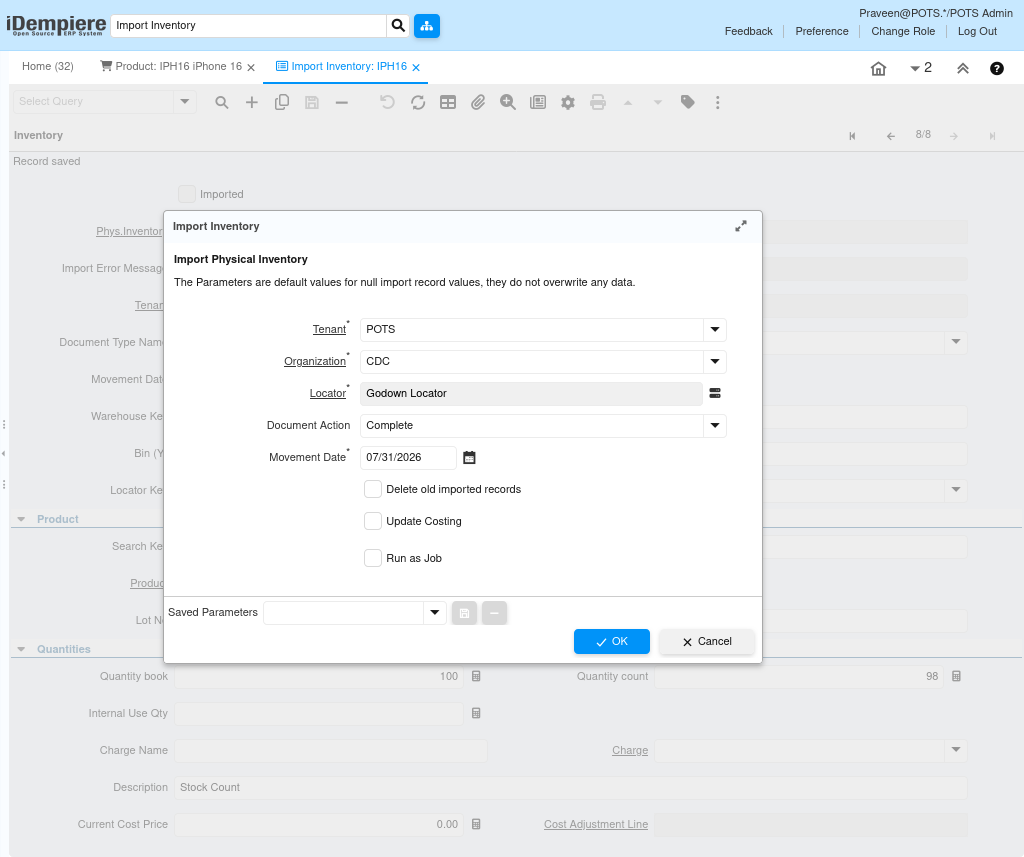
Running the process validates all unimported records and converts them into the appropriate inventory document type. Parameters supply default values only and do not overwrite populated import data.
Open the Import Inventory process, set the required parameters, and select Update Costing only for Cost Adjustment imports before selecting OK.
| Field | Sample Value | Description |
| Organization | CDC | Default organization applied to records without one. |
| Locator | Godown Locator | Default locator applied to records without one. |
| Document Action | Complete | Action applied to the generated document after creation. |
| Movement Date | 07/31/2026 | Default transaction date for records without one. |
| Delete Old Imported Records | Unchecked | Removes previously imported records after a successful run. |
| Update Costing | Unchecked | Enables costing parameters for Cost Adjustment imports. |
| Run as Job | Unchecked | Executes the import process as a background job. |
Step 4: Review the Import Results
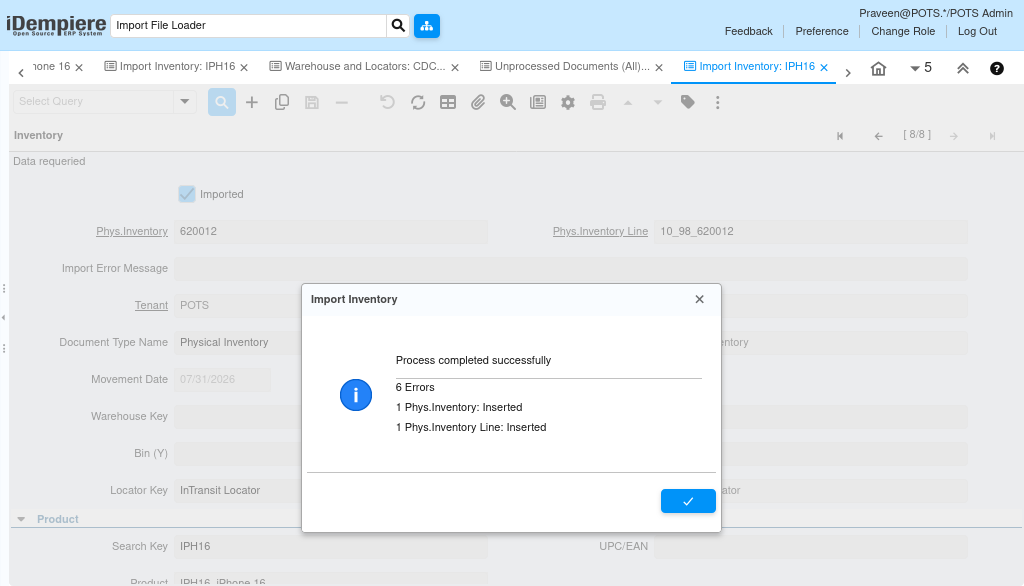
After the process completes, a summary dialog confirms the outcome so users can verify how many records were processed successfully and how many failed validation.
Review the completion message for the count of errors and the number of headers and lines inserted.
| Field | Sample Value | Description |
| Process Status | Process completed successfully | Confirms the import process finished running. |
| Errors | 6 | Number of records that failed validation and remain unimported. |
| Phys.Inventory Inserted | 1 | Number of inventory headers created by the process. |
| Phys.Inventory Line Inserted | 1 | Number of inventory lines created by the process. |
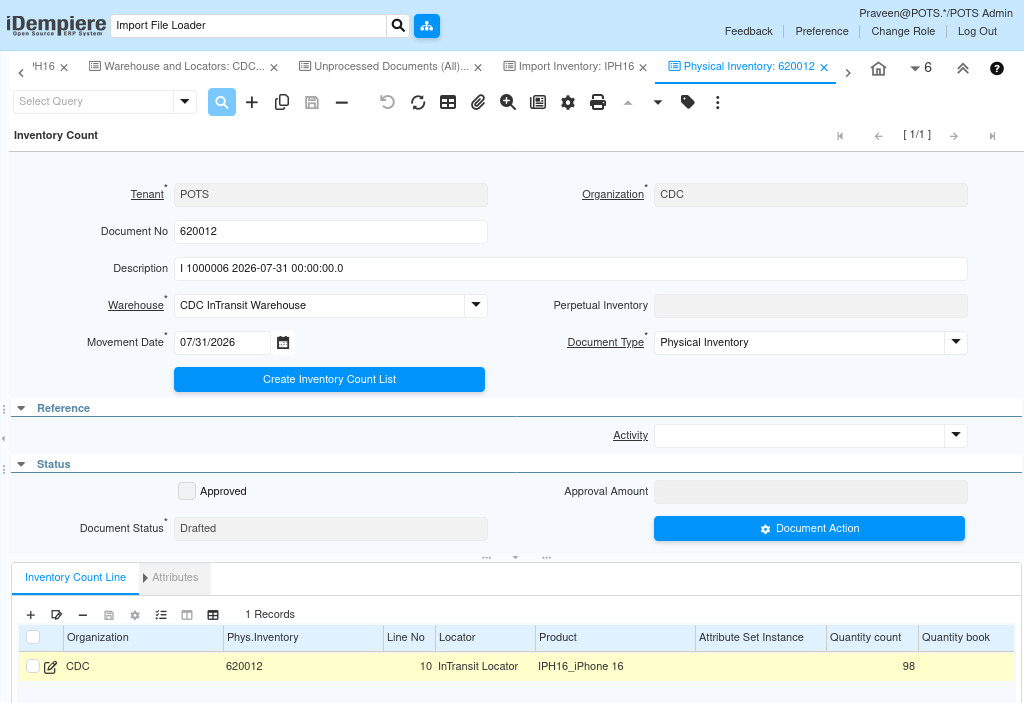
Step 5: Verify the Generated Inventory Document
This final step confirms that the imported data produced a valid, standard inventory document in iDempiere.
Open the generated Inventory Count (Physical Inventory) document and confirm the header and line details match the imported data.
| Field | Sample Value | Description |
| Document No | 620012 | Unique document number assigned to the generated Physical Inventory. |
| Warehouse | CDC InTransit Warehouse | Warehouse associated with the generated document. |
| Movement Date | 07/31/2026 | Transaction date applied to the document. |
| Document Status | Drafted | Standard lifecycle status of the newly created document. |
| Quantity Book | — | System quantity carried onto the Inventory Count Line. |
| Quantity Count | 98 | Counted quantity carried onto the Inventory Count Line. |
Common Issues and Resolutions
| Issue | Cause | Resolution |
| Organization not found | Invalid Organization value in the import record | Verify the Organization ID or lookup value. |
| Locator not found | Invalid Locator Key or Locator ID | Verify the Locator Key or Locator ID against Warehouse and Locators. |
| Product not found | Invalid Product Search Key | Verify the Search Key or UPC/EAN against Product Info. |
| No document lines found | No valid inventory lines created after validation | Verify locator, product, quantities, and document type on the import record. |
| Duplicate inventory line | Same Inventory, Locator, Product, and Attribute already exist | Remove the duplicate import record or use a different inventory document. |
| Imported flag remains unchecked | Record failed validation | Review the Import Error Message field and correct the data. |
| Cost Adjustment fields unavailable | Update Costing not selected | Enable Update Costing in the process parameters. |
| Process parameters not applied | Import record already contains a value | Confirm parameters act only as defaults for empty fields. |
Next Steps
- Open the generated Physical Inventory, Internal Use, or Cost Adjustment document.
- Review the imported inventory lines, quantities, and products.
- Complete the document in Warehouse Management if it was not completed automatically.
- Verify Warehouse and Locators setup to confirm resolved storage locations.
- Review remaining import records with validation errors and reprocess them after correction.