How to Configure Shipping Processor in iDempiere
Introduction
The Shipping Processor window in iDempiere stores the connection details a tenant uses to communicate with an external shipping carrier or courier service. Each record links a Shipping Processor Configuration to authentication credentials for a specific Organization.
It is used within shipment and delivery operations, where warehouse or logistics staff need the system to generate shipping labels, retrieve rates, or track packages through a carrier’s API.
Because the credentials stored here authorize outbound requests to the carrier, this window directly affects whether shipment documents can be processed, tracked, and closed successfully.
Process Flow Diagram

Business Rules
- Active Shipping Processor records are available for shipment transactions.
- Shipping Processor Configuration determines which carrier the connection communicates with.
- Name must uniquely identify each Shipping Processor within an Organization.
- User ID and Connection Password authenticate every request sent to the carrier service.
- Connection Key is optional and only required by carriers that use a secondary key.
- Inactive Shipping Processor records are excluded from shipment processing.
- Each Organization can maintain multiple Shipping Processor records for different carriers.
- Tenant is inherited automatically and cannot be changed on the record.
Prerequisites
- Organization configured in iDempiere.
- Shipping Processor Configuration record created for the target carrier.
- Valid User ID issued by the shipping carrier account.
- Connection Password (and Connection Key, if applicable) obtained from the carrier.
Navigation
Material Management and Pricing → Material Management Rules → Shipping Processor
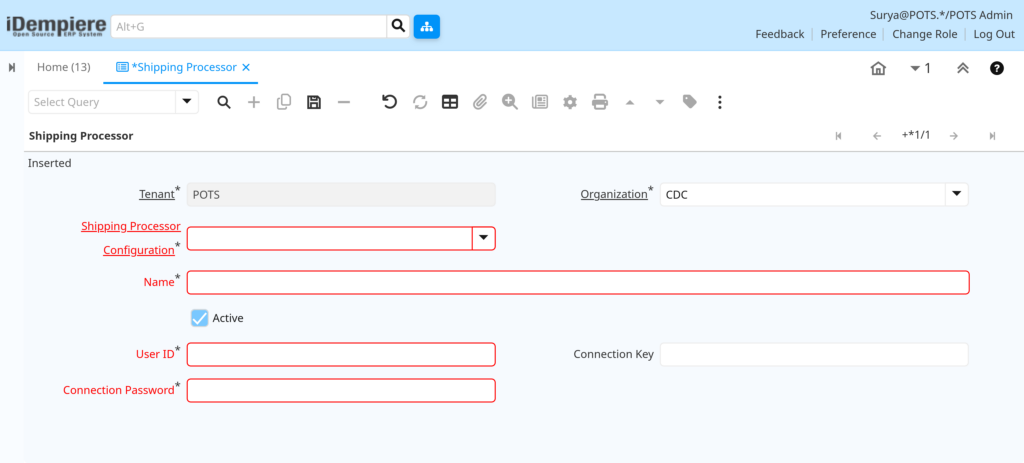
Opening the window displays a new record form with Tenant and Organization at the top, followed by Shipping Processor Configuration, Name, Active, and the credential fields (User ID, Connection Key, Connection Password).

Configuration Steps
Step 1: Select the Organization
The Organization determines which business unit the shipping processor record belongs to and which shipment documents can use it.
Instructions
Open the Organization field and select the operating unit that will use this shipping connection, for example CDC.
Step 2: Select Shipping Processor Configuration
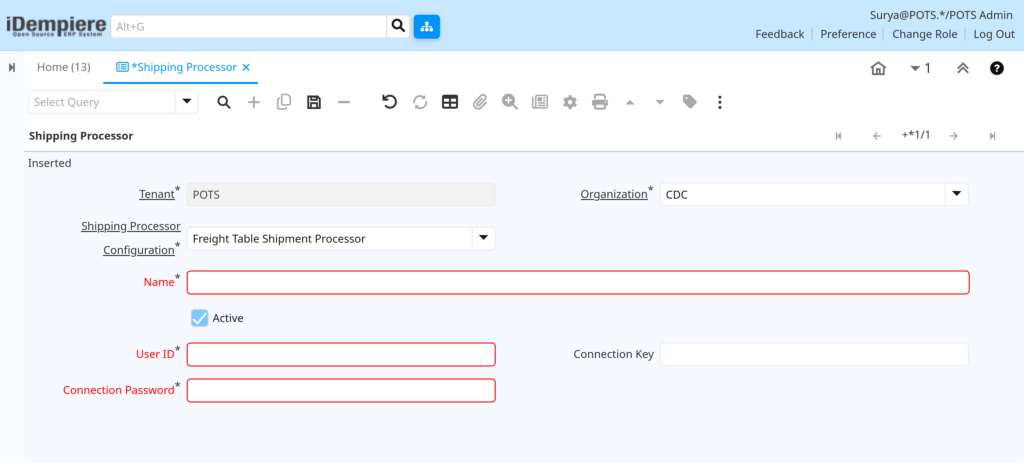
This links the record to a predefined carrier configuration, which controls the carrier-specific processing logic.
Instructions
Click the Shipping Processor Configuration field and choose the configuration matching the carrier this record connects to.
Step 3: Enter the Name
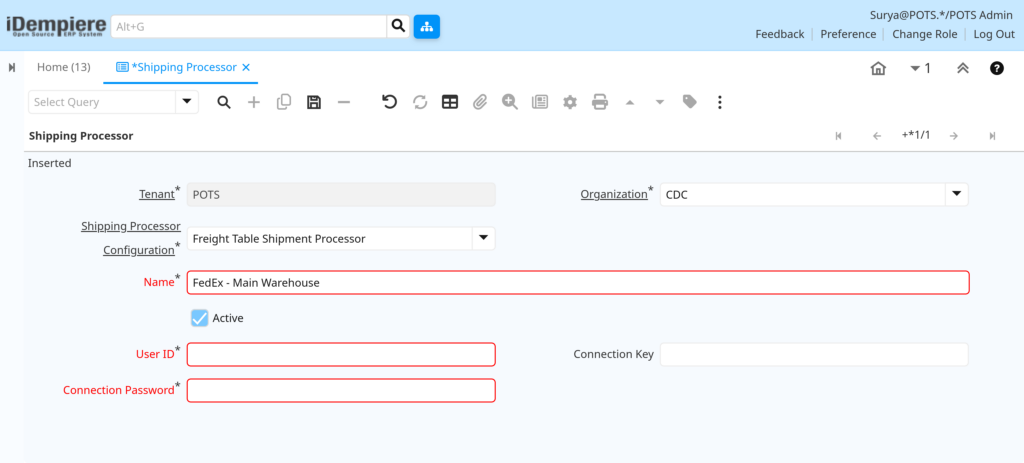
The Name identifies this connection so it can be selected later during shipment processing.
Instructions
Enter a short, descriptive name, such as the carrier name and account, for example “FedEx – Main Warehouse”.
Step 4: Enter User ID and Connection Password
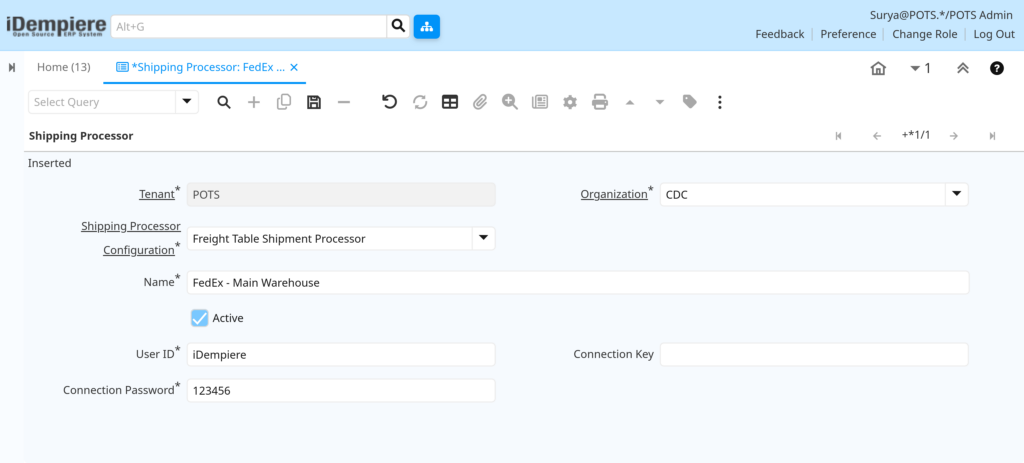
These credentials authenticate every API call made to the shipping carrier and are mandatory for the connection to function.
Instructions
Enter the User ID and Connection Password exactly as issued by the carrier account. Re-verify both values before saving.
Step 5: Enter Connection Key (if required)
Some carriers require a secondary key in addition to the password for secure authentication.
Instructions
If the carrier issues a Connection Key, enter it here. Leave blank if not required by the selected carrier.
Step 6: Confirm Active Status and Save
Only Active records are available for shipment processing, so this status must be verified before saving.
Instructions
Keep Active checked for records ready for use, then click Save to store the Shipping Processor record.

Field Reference Table
| Field | Sample Value | Description |
| Tenant | POTS | Tenant that owns the record; system-assigned and read-only. |
| Organization | CDC | Business unit permitted to use this shipping connection. |
| Shipping Processor Configuration | FedEx Standard | Predefined carrier configuration linked to this record. |
| Name | FedEx – Main Warehouse | Descriptive label used to identify the connection. |
| Active | Checked | Controls whether the record is available for shipment processing. |
| User ID | fedex_api_user01 | Account identifier used to authenticate with the carrier. |
| Connection Key | AK-2938X | Optional secondary key required by some carriers. |
| Connection Password | •••••••• | Password used with the User ID to authenticate API requests. |
Common Issues and Resolutions
| Issue | Cause | Resolution |
| Record cannot be saved | Connection Password left blank | Enter the required Connection Password before saving. |
| Shipment fails to generate a label | Shipping Processor record is Inactive | Reactivate the record by checking Active. |
| Carrier rejects the connection | Incorrect User ID or Connection Password entered | Verify credentials against the carrier account and re-enter. |
| Wrong carrier logic applied to shipment | Incorrect Shipping Processor Configuration selected | Select the configuration that matches the intended carrier. |
| Connection Key error from carrier | Connection Key missing for a carrier that requires it | Obtain and enter the Connection Key from the carrier account. |
| Duplicate or confusing processor names | Name not unique or descriptive within the Organization | Rename records using a clear carrier and location naming pattern. |
| Processor not available during shipment entry | Organization on the record does not match the transaction Organization | Update Organization or create a separate record for that Organization. |
| Shipping Processor Configuration dropdown is empty | No Shipping Processor Configuration has been created yet | Create the configuration record first, then return to this window. |
Next Steps
- Configure the Shipping Processor Configuration window if not already set up.
- Verify the connection by processing a test shipment document.
- Review Delivery or Shipment windows that reference this processor.