How to Configure Workflow Processor in iDempiere
The Workflow Processor window in iDempiere schedules and runs the background engine that drives approval workflows, alerts, and reminders. Each cycle checks pending workflow activity, escalates overdue items to a supervisor, and logs the run so store and back-office teams can confirm approvals are processed on time.
Process Flow

Business Rules
- Only Active Workflow Processor records are executed on their schedule.
- The Schedule interval controls how often pending workflow activities are checked.
- Supervisor is alerted when items exceed Reminder Days or Inactivity Alert Days.
- Days to keep Log determines how long execution history is retained.
- Every run creates a Log record showing duration, summary, and error status.
- Alert over Priority escalates only workflow items above the set priority.
- Date Next Run is recalculated automatically after each processor cycle.
Prerequisites
- Tenant and System-level access configured for the processor record.
- Supervisor user (e.g., SuperUser) created and set to Active.
- Workflow definitions for retail documents (PO, SO approvals) already configured.
- Mail/Notification server configured if reminder emails are required.
Navigation
Menu → System Admin → General Rules → Workflow → Workflow Processor
Configuration Steps
Step 1: Name the Processor and Set Organization
Open a new record, enter a descriptive Name, keep Tenant as System for global processors, and leave Organization as “*” unless scoping to one store.
| Field | Sample Value | Description |
| Tenant | System | Scope of the workflow engine instance. |
| Organization | * | Organization the processor applies to. |
| Name | SuperUserWorkFlowProcess | Identifies the processor job. |
| Description | (optional) | Free-text note on job purpose. |

Step 2: Set the Run Schedule
Set Schedule to a practical interval (e.g., 1 Minute for high-volume PO approvals). Shorter intervals increase responsiveness but add server load.
| Field | Sample Value | Description |
| Schedule | 1 Minutes | Frequency of the background check. |
| Date Last Run | 07/31/2026 2:09:45 PM | Timestamp of the previous cycle. |
| Date Next Run | 07/31/2026 2:10:45 PM | Auto-calculated next execution time. |
Step 3: Assign Supervisor and Alert Thresholds
Select a Supervisor user, set Reminder Days for first notice, Inactivity Alert Days for stalled items, and Alert over Priority to escalate urgent documents only.
| Field | Sample Value | Description |
| Supervisor | SuperUser | User notified of workflow alerts. |
| Reminder Days | 7 | Days before a reminder is sent. |
| Inactivity Alert Days | 0 | Days of inactivity before alert. |
| Alert over Priority | 0 | Minimum priority level to escalate. |
Step 4: Set Log Retention
Set Days to keep Log to a value matching audit needs (e.g., 7 days). Older log entries are purged automatically on each run.
| Field | Sample Value | Description |
| Days to keep Log | 7 | Retention period for Log tab entries. |
Step 5: Activate the Processor
Check the Active checkbox, save the record, and confirm Date Next Run updates to reflect the configured schedule.
| Field | Sample Value | Description |
| Active | Checked | Enables the processor to run. |
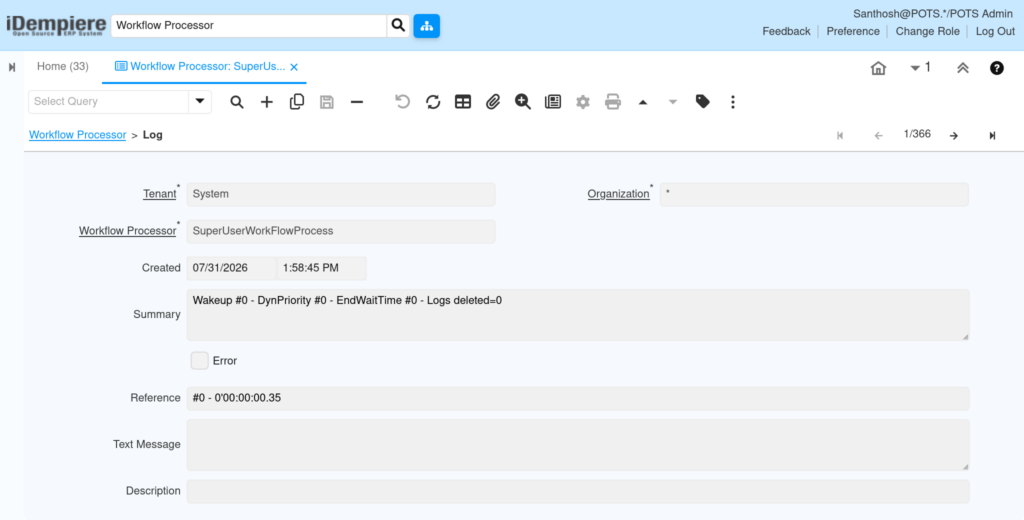
Step 6: Monitor the Log Tab
Review each Log row’s Summary and Reference columns; check the Error box for failed cycles and investigate the Text Message for details.
| Field | Sample Value | Description |
| Created | 07/31/2026 1:58:45 PM | Timestamp of the logged run. |
| Summary | Wakeup #0 – DynPriority #0 – EndWaitTime #0 | Run statistics for the cycle. |
| Error | Unchecked | Indicates whether the run failed. |
| Reference | #0 – 0’00:00:00.35 | Run sequence and execution time. |
Common Issues and Resolutions
| Issue | Cause | Resolution |
| Processor never runs | Active checkbox left unchecked | Enable Active and save the record. |
| Date Next Run not updating | Server process not restarted after change | Restart the application server instance. |
| No alerts reaching supervisor | Supervisor blank or mail server unset | Assign Supervisor; configure mail server settings. |
| Log table growing too large | Days to keep Log set too high | Lower retention days to control table size. |
| Error flagged in Log | Referenced workflow document invalid or deleted | Check the referenced document and workflow setup. |
| Approvals stuck despite active processor | Schedule interval set too long for volume | Reduce the Schedule interval for faster checks. |
Next Steps
- Configure the Workflow window to define approval nodes and routing.
- Assign the workflow to the relevant Document Type (e.g., Purchase Order).
- Set up Mail Server / Mail Template for email-based notifications.
- Confirm Role and User setup for all approval participants.