How to Run the HouseKeeping Process in iDempiere
The HouseKeeping window in iDempiere lets retailers schedule automatic cleanup of high-volume transactional tables such as report statements and temporary staging data.
Before deleting rows, the process can archive them to a history table or export them as XML backups. This directly affects system performance, report generation speed, and storage costs across busy retail environments with daily POS and inventory activity.
Process Flow
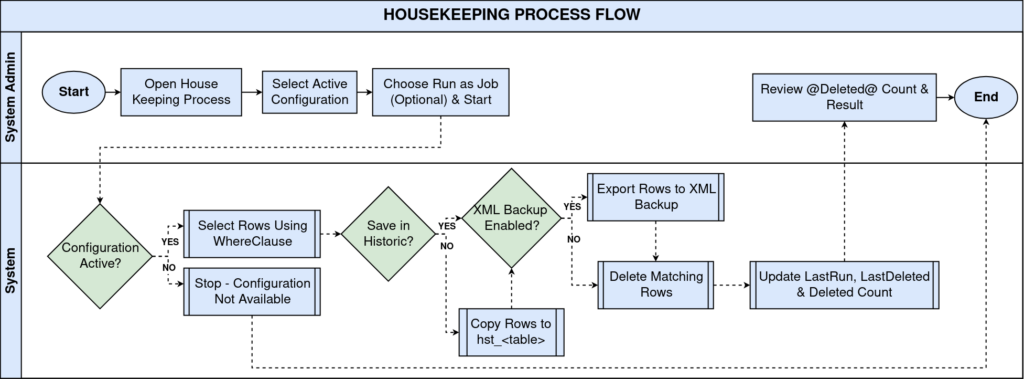
Business Rules
- Only active HouseKeeping configurations are available for selection at runtime.
- Each configuration targets one table using an optional WHERE clause to limit affected rows.
- Records can be archived to a history table (hst_<table>) before deletion.
- Records can be exported as XML backup files before deletion.
- Deleted record count and last run date are updated automatically after each execution.
- The process can be run interactively or submitted as a background job.
- If no WHERE clause is defined, all rows in the target table are deleted.
Prerequisites
- HouseKeeping configuration record created.
- Target table identified in the Application Dictionary.
- WHERE clause tested and validated for correct row selection.
- Backup folder path configured and accessible, if XML export is enabled.
- History table (hst_<tablename>) exists, if Save in Historic is enabled.
- User has System Administrator role access to run the process.
Navigation
Menu → System Admin → General Rules → Server → House Keeping
Configuration Steps
Step 1: Identify the Target Table and Data Volume
In the Application Dictionary, note the table name and its growth pattern. Decide a retention period, for example preserving the last week of data.
Step 2: Create the House Keeping Configuration Record
Open the House Keeping window, enter a Name, select the target table, and enter a WhereClause to filter rows outside the retention period.
Field Reference
| Field | Sample Value | Description |
| Name | Delete T_ReportStatement records preserving last week | Identifies the configuration in the dropdown |
| AD_Table_ID | T_ReportStatement | Target table for cleanup |
| WhereClause | Created < (SysDate – 7) | Limits deletion to records older than 7 days |
Step 3: Configure Historic Backup
Enable IsSaveInHistoric to copy matching rows into hst_<tablename> before the delete step runs.
Field Reference
| Field | Sample Value | Description |
| IsSaveInHistoric | Yes | Preserves a copy of deleted rows in the history table |
Step 4: Configure XML Export Backup (Optional)
Enable IsExportXMLBackup and set a BackupFolder path. The process writes a file named tablename plus timestamp with an .xml extension.
Field Reference
| Field | Sample Value | Description |
| IsExportXMLBackup | Yes | Enables file-based export before deletion |
| BackupFolder | /idempiere/backups/housekeeping | Storage path for the exported XML file |
Step 5: Run the HouseKeeping Process
Open the House Keeping window, select a configuration from the dropdown, optionally check Run as Job, then click Start.
Field Reference
Step 6: Review the Process Result
After execution, review the “@Deleted@” count message. Reopen the configuration record to verify LastRun and LastDeleted were updated.
Common Issues and Resolutions
| Issue | Cause | Resolution |
| Process deletes more rows than expected | WhereClause is missing or too broad | Add a specific date or status filter before running in production |
| “Cannot insert into hst_” error | History table does not exist for the target table | Create the matching hst_<tablename> table before enabling Save in Historic |
| XML export file is not created | Backup folder path is invalid or inaccessible | Verify the folder exists and the application server has write permission |
| Configuration not visible in dropdown | Record is marked inactive | Activate the HouseKeeping configuration record |
| Deleted count returns zero | WhereClause matches no current rows | Review the clause syntax against the current data range |
| Large table deletion times out | No index on the filtered column | Add an index on the filter column or submit the process as a Job |
| Unexpected duplicate rows in history table | Same configuration rerun over overlapping data | Adjust WhereClause so each run only targets new, undeleted rows |
Next Steps
- Configure the Scheduler window to automate recurring HouseKeeping runs.
- Review Application Dictionary table definitions for other candidate tables.
- Set up backup folder monitoring for XML export files