How to Configure Dynamic Validation per Table in iDempiere
Dynamic Validation per Table lets iDempiere administrators attach a custom SQL filter to any table, scoped by Tenant, Organization, Role, or User. In retail operations, it restricts which sales orders, invoices, or warehouse records a store user or role can view or select. This directly controls transaction entry, reporting scope, and prevents cross-store or cross-warehouse data leakage during daily operations.
Process Flow

Business Rules
- Active records are enforced immediately for the assigned Role or User.
- A record with no Role or User applies the SQL Filter to the entire Organization.
- The SQL Filter must reference the same table selected in the Table field.
- Multiple Dynamic Validation rules can apply to the same table for different roles.
- Inactive rules are ignored and do not restrict any records.
- Filters use column names exactly as defined in the Application Dictionary.
Prerequisites
- Table (Application Dictionary Table) already defined in iDempiere.
- Role configured under System Admin > Role.
- User/Contact created and linked to the Role, if scoping by user.
- Organization structure configured for the tenant.
Navigation
Menu → General Rules → Security → Dynamic Validation per Table
Configuration Steps
Step 1: Open the Window and Create a New Record
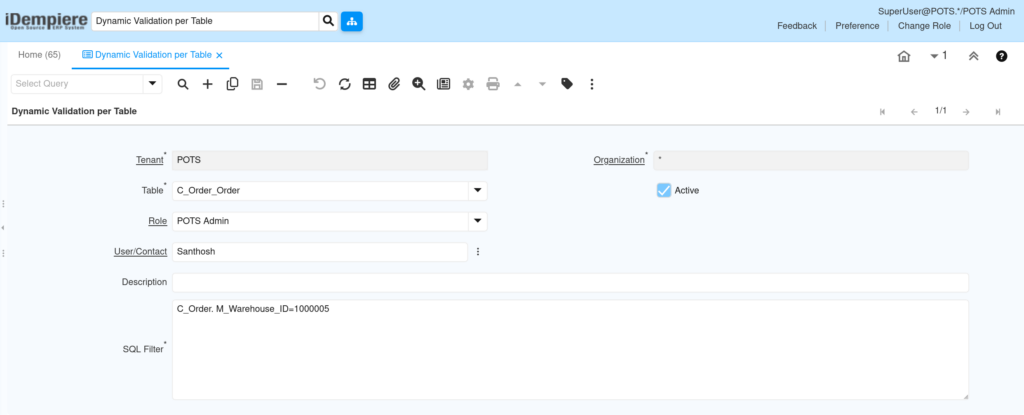
Open the Dynamic Validation per Table window from the General Rules menu and click New to start a fresh rule.
Step 2: Select the Table, Role, and User Scope
Select the Table this rule applies to, such as C_Order, so the filter only affects that table’s records.
Field Reference Table
| Field | Sample Value | Description |
| Tenant | POTS | Client the rule belongs to. |
| Organization | * | Organization scope; * applies across all organizations. |
| Table | C_Order | Table whose records are filtered by the SQL Filter. |
| Role | POTS Admin | Role the restriction is enforced for. |
| User/Contact | Santhosh | Specific user the restriction is enforced for. |
| Active | Checked | Enables or disables enforcement of the rule. |
| Description | (optional) | Internal note describing the rule’s purpose. |
| SQL Filter | C_Order.M_Warehouse_ID=1000005 | WHERE-clause condition applied to the table. |
Step 3: Write the SQL Filter Expression
Enter the SQL Filter using the table alias and column name, for example C_Order.M_Warehouse_ID=1000005.
Step 4: Set Active Status and Save
Check Active and save the record so iDempiere applies the filter to future queries immediately.
Step 5: Validate by Logging in as the Assigned Role or User
Log in as the assigned Role or User and open the target window to confirm only permitted records appear.
Common Issues and Resolutions
| Issue | Cause | Resolution |
| Rule not restricting any data | Active checkbox left unchecked | Check Active and save the record again. |
| Error saving the SQL Filter | Column name misspelled or missing table alias | Verify the column exists and matches the table alias exactly. |
| Rule blocks all records unexpectedly | SQL Filter condition evaluates false for every row | Test the SQL Filter directly against the database first. |
| Filter not applied for one user | No matching Role/User record exists for that person | Add a Dynamic Validation record for that specific Role or User. |
| Conflicting results across rules | Multiple active rules exist for the same table and role | Review all active rules for that table/role combination. |
| System Administrator still sees all records | Filter does not apply to System Administrator role | This is expected behavior; test with a limited retail role instead. |
| Slow performance on the filtered table | Complex SQL Filter subquery runs on every fetch | Simplify the filter or add a supporting database index. |
Next Steps
- Configure Role and User/Contact setup if not already completed.
- Review Window Access and Field Access for the same role.
- Test the restriction end-to-end using a non-admin login.