How to Generate PO from Sales Order in iDempiere
Configure the Generate PO from Sales Order window in iDempiere to auto-create vendor purchase orders from retail sales order lines by current vendor.
Introduction
Generate PO from Sales Order is an iDempiere process window that automatically creates Purchase Orders from confirmed Sales Order lines, using each product’s active current vendor.
It shortens replenishment cycles, keeps sales and purchase documents linked for traceability, and reduces duplicate ordering across busy retail sales desks.
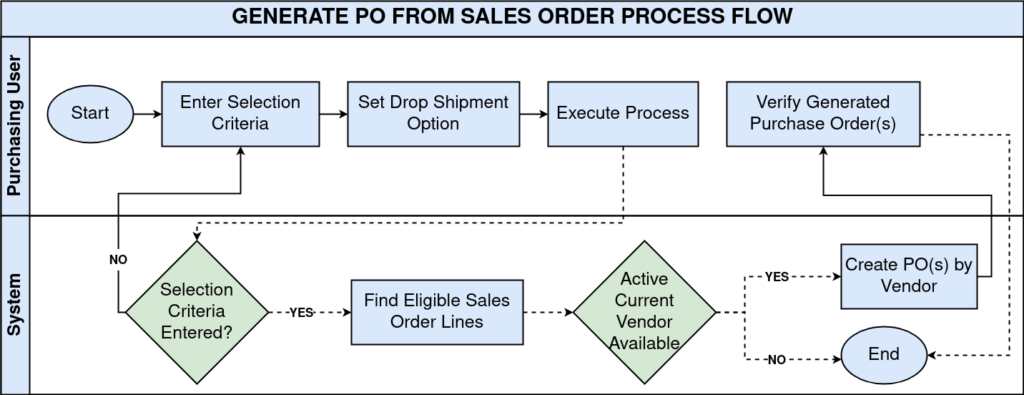
Process Flow
Business Rules
- Only Sales Orders with IsSOTrx = Y are eligible for PO generation.
- Sales Order lines already linked to a Purchase Order line are excluded automatically.
- One Purchase Order is created per vendor per Sales Order.
- Only products with an active Current Vendor in Product Purchasing are processed.
- If a Vendor parameter is entered, only that vendor’s products are processed.
- Header-level SO-to-PO link is set only when exactly one PO is created.
- Line-level links between SO and PO lines are always created for traceability.
- Drop Shipment copies Delivery Via Rule and Shipper from the Sales Order.
- At least one selection filter must be entered before running the process.
Navigation
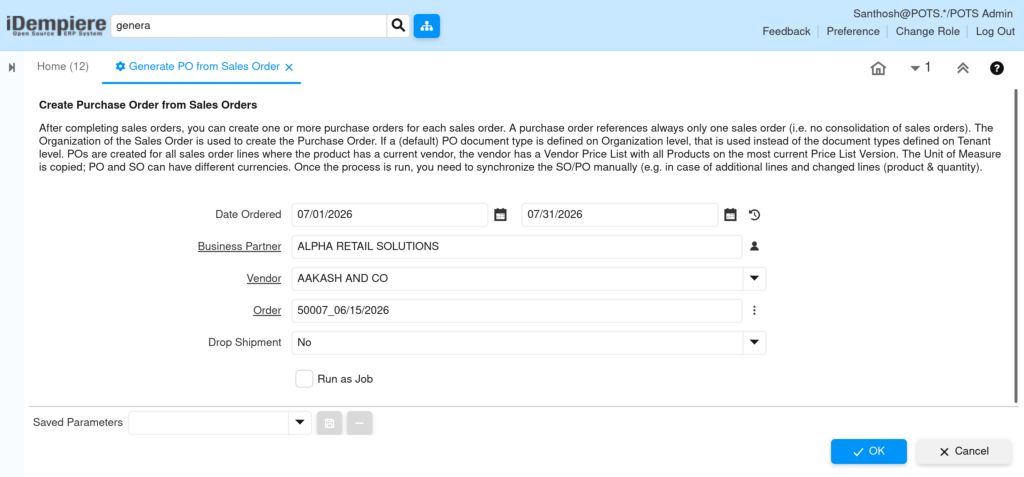
Menu → Sales → Sales Order → Generate PO from Sales Order
Configuration Steps
Step 1: Confirm Product Purchasing Setup
Open Product Purchasing on each item, tick Current Vendor and Active, and confirm the linked Vendor Price List covers the product.
Step 2: Open the Generate PO from Sales Order Window
Navigate via the menu, or run it directly from an open Sales Order so that order is auto-selected.
Step 3: Enter Selection Criteria
Enter at least one of Date Ordered range, Business Partner, Vendor, or Order to scope which Sales Orders qualify.
| Field | Sample Value | Description |
| Date Ordered | 07/01/2026 – 07/31/2026 | Restricts Sales Orders to a date range. |
| Business Partner | Alpha Retail Solutions | Filters Sales Orders for a specific customer. |
| Vendor | Aakash and Co | Generates POs only for the selected vendor. |
| Order | 50007_06/15/2026 | Processes one specific Sales Order document. |
Step 4: Set the Drop Shipment Option
Set Drop Shipment to Yes for direct-to-customer delivery, or leave it as No for standard warehouse receipt.
| Field | Sample | Purpose |
| Drop Shipment | No | Controls whether the PO is flagged for direct customer delivery. |
| Run as Job | Unchecked | Runs the process in the background instead of immediately. |
Step 5: Execute the Process
Click OK to run immediately, or check Run as Job for large batches. Review the process log for the number of POs created.
Step 6: Verify Generated Purchase Orders
Open the Purchase Order window, locate the new order via the Link Order reference, and verify vendor, lines, and pricing.
Common Issues and Resolutions
| Issue | Cause | Resolution |
| “You need to restrict selection” error | No filter criteria entered | Enter at least one of Date, Order, Customer, or Vendor. |
| No Purchase Order created for a product | Product has no active Current Vendor | Flag Current Vendor = Y in Product Purchasing for that item. |
| Sales Order line skipped silently | Line already linked to an existing PO line | Check the Purchase Order window before re-running the process. |
| Multiple POs created for one Sales Order | Products belong to different vendors | Expected behavior; review vendor assignment if consolidation is needed. |
| Incorrect PO line price | Vendor Price List missing or inactive for the product | Activate the correct Price List Version for the vendor. |
| Sales Order not showing Link to PO | More than one PO was generated for that order | Header link only applies when exactly one PO is created; use line links instead. |
| PO currency differs from Sales Order | Vendor Price List uses a different currency | Confirm the vendor price list currency matches business requirements. |
Next Steps
- Configure Product Purchasing to maintain accurate Current Vendor records.
- Review and update Vendor Price List Versions regularly.
- Set up Organization Info for Drop Ship Warehouse defaults.
- Process the generated Purchase Orders for vendor confirmation and receipt.