How My Profile Window Works in iDempiere
Introduction
My Profile is a personal window in iDempiere that shows the account details of the user who is currently logged in. It brings together contact information and a record of past email notifications in one place.
Every user can open My Profile to check their own login name, contact details, and notification settings without needing help from an administrator.
Keeping this information current supports reliable system alerts, accurate contact records, and dependable email delivery for approvals, requests, and notifications across the business.
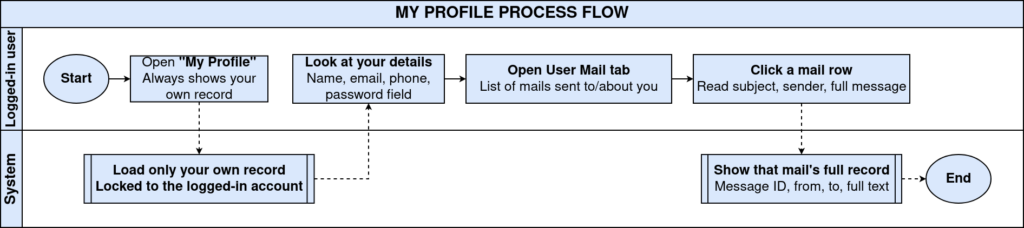
Process Flow
Business Rules
- Only the logged-in user’s own account details appear in My Profile.
- Active accounts remain visible and usable; inactive accounts cannot log in.
- Full BP Access lets a user view all related business partner records.
- Password changes made here take effect immediately for future logins.
- Notification Type controls whether alerts are delivered by email.
- Every message sent to the user is recorded automatically on the User Mail tab.
- Business Partner and Partner Location link the account to a customer or vendor.
- A Supervisor can be assigned to route approvals and requests correctly.
Prerequisites
- A valid iDempiere user account with login access.
- Organization and Tenant assigned to the user account.
- A Role assigned to the user for system access.
- Email address configured, if alert notifications are required.
- Business Partner linked, if the user represents a customer, vendor, or employee.
Navigation
Menu → System Admin → General Rules → Security → My Profile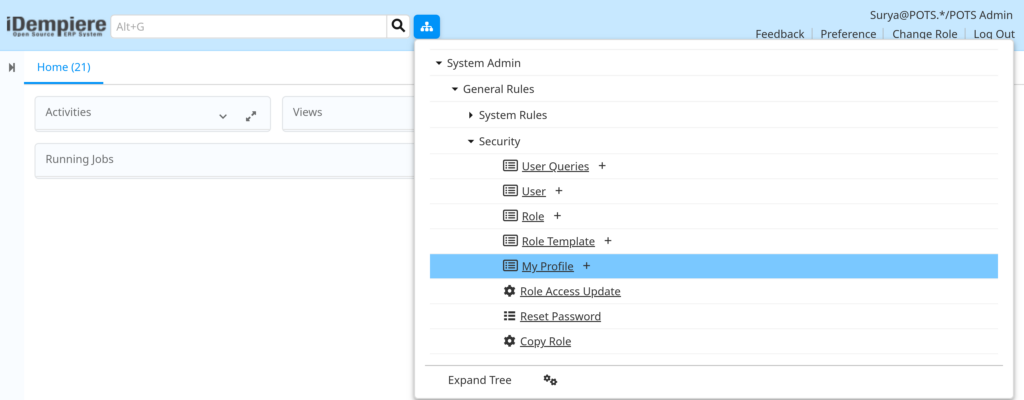
Clicking the user name shown in the top-right corner of any iDempiere screen opens My Profile directly, without going through the main menu. The window opens on the User Contact tab, showing the account holder’s name, contact details, and settings. A second tab, User Mail, lists every message the system has sent to this user.
Note: My Profile always displays the record of the person currently logged in. It cannot be used to view or edit another user's account.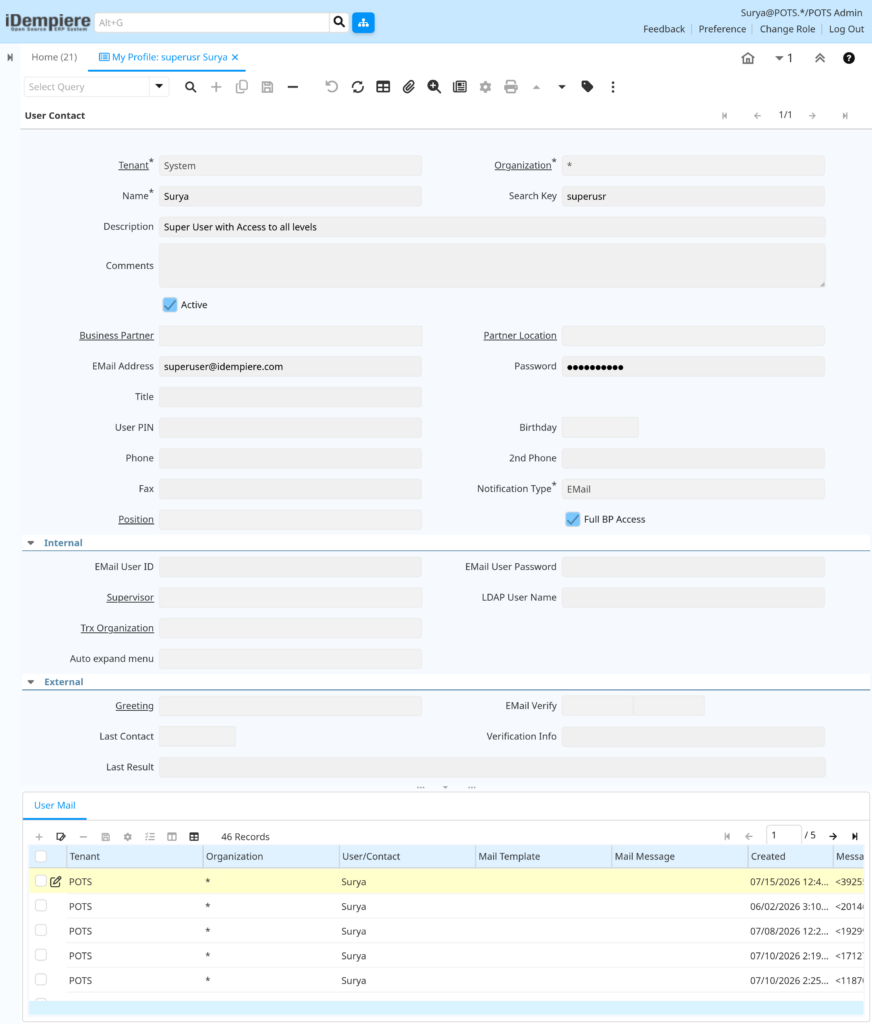
Configuration Steps
Step 1: Open My Profile
Users need a quick way to check and confirm their own account information.
Instructions
Click your user name shown at the top-right corner of the screen. Select My Profile from the list. The window opens showing your account details.
Step 2: Review Account and Contact Details
Confirms the information the system uses to identify the user and route communication.
Instructions
Check the Name, Description, Email Address, Phone, and Notification Type fields. Confirm the Active box is checked so the account stays available for login.
Field Reference
| Field | Sample Value | Description |
| Name | Surya | Full name of the account holder |
| Search Key | superusr | Short code used to identify the user for login |
| Description | Super User with Access to all levels | Note on the account’s purpose or access level |
| EMail Address | superuser@idempiere.com | Address used for login and system notifications |
| Password | Hidden | Secret code used to log in; can be changed here |
| Notification Type | Method used to deliver system alerts to the user | |
| Full BP Access | Checked | Grants view access to all business partner records |
| Active | Checked | Marks the account as available for use |
Step 3: Update Personal Information
Keeps contact details accurate for notifications and approvals.
Instructions
Update fields such as Phone, 2nd Phone, Title, or Birthday as needed. Change the Password if required. Save the record so the changes apply immediately.
Step 4: Review Internal and External Details
Additional fields support approval routing and communication where the business uses them.
Instructions
Check the Supervisor field if approvals should route through another user. Review Greeting and Trx Organization if the business uses these settings.
Step 5: Review Sent Mail History
Provides a traceable record of system notifications sent to the user.
Instructions
Open the User Mail tab. Browse the list of messages by date. Open any entry to view the sender, subject, and full message content.
Field Reference
| Field | Sample Value | Description |
| Created | 07/15/2026 12:47 PM | Date and time the message was sent |
| EMail sent from | abcd@gmail.com | Address that generated the message |
| To | superuser@idempiere.com | Recipient of the message |
| Subject | Request Updated: 1000004 | Short summary of the message content |
| Mail Text | Updated By: Santhosh… | Full content of the message sent to the user |
| Delivered | Blank until confirmed | Shows whether the message reached the recipient |
Note: The User Mail tab is a read-only history. Entries cannot be created, changed, or removed from this window.Common Issues and Resolutions
| Issue | Cause | Resolution |
| Password change does not take effect | Record was not saved after editing | Save the record after changing the password, then log in again. |
| My Profile shows outdated contact details | Details were updated elsewhere and not refreshed here | Reopen My Profile or refresh the window to view the current record. |
| No messages appear on the User Mail tab | No notifications have been generated for the account yet | Confirm Notification Type is set to EMail and that alerts are enabled elsewhere. |
| Account does not appear active | The Active box was unchecked by an administrator | Ask an administrator to re-enable the Active box for the account. |
| Certain business partner records are not visible | Full BP Access is unchecked | Ask an administrator to enable Full BP Access if needed. |
| Notifications are not received by email | Email Address field is missing or incorrect | Enter a valid email address and save the record. |
| Approvals are not routed correctly | Supervisor field is empty or incorrect | Set the correct Supervisor for the user account. |
Next Steps
- User window – manage roles, organization access, and login settings for all users.
- Role – define what each user is allowed to see and do in the system.
- Business Partner – maintain the customer, vendor, or employee record linked to a user.
- Notice – review system alerts and messages generated for the user.