How to Process Reset Allocation in iDempiere
Introduction
Reset Allocation is an iDempiere process that deletes existing payment allocation records, reversing the link between an invoice and a payment.
Accounts receivable and payable teams use it to correct misallocated payments, such as a store payment matched to the wrong invoice or a batch of incorrect allocations after a billing run.
Deleting an allocation frees the payment and invoice for correct re-allocation, keeping open balances, aging reports, and customer statements accurate.
Business Rules
- Neither a specific Allocation nor All Allocations selected stops the process with a mandatory field error.
- Selecting a specific Allocation deletes only that Allocation record.
- Enabling All Allocations searches for multiple eligible Allocations to delete.
- Business Partner filter takes priority over the Business Partner Group filter.
- BP Group filter applies only when no Business Partner is selected.
- Without a BP or BP Group, the process filters allocations by the current Client.
- Accounting Date From/To restricts deletion to allocations within that date range.
- Allocations linked to a Cash Journal line are always excluded from deletion.
- Allocations whose accounting entries exist in Fact_Reconciliation cannot be deleted.
- Successful deletions are committed; failed deletions roll back the transaction.
Configuration Steps
Step 1: Open the Reset Allocation Process
This step gives access to the parameters that control which allocations are evaluated for deletion.
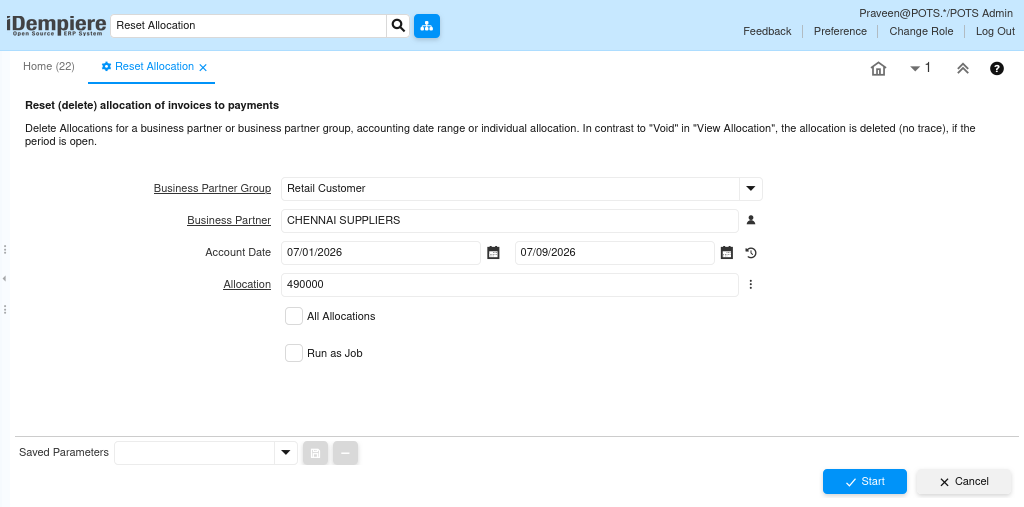
- Use the global Menu Search, type “Reset Allocation”, and open the process.
- The parameter screen appears with a Deleted count field showing the result of the last run.
Step 2: Define Business Partner Filters
Narrows the process to allocations affecting a specific customer, supplier, or partner group, preventing unintended deletions.
Enter Business Partner for a single account, or Business Partner Group to target a customer or supplier segment. Leave both blank to filter by the current Client.
| Field | Sample Value | Description |
| Business Partner Group | Retail Customers | Filters allocations by BP Group |
| Business Partner | CHENNAI SUPPLIERS | Filters allocations for one Business Partner |
| Accounting Date | 01-Jul-2026 to 09-Jul-2026 | Restricts allocations to a date range |
| Allocation | 490000 | Targets one specific Allocation header |
| All Allocations | Yes | Enables multi-record batch deletion |
Step 3: Set the Accounting Date Range
Limits deletion to the period where the misallocation occurred, protecting older reconciled data from accidental changes.
- Enter Accounting Date From and Accounting Date To.
- Only allocations dated within this window are evaluated for deletion.
Step 4: Choose Deletion Mode
Determines whether the process removes one record or a filtered batch of allocations.
Select a specific record in the Allocation field to delete only that entry, or check All Allocations to let the system find every eligible match.
Step 5: Execute and Review Results
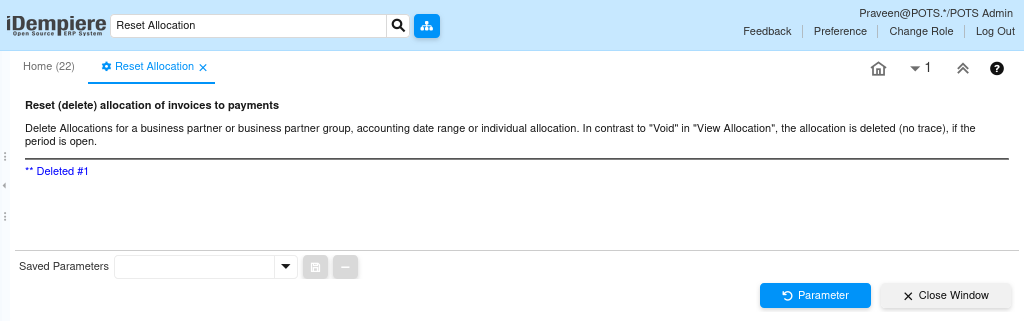
Confirms the process completed and shows how many allocations were removed.
- Click Parameter to run the process. Review the “Deleted #” message.
- If reconciled entries block deletion, the error identifies the affected Allocation.
| Note Reset Allocation permanently deletes the Allocation record with no trace, unlike Void in View Allocation. Always confirm the date range and Business Partner filter before running it in batch mode. |
Common Issues and Resolutions
| Issue | Cause | Resolution |
| Process stops with a mandatory field error | Neither Allocation nor All Allocations was selected | Select a specific Allocation or enable All Allocations |
| Allocation is not deleted despite matching filters | The allocation’s accounting entries exist in Fact_Reconciliation | Unreconcile the bank statement line first, then re-run |
| Allocation linked to a Cash Journal is not removed | The process always excludes allocations tied to a Cash Line | Reset cash allocations manually through the Cash Journal instead |
| No allocations found for the selected filters | Accounting Date range too narrow or wrong BP/BP Group entered | Widen the date range or verify the Business Partner filter |
| More allocations deleted than expected in batch mode | Business Partner Group matched more accounts than intended | Use a specific Business Partner filter for precise control |
| Deleted count shows 0 after running | No eligible allocations matched the given filters | Verify BP, date range, and confirm the allocation exists in View Allocation |
Next Steps
- Re-allocate the released Payment and Invoice using the Allocation window.
- Review the Auto Allocation process to reduce future manual matching errors.
- Check the View Allocation window to confirm the remaining allocation status.
- Reconcile the bank statement if a Cash Journal line was involved.
- Use Resubmit Posting if a related document shows a posting error after the reset.