How to Configure Payments into Batch in iDempiere
The Payments into Batch window in iDempiere lets finance teams group several individual payment or receipt documents into one batch record. It is used in store and head-office accounts payable and accounts receivable operations where multiple vendor payments or customer receipts are settled together.
Once created, a Payment Batch is referenced in the Bank/Cash Statement window, so a single bank line can be reconciled against many payments at once. This reduces manual matching effort and keeps store-level cash and vendor payment reporting accurate.
Process Flow

Business Rules
- Only Active payments or receipts can be added as batch lines.
- Deposit Amount on the batch header is calculated as the sum of all line amounts.
- Document Type (AP Payment or AR Receipt) determines which payments can be added to the batch.
- A batch must be Completed before it can be selected during bank statement reconciliation.
- Negative line amounts represent outgoing vendor payments; positive amounts represent incoming receipts.
- Each payment can belong to only one Payment Batch at a time.
- Line No controls the display sequence of payments inside the batch.
- Processed flag is set automatically once the batch document is completed.
Prerequisites
- Business Partner (vendor or customer) configured.
- Organization (store or branch) configured.
- Bank Account configured for deposits or vendor payments.
- Document Type configured for AP Payment or AR Receipt.
- Individual Payment or Receipt documents already entered and completed.
- Currency configured and matching the payments being grouped.
Navigation
Menu → Open Items (Financial Movements and Aging) → Payments into Batch
Configuration Steps
Step 1: Create the Batch Header
Open Payments into Batch, click New, select Organization and Bank Account, set Deposit Date and Document Type, then Save the header before adding lines.
| Field | Sample Value | Description |
| Bank Account | Vendor Payment_Vendor Payment_123456 | Bank account the batch payments are drawn from or deposited to. |
| Document Type | AP Payment | Defines whether the batch groups vendor payments or customer receipts. |
| Deposit Date | 07/13/2026 | Date the grouped payments are deposited or transferred. |
| Document No | 1000000 | System-generated batch document number. |
| Currency | INR | Currency applied to all lines added to the batch. |
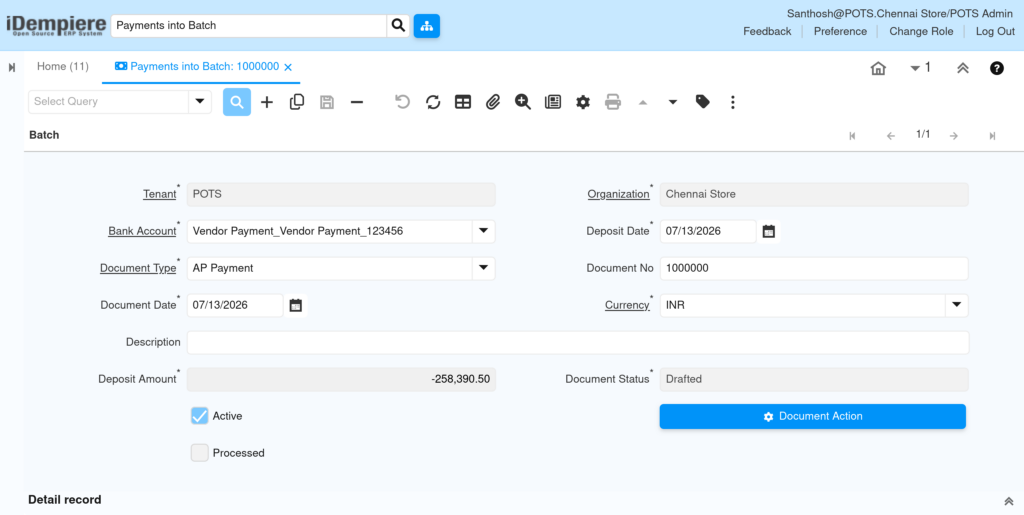
Step 2: Add Payments to Batch Lines
Go to the Lines tab, use Create Lines From to select completed payments, or add a line manually and pick the Payment record. Save each line.
| Field | Sample Value | Description |
| Deposit Batch | 07/13/2026_1000000 | Reference back to the parent batch header. |
| Line No | 10 | Sequence number of the payment within the batch. |
| Payment | 1000008_07/07/2026_708.00_-1 | The individual payment document linked to this line. |
| Payment amount | -708.00 | Amount of the linked payment, negative for outgoing vendor payments. |
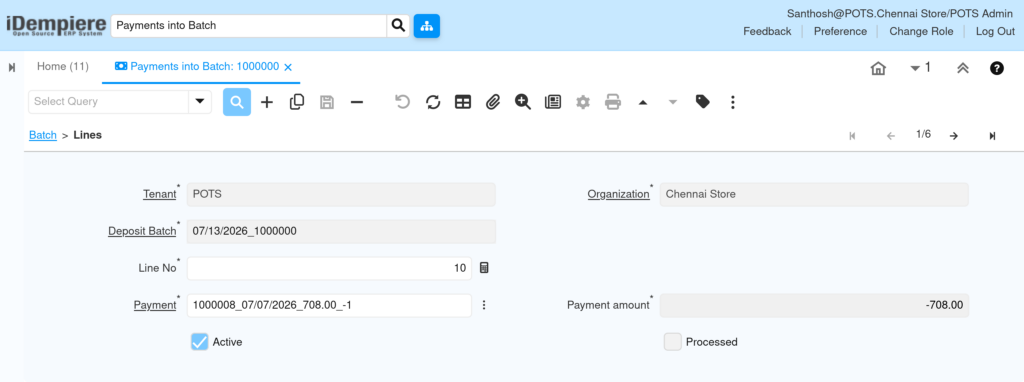
Step 3: Review the Deposit Amount
Check that Deposit Amount on the header equals the expected total of all lines, for example -258,390.50 for six grouped vendor payments.
Step 4: Complete the Batch Document
Click Document Action on the header, select Complete, and confirm. Document Status changes from Drafted to Completed and Processed is checked.
Step 5: Use the Batch in Bank Statement Reconciliation
Open Bank/Cash Statement, select the matching statement line, and choose the Payment Batch reference instead of an individual payment.
Common Issues and Resolutions
| Issue | Cause | Resolution |
| Deposit Amount does not match bank slip | Wrong or extra payment added to a batch line | Remove the incorrect line and re-add the correct payment via Create Lines From |
| Payment missing from Create Lines From list | Payment not yet completed or already assigned to another batch | Complete the payment and confirm it is not linked elsewhere |
| Currency mismatch on save | Batch currency differs from the payment currency | Match the bank account currency to the currency used on the payments |
| Batch not available during reconciliation | Batch document still in Drafted status | Run Document Action → Complete on the batch header |
Next Steps
- Bank/Cash Statement window – reconcile the completed batch against actual bank lines.
- Payment (Receipt) window – review or create the individual payments before batching.