How to Use Preference in iDempiere
The Preference window in iDempiere stores key-value settings scoped by tenant, organization, user, window or attribute.
Introduction
The Preference window in iDempiere is a system-level administration screen that stores individual key-value settings, known as preferences, against a Tenant, Organization, User, Window or Attribute combination. Each record holds one stored value, called the Search Key, tied to a specific Attribute name.
It is used internally by iDempiere to persist behaviour such as recently used menu items, saved field defaults and other cached session values, and can also be reviewed or maintained by administrators for troubleshooting or configuration purposes.
Process Flow
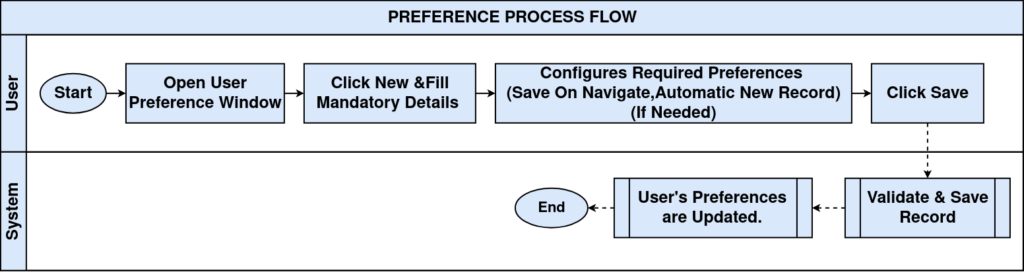
Business Rules
- Each preference record is uniquely scoped by Tenant, Organization, User/Contact and Attribute.
- A Tenant value of System indicates the preference applies at the system-wide level.
- An Organization value of * applies the preference across all organisations within the tenant.
- Preference For determines the entity type the preference is linked to, such as Window.
- The Window field is only populated when Preference For is set to Window.
- Search Key holds the actual stored preference value, which may be a single value or a comma-separated list.
- Attribute identifies the specific setting or key the preference record represents.
- A blank User/Contact means the preference is not restricted to a single user.
- Only Active preference records are applied by the system.
Prerequisites
- User role must have window access granted to the Preference window.
- Tenant and, where applicable, Organization must be correctly configured.
- The target Window, User/Contact or Attribute referenced must already exist in the system.
Configuration Steps
Step 1: Open the Preference Window
This step is required to access the list of stored system and user preferences. Navigate to the window using the standard menu path and review the record navigation bar.
| Field | Sample Value | Description |
| Tenant | System | Scope at which this preference is stored. |
| Organization | * | Organization scope; * applies across all organizations. |
The navigation bar confirms how many preference records currently exist for the accessible scope.
Step 2: Identify the Preference Type
This step is required to understand what kind of entity the preference applies to. Review the Preference For and Window fields.
| Field | Sample Value | Description |
| Preference For | Window | Entity type the preference is associated with. |
| Window | Menu | Specific window the preference relates to, when applicable. |
The Window field remains blank when Preference For refers to a non-window entity type.
Step 3: Review the Stored Value and Owner
This step is required to see the actual preference value and which user it belongs to. Check the Search Key, User/Contact and Attribute fields.
| Field | Sample Value | Description |
| Search Key | 144,150,495,424,483,200165,200170 | Stored preference value, here a list of recent window IDs. |
| User/Contact | Santhosh | User this preference record belongs to. |
| Attribute | 0|RecentMenuItems | Name of the specific setting being stored. |
iDempiere reads the Search Key value against its Attribute name whenever that feature, such as recent menu items, is used.
Step 4: Confirm the Record is Active
This step is required to ensure the preference is currently being applied by the system. Check the Active flag.
| Field | Sample Value | Description |
| Active | Checked | Indicates the preference record is active and applied. |
Deactivating a preference record stops it from being applied without deleting the underlying data.
Step 5: Save Changes
This step is required when an administrator manually adjusts a preference record. Use the standard toolbar Save action to commit any changes.
After completing the configuration, the window is ready for use in standard iDempiere transactions.

Common Issues and Resolutions
| Issue | Cause | Resolution |
| Preference not taking effect | Record is set to Active = No | Reactivate the preference record. |
| Unexpected recent items shown | Search Key list contains stale window IDs | Review and correct the Search Key value. |
| Preference applies to wrong scope | Organization set to a specific org instead of * | Update Organization to match the intended scope. |
| Duplicate preference records found | Multiple records exist for the same Attribute and User | Review and deactivate or remove duplicate entries. |
| Cannot locate a preference record | Window field left blank for a non-window preference | Filter by Attribute or User/Contact instead of Window. |
| Preference missing for a user | No record exists yet for that User/Contact and Attribute | Standard behaviour; a record is created when the feature is first used. |
| Access denied opening the window | Role lacks access to the Preference window | Grant the appropriate role access under System Admin. |
Next Steps
- User Preference window – manage personal navigation and display settings for a user.
- Role window – review window and menu access tied to the current role.
- Window, Tab & Field window – review the underlying window definitions referenced by preferences.
- System Admin menu – access other system-wide configuration windows.