How to Configure Print Paper in iDempiere
The Print Paper window defines page size, orientation and margins used by print formats. It ensures invoices, orders and other retail documents print consistently.
Process Flow

Business Rules
- Only active paper definitions are used.
- One paper can be the default.
- Landscape controls orientation.
- Validation code identifies paper size.
- Margins define printable area.
- Paper is reused by print formats.
Prerequisites
- Tenant configured.
- Print Format available.
- Printer configured.
- Paper specification identified.
Navigation
Menu → System Admin → General Rules → Print Paper
Configuration Steps
Step 1: Create Print Paper
Complete the required fields and save the record.

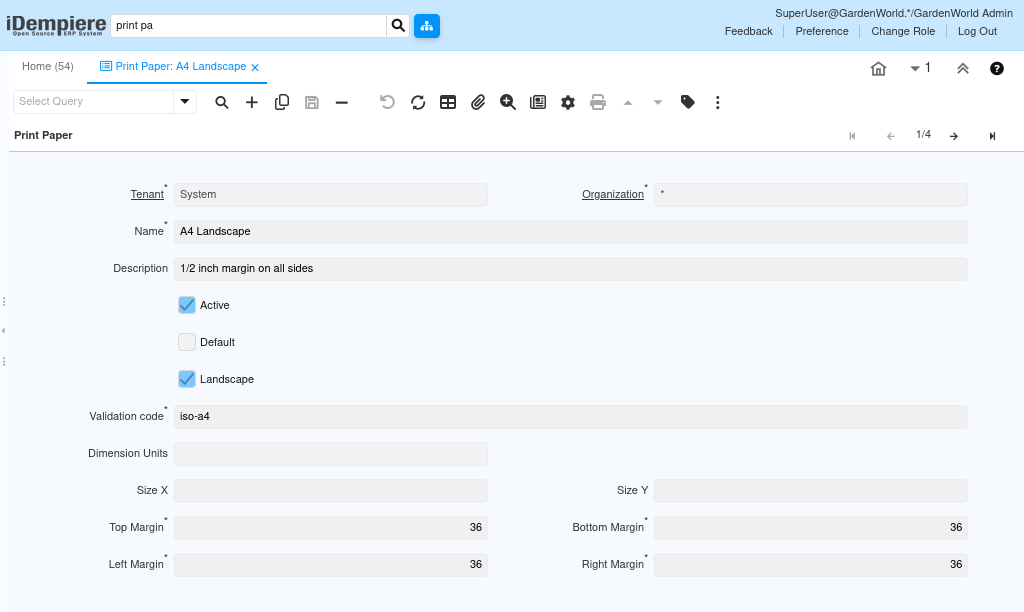
Step 2: Configure Properties
Complete the required fields and save the record.
Step 3: Define Paper Size
Complete the required fields and save the record.
Step 4: Set Margins
Complete the required fields and save the record.
Common Issues and Resolutions
| Issue | Cause | Resolution |
|---|---|---|
| Wrong size | Invalid paper | Choose correct paper |
| Wrong orientation | Landscape mismatch | Update setting |
| Content clipped | Margins too small | Increase margins |
| Inactive paper | Active disabled | Enable record |
| Print offset | Wrong dimensions | Verify size |
Next Steps
- Assign to Print Format.
- Test printing.
- Verify page layout.