How to use Recalculate Cube process in iDempiere
Introduction
Recalculate Cube is a background process window in iDempiere that rebuilds summarized accounting facts stored in the Fact_Acct_Summary table based on the dimensions defined in a Report Cube.
It runs from the Performance Analysis module whenever Report Cube definitions change or accounting data grows, and it can be launched manually or scheduled as a job.
Accurate cube summaries keep performance reports, dashboards, and OLAP-style analysis fast and consistent with the underlying Fact_Acct transactions.
Process Flow Diagram

Business Rules
- Only active Report Cube definitions are processed during recalculation.
- Full rebuild clears existing summary records before regenerating them.
- Force option recalculates records even when no changes are detected.
- Run as Job executes recalculation asynchronously without blocking the session.
- Recalculation is scoped to the client of the logged-in user.
- Leaving Report Cube blank processes all active cubes for the client.
- Summary data in Fact_Acct_Summary reflects only the last successful recalculation.
Prerequisites
- Report Cube definition configured in the Performance Analysis module.
- Accounting facts already posted to the Fact_Acct table.
- Report Cube dimensions and measures configured correctly.
- User role has access to the Recalculate Cube process and Report Cube window.
Navigation
Menu → Performance Analysis and Accounting → Financial Reporting → Recalculate Cube
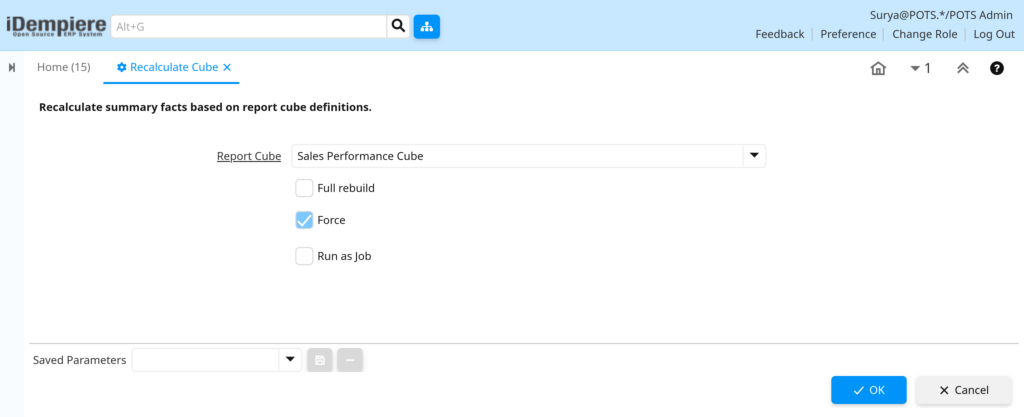
After opening the window, users see a Report Cube selector along with Full rebuild, Force, and Run as Job checkboxes, plus OK and Cancel buttons at the bottom.

Configuration Steps
Step 1: Select the Report Cube
Choosing the Report Cube determines which summary definition is being rebuilt. Leaving it blank recalculates every active cube for the client.
Instructions
Open the Report Cube dropdown and select the cube to recalculate, or leave it empty to process all active cubes for the current client.

| Field | Sample Value | Description |
| Report Cube | Sales Performance Cube | Report cube definition whose summary facts will be rebuilt |
Step 2: Decide on Full Rebuild
Full rebuild is required after structural changes to a cube, such as new dimensions or measures, since old summary rows no longer match the definition.
Instructions
Check Full rebuild only when the cube structure changed or summary data looks incorrect; leave it unchecked for routine incremental updates.
| Field | Sample Value | Description |
| Full rebuild | Unchecked | Clears existing Fact_Acct_Summary rows before regenerating them |
Step 3: Enable Force if Needed
Force overrides the system’s internal check that skips cubes it considers already up to date, useful when summary data is suspected to be out of sync.
Instructions
Check Force when totals look stale despite no reported errors, such as after a manual correction to accounting facts.
| Field | Sample Value | Description |
| Force | Checked | Forces recalculation even if the system detects no pending changes |
Step 4: Choose Run as Job for Large Datasets
Large cubes can take significant time to rebuild; running as a background job prevents the user session from timing out during processing.
Instructions
Check Run as Job for large or multi-organization cubes so the process executes in the background instead of holding the browser session.
| Field | Sample Value | Description |
| Run as Job | UnChecked | Submits the recalculation as an asynchronous background job |
Note: Running large or multi-organization Report Cubes without Run as Job may cause the browser session to time out before the process finishes.Step 5: Execute the Process
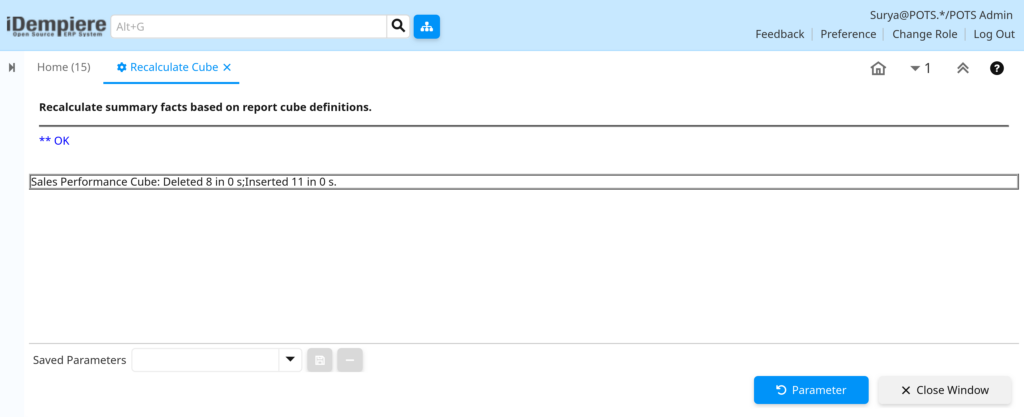
Submitting the process starts the recalculation and returns a completion log summarizing the cubes processed.
Instructions
Click OK to run the process, or Cancel to close without recalculating. Review the process log for confirmation once it completes.
Common Issues and Resolutions
| Issue | Cause | Resolution |
| Process times out on large cubes | Synchronous execution on high Fact_Acct_Summary volume | Enable Run as Job to process in the background |
| Summary data appears outdated | Full rebuild not selected after a cube definition change | Rerun the process with Full rebuild enabled |
| No Report Cube listed in dropdown | No active Report Cube record exists | Create and activate a Report Cube definition first |
| Recalculation processes zero records | Cube dimensions do not match posted Fact_Acct data | Review the cube’s dimension and measure configuration |
| Recalculation does not affect other clients | Process is scoped only to the logged-in client | Log in under the target client and rerun the process |
| Duplicate or inconsistent summary rows | Repeated runs without Full rebuild after structural changes | Run Full rebuild to clear and regenerate cleanly |
| Background job never appears to complete | Process Scheduler or job queue is not active | Verify the Process Scheduler is running and retry |
Next Steps
- Configure additional Report Cube definitions for other reporting dimensions.
- Schedule Recalculate Cube as a periodic Process Scheduler job.
- Review Performance Analysis dashboards to confirm updated cube data.