How to Configure Position in iDempiere
Position is the iDempiere window that defines job titles such as Finance Manager or Founder, classified under a Position Category and flagged as Employee or Non-Employee.
Businesses use it to standardize roles referenced in Business Partner Contacts, Leads, and Position Assignments, distinguishing internal staff from external contacts.
The Employee flag controls which Positions are available in each context, keeping role selection consistent across HR and CRM data.
Process Flow

Business Rules
- Every Position belongs to a Tenant and is created under an Organization.
- Every Position must belong to a Position Category.
- Position Name is mandatory.
- New Positions default to Employee = Yes.
- Active is enabled by default; only active Positions are selectable.
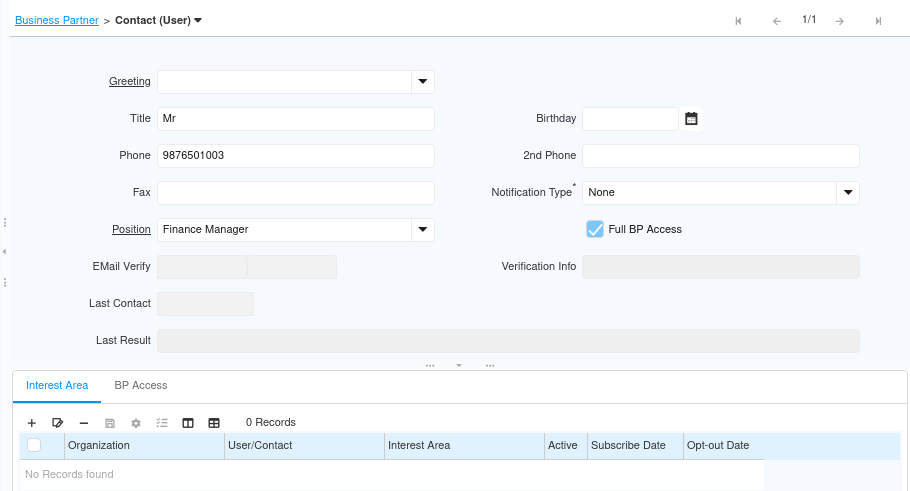
- Business Partner Contact only shows Positions matching the partner’s Employee flag.
- Leads without a linked Business Partner only show Employee = No Positions.
- Position Assignment is limited to Users whose Business Partner is Employee or Sales Representative.
- Creating a Position does not automatically create Position Assignments.
Prerequisites
- Position Category configured for the classification.
- Organization configured for the Position record.
- Business Partner Employee flag set correctly for contacts that will use this Position.
Configuration Steps
Step 1: Create a Position Record
This establishes a new job title that can later be assigned to contacts, leads, or eligible users.
Navigate to Partner Relations→ Position, click New, and select the Organization.
| Field | Sample Value | Purpose |
| Organization | CDC | Organization the Position belongs to |
Step 2: Assign the Position Category and Name
The Position Category groups the role into a business function, while Name identifies the job title.
Select the Position Category, then enter a business-oriented Name for the Position.
| Field | Sample Value | Purpose |
| Position Category | Finance & Accounting | Groups the Position under a business function |
| Name | Finance Manager | Identifies the Position |
Step 3: Set the Employee Flag
The Employee flag determines whether the Position is used for internal staff or external contacts such as Leads and vendor representatives.
Check Employee for internal roles; leave it unchecked for external roles such as Founder, which is used for outside business contacts.
| Field | Sample Value | Purpose |
| Employee | Checked (Finance Manager) | Marks the Position for internal employee use |
| Employee | Unchecked (Founder) | Marks the Position for external, non-employee use |

Step 4: Enter Description and Comment/Help
Description and Comment/Help clarify what the Position covers and how it should be used.
Enter a Description summarizing the role’s responsibilities, and optional Comment/Help guidance for administrators.
| Field | Sample Value | Purpose |
| Description | Oversees accounting, budgeting, and financial reporting. | Summarizes the role’s responsibilities |
| Comment/Help | Used for external business contacts, prospective customers, and vendor representatives who founded their organizations. | Guides administrators on when to use the Position |
Step 5: Save and Assign to Eligible Users
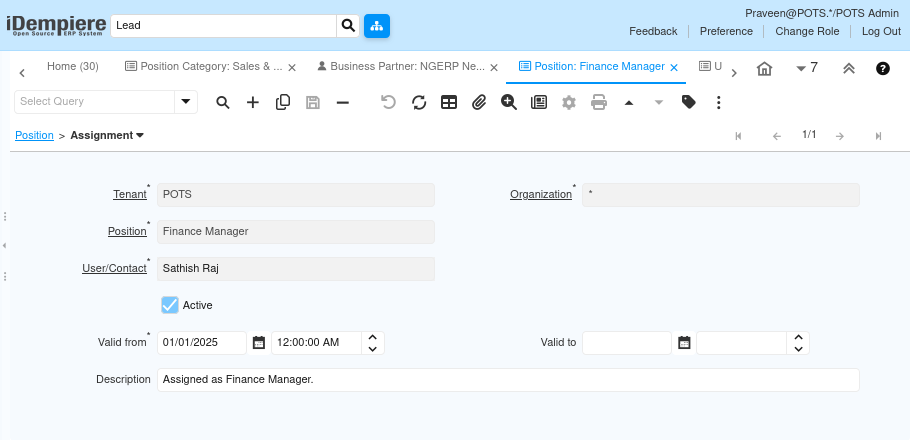
Saving makes the Position selectable; the Assignment tab links eligible Users or Contacts to the Position for a validity period.
Save the record, open the Assignment tab, click New, select the User/Contact and Valid From date, then save the row.
| Field | Sample Value | Purpose |
| Position | Finance Manager | Position being assigned |
| User/Contact | Sathish Raj | Eligible user receiving the assignment |
| Valid from | 01/01/2025 12:00:00 AM | Date the assignment becomes effective |
| Description | Assigned as Finance Manager. | Notes the reason for the assignment |
Common Issues and Resolutions
| Issue | Cause | Resolution |
| Position not available in Business Partner Contact | Position’s Employee flag does not match the Business Partner’s Employee flag | Verify the Employee flag matches on both records |
| Position not available in Lead | Lead has no linked Business Partner and the Position is Employee = Yes | Use a Position configured with Employee = No for unlinked Leads |
| User not available in Position Assignment | Associated Business Partner is not marked Employee or Sales Representative | Verify the Business Partner’s Employee or Sales Representative flag |
| Position not displayed in lookup | Position is inactive or in an inaccessible Organization | Confirm Active is checked and the Organization is accessible |
| Wrong Position Category selected | Position mapped to an unrelated category | Correct the Position Category on the Position record |
| Position missing description | Description left blank at creation | Add a Description explaining the role’s responsibilities |
Next Steps
- Assign Positions to Business Partner Contacts.
- Create Position Assignments for eligible Users.
- Use non-employee Positions for Leads and external Business Partner Contacts.
- Maintain Position Categories and Position records as organizational roles evolve.