How to Use Tenant Accounting Processor in iDempiere
Configure the Tenant Accounting Processor in iDempiere to post completed retail invoices, receipts, and payments into accounting entries.
Introduction
The Tenant Accounting Processor is the iDempiere process that finds completed but unposted documents and generates their accounting entries in Fact_Acct. It is also known as the Client Accounting Processor.
It runs across invoices, payments, material receipts, shipments, and inventory movements to keep the general ledger current across every outlet.
Running it regularly ensures accurate financial reporting, correct customer and vendor balances, and reliable product costing for retail transactions.
Process Flow
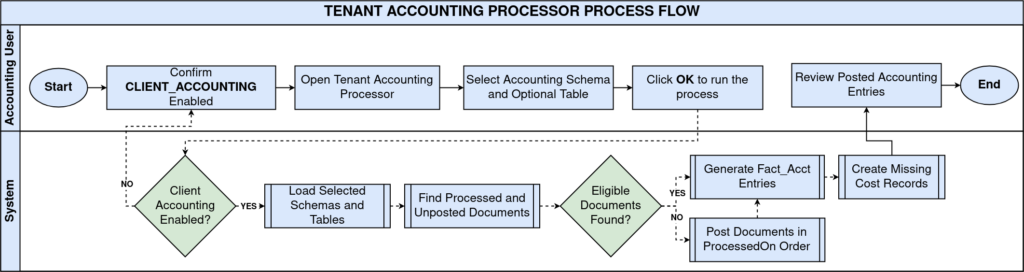
Business Rules
- Only Processed are eligible for posting; drafts are ignored.
- Documents already Posted are skipped; only UNPosted are processed.
- Inactive documents are excluded from posting regardless of status.
- Documents completed within the last 2 seconds are skipped for safety and posted on the next run.
- When no Accounting Schema is selected, all schemas configured for the tenant are processed.
- When no Table is selected, all supported accounting document tables are checked.
- Documents are posted in chronological ProcessedOn order to keep weighted average costing accurate.
- Missing cost records are created automatically after posting completes.
Prerequisites
- Accounting Schema configured for the tenant (currency, costing method, calendar).
- System Configurator parameter CLIENT_ACCOUNTING set to Immediate or Queue.
- Organization and Business Partner records configured.
- Document Types and GL account mapping completed for invoices, payments, and shipments.
- Source documents (invoice, payment, receipt, shipment) completed so Processed = Yes.
Navigation
Menu → Performance Analysis and Accounting → Tenant Accounting Processor
Opening the window shows a short description of the process and two filter fields, Accounting Schema and Table, along with a Run as Job checkbox and Saved Parameters option.
Configuration Steps
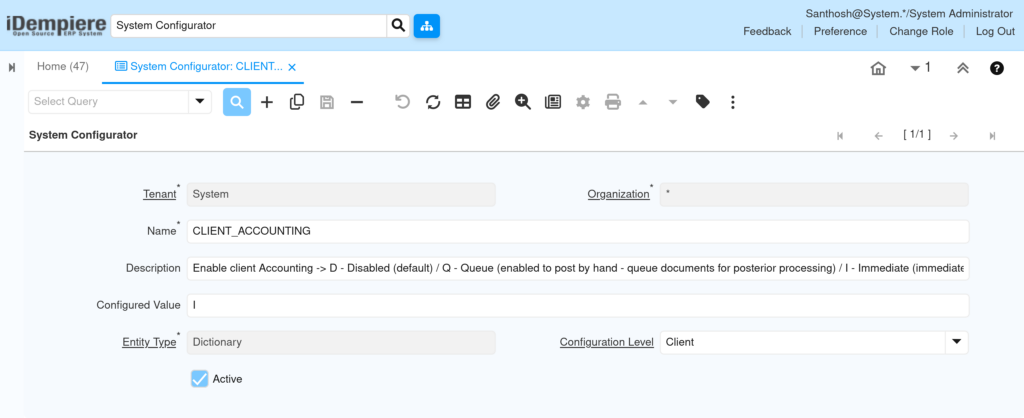
Step 1: Confirm Client Accounting Is Enabled
In System Admin, open the System Configurator and set CLIENT_ACCOUNTING to Immediate or Queue. Save the change before running the processor.
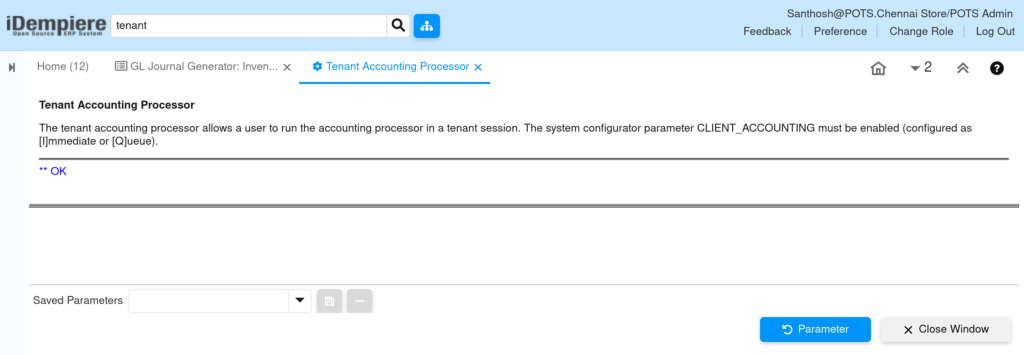
Step 2: Open the Tenant Accounting Processor
Search “tenant” in the top menu bar and select Tenant Accounting Processor. Review the on-screen description, then click Parameter to continue.
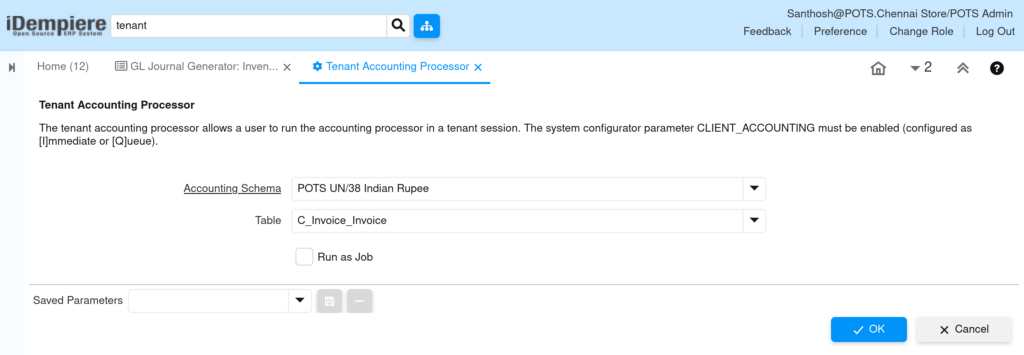
Step 3: Select the Accounting Schema
Pick the applicable schema, for example POTS UN/38 Indian Rupee. Leave it blank to post against every schema configured for the tenant.
Step 4: Select the Table (Optional)
Choose a table such as C_Invoice_Invoice to post only invoices. Leave it blank to process all supported accounting tables.
Step 5: Choose Run as Job (Optional)
Check Run as Job to queue the process in the background, or leave it unchecked to run and view results immediately.
Step 6: Execute the Process
Click OK to start posting. The system checks Client Accounting status, loads the schema(s), and posts eligible documents in ProcessedOn order.
Field Reference Table
| Field | Sample Value | Description |
| Accounting Schema | POTS UN/38 Indian Rupee | Restricts posting to one accounting schema; blank posts all schemas. |
| Table | C_Invoice_Invoice | Restricts posting to one document table; blank checks all supported tables. |
| Run as Job | Unchecked | Runs the process in the background instead of the interactive session. |
Common Issues and Resolutions
| Issue | Cause | Resolution |
| Process stops immediately with an error | CLIENT_ACCOUNTING is disabled in System Configurator | Enable it as Immediate or Queue, then rerun the processor. |
| Invoice or payment stays unposted | Document is still Draft, so Processed = No | Complete the document in its own window before posting. |
| Only some tables get posted | A specific Table was selected in the parameters | Clear the Table field to process all supported accounting tables. |
| Cost records missing after posting | Cost record not yet generated for the product | Rerun the processor; it triggers cost record creation after posting. |
| Process runs slowly for large stores | All tables scanned without a Table filter | Filter by Table to post high-volume document types separately. |
Next Steps
- Review and configure the Accounting Schema (currency, costing method, calendar).
- Set up GL Account mapping for products, business partners, and document types.
- Configure the System Configurator CLIENT_ACCOUNTING parameter for the tenant.
- Review posted entries in the GL Journal or Fact_Acct inquiry windows.