How to Configure Request Processor in iDempiere
Introduction
The Request Processor is a background setup window in iDempiere that automatically monitors open service requests and takes action based on due dates and inactivity.
It is used wherever service requests are logged, such as customer complaints, support tickets, or internal follow-ups, and runs on a fixed schedule without manual intervention.
By sending reminders, escalating overdue requests, and cleaning old logs, it keeps service request reporting accurate and ensures requests are not missed.
Process Flow

Business Rules
- Only active Request Processor records are executed by the system.
- Each processor runs automatically based on its assigned schedule.
- Reminder days determine when a notice is sent before a request becomes due.
- Escalate after days due moves overdue requests to the supervisor.
- The supervisor is notified when a request needs escalation.
- Inactivity alert days flag requests with no recent updates.
- Log entries older than the configured days are removed automatically.
- Routing rules direct specific request types to specific users or contacts.
- A blank request type in routing applies the rule to all request types.
- Every processor run creates a log entry summarizing the actions taken.
Prerequisites
- Organization configured for the business unit using service requests.
- Request Type values defined, such as Customer Complaint or Support Ticket.
- Users or contacts created and available for routing assignment.
- A supervisor user identified for escalation handling.
Navigation
Menu → System Admin → General Rules → Server → Request Processor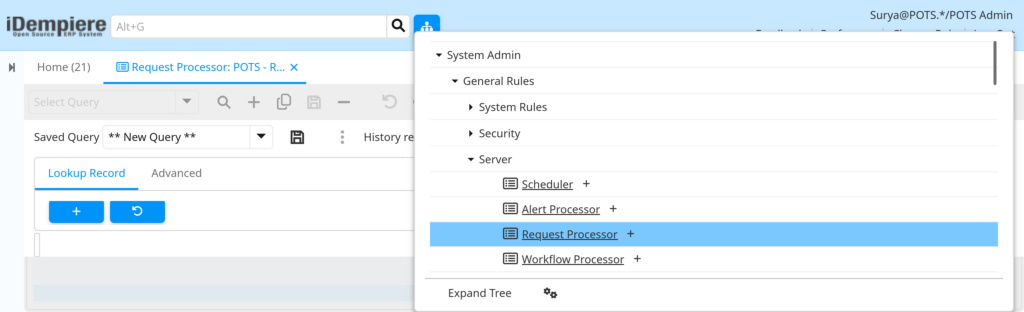
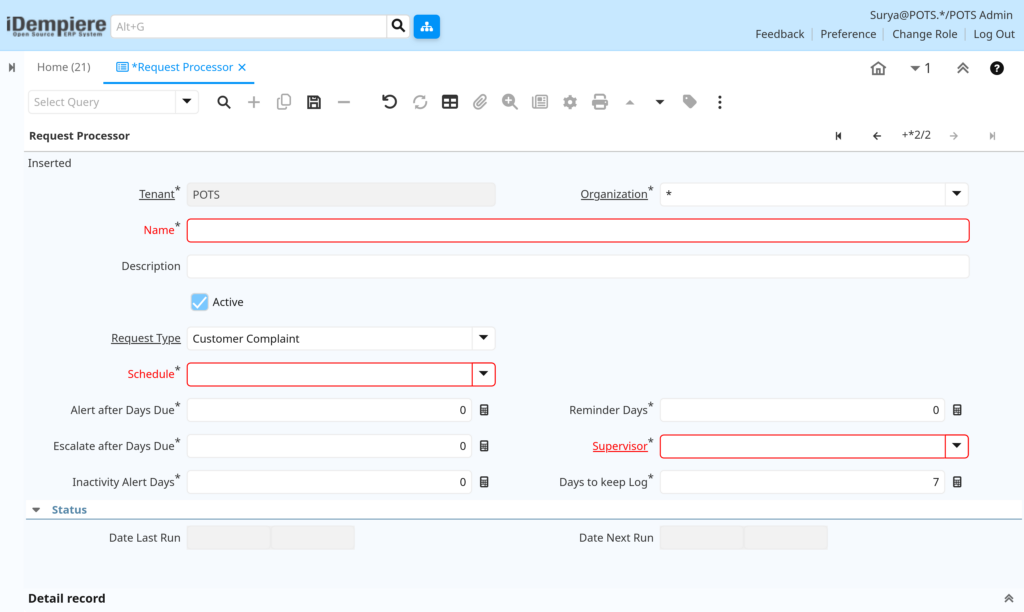
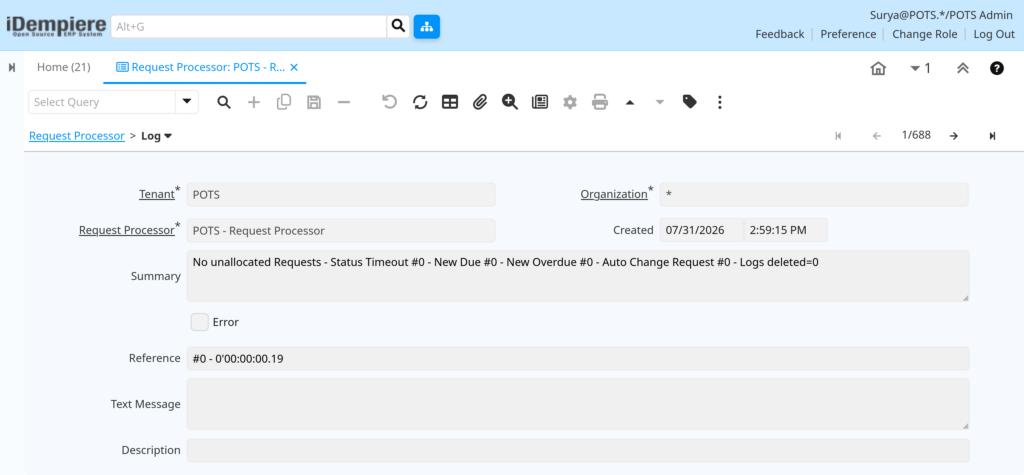
Opening the window displays the processor header with schedule and alert settings, a Status section showing the last and next run times, and two lower tabs: Routing and Log.
Configuration Steps
Step 1: Create the Request Processor
This step sets up the basic identity of the processor so the system knows which organization and requests it manages.
Instructions
Enter a name that describes the purpose of the processor. Confirm the Active checkbox is selected so the processor is picked up by the system.
| Field | Sample Value | Description |
| Name | POTS – Request Processor | Identifies the processor for this organization. |
| Description | (optional) | Short note on what the processor is used for. |
| Active | Checked | Controls whether the processor runs at all. |
Step 2: Set the Run Schedule
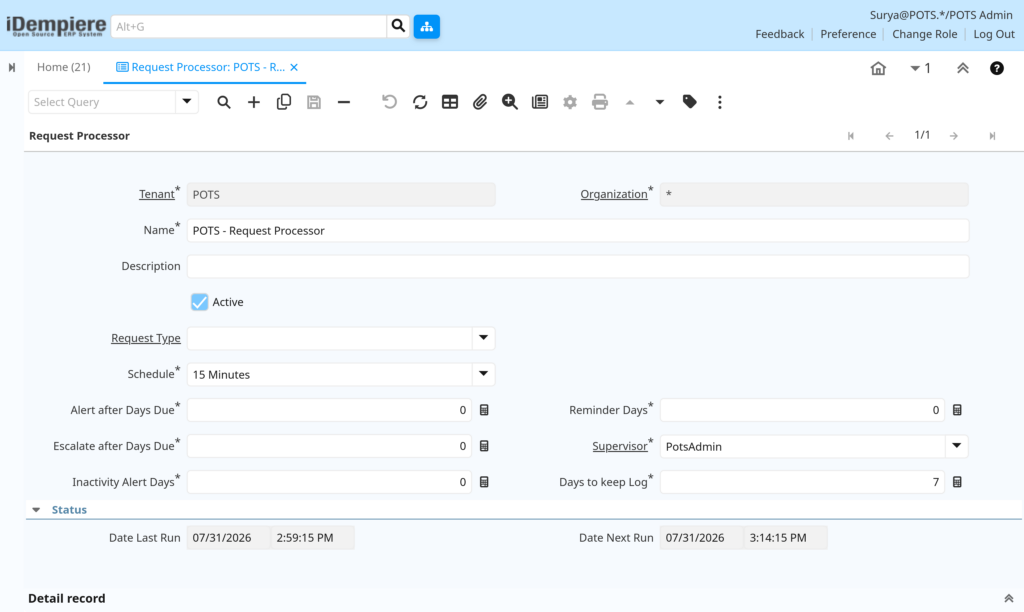
The schedule controls how often the system checks open requests for reminders, overdue status, and inactivity.
Instructions
Select a schedule value, such as every 15 minutes, based on how quickly requests need attention. Leave Request Type blank to cover all request types.
| Field | Sample Value | Description |
| Request Type | (blank = all types) | Limits the processor to one request type if set. |
| Schedule | 15 Minutes | How often the processor checks for due or overdue requests. |
Step 3: Configure Reminder and Escalation Timing
These settings decide when a reminder is sent, when a request is treated as overdue, and when it is flagged as inactive.
Instructions
Enter the number of days before due date for a reminder, the number of days after due date for escalation, and the number of days without activity before an alert.
| Field | Sample Value | Description |
| Reminder Days | 0 | Days before due date a reminder is sent to the assigned user. |
| Alert after Days Due | 0 | Days after due date before an alert is raised. |
| Escalate after Days Due | 0 | Days after due date before the request is escalated. |
| Inactivity Alert Days | 0 | Days without update before an inactivity alert is sent. |
Step 4: Assign the Supervisor and Log Retention
The supervisor receives escalated requests, and the log retention setting keeps the processor log from growing indefinitely.
Instructions
Select the supervisor user who should handle escalations. Enter the number of days to keep processor log entries before they are deleted.
| Field | Sample Value | Description |
| Supervisor | PotsAdmin | User who receives escalated or overdue requests. |
| Days to keep Log | 7 | Number of days a log entry is retained before deletion. |
Step 5: Add Routing Rules
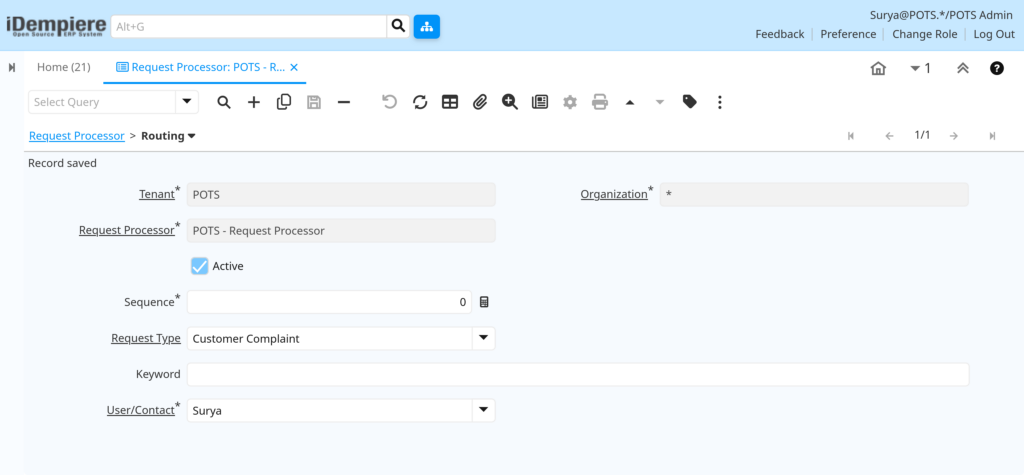
Routing rules send specific request types to the right user or contact, so requests are not left unassigned.
Instructions
In the Routing tab, add a new line, select the request type to route, and choose the User/Contact who should receive matching requests. Save the record.
| Field | Sample Value | Description |
| Sequence | 0 | Order in which routing rules are checked. |
| Request Type | Customer Complaint | Type of request this rule applies to. |
| Keyword | (optional) | Matches requests containing this word, if entered. |
| User/Contact | (select a user) | Person the matching request is routed to. |
Step 6: Review the Processor Log
The Log tab records what the processor did on each run, which is useful for confirming the setup is working as expected.
Instructions
Open the Log tab after a scheduled run and review the summary line for counts of overdue, escalated, and deleted log records.
| Field | Sample Value | Description |
| Created | 07/31/2026 10:28:44 AM | Date and time the log entry was generated. |
| Summary | No unallocated Requests – Status Timeout #0… | Short result of the processor run. |
| Error | Unchecked | Indicates whether the run completed without errors. |
Note: The User/Contact field in the Routing tab is required. A routing line cannot be saved until a user or contact is selected.Common Issues and Resolutions
| Issue | Cause | Resolution |
| Routing line will not save | User/Contact field left blank | Select a valid user or contact before saving the line. |
| Requests are never escalated | Escalate after Days Due left at 0 with no real value set | Enter the correct number of overdue days for escalation. |
| No reminders are sent | Reminder Days left at 0 | Set Reminder Days to the number of days before due date. |
| Processor appears inactive | Active checkbox unchecked on the header | Select Active so the processor is included in scheduled runs. |
| Wrong requests get routed | Request Type or Keyword set incorrectly on a routing line | Review and correct the Request Type and Keyword values. |
| Log grows very large over time | Days to keep Log set too high or left blank | Set a reasonable retention value such as 7 days. |
| Supervisor not receiving escalations | Supervisor field left blank or points to wrong user | Assign the correct supervisor user on the header. |
| Processor never runs | Schedule not selected or organization mismatch | Confirm Schedule is set and Organization matches the requests. |
Next Steps
- Configure Request Type values to match the categories used by the business.
- Review the Request window to confirm requests are created with the correct type.
- Set up user notifications so routed users are alerted of new assignments.