How to Run the 1099 Extract Process in iDempiere
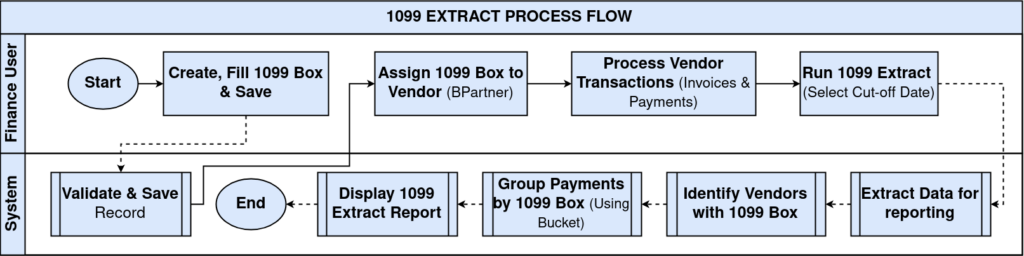
The 1099 Extract process collects eligible vendor payment information for IRS Form 1099 reporting by scanning paid Purchase Invoices for 1099 Vendors.
It is run at year-end to summarize payments to contractors, consultants, and other 1099 vendors, grouped by their assigned 1099 Box.
The process only inserts summarized data into the temporary T_1099Extract table; it never updates the source invoices, payments, or business partners.
Process Flow
Business Rules
- Cut Date defaults to the current system date if left blank.
- Only vendors that are Active, Vendor = Yes, and 1099 Vendor = Yes are included.
- Only Purchase Invoices that are Paid and Completed or Closed are processed.
- Each invoice line must have a 1099 Box assigned to be included.
- Invoices are selected from the first day of the Cut Date year through the Cut Date.
- Bucket amounts are calculated for all 16 IRS reporting buckets.
- Extracted data is inserted into T_1099Extract only; no source records are updated.
Prerequisites
- 1099 Box categories configured.
- Vendor Business Partners marked as 1099 Vendor with a Default 1099 Box.
- Purchase Invoices completed, paid, and dated within the reporting year.
Configuration Steps
Step 1: Configure the 1099 Box Categories
Every extracted amount needs a reporting category to group into, so the relevant 1099 Boxes must exist before invoices reference them.
Create the required 1099 Box records, such as Nonemployee Compensation, before recording qualifying Purchase Invoices.
Field Reference
| Field | Sample Value | Description |
| Search Key | 1099-NEC-01 | Unique identifier for the 1099 Box |
| Name | Nonemployee Compensation | IRS reporting category name |
| Bucket | 1 | IRS box number this category reports under |
| Note: 1099 Boxes become available for Purchase Invoice Lines once created and Active. | ||
Step 2: Configure the Vendor as a 1099 Vendor
Only vendors explicitly flagged as 1099 Vendors are considered, so this setting determines who appears in the extract at all.
Open the Vendor Business Partner, enable 1099 Vendor, and assign a Default 1099 Box.
| Field | Sample Value | Description |
| 1099 Vendor | Yes | Marks the Business Partner as eligible for 1099 reporting |
| Default 1099 Box | Nonemployee Compensation | Category used when invoice lines do not specify their own box |
| Active | Yes | Business Partner must be active to be included |
Step 3: Record a Qualifying Purchase Invoice
An invoice only counts toward the extract once it is fully paid, completed, and tagged with a 1099 Box on its line.
Create and complete the Purchase Invoice, assign a 1099 Box on the Invoice Line, then process the payment to Paid status.
| Field | Sample Value | Description |
| IsSOTrx | N | Confirms the document is a Purchase Invoice, not a Sales Invoice |
| Document Status | Completed | Invoice must be Completed or Closed to qualify |
| Paid | Yes | Invoice must be fully paid to qualify |
| Invoice Line 1099 Box | Nonemployee Compensation | Category the line amount reports under |
Step 4: Run the 1099 Extract Process
Running the process is what actually scans invoices and builds the reporting data; nothing is extracted until it is executed.
Open 1099 Extract, enter the Cut Date, optionally check Run as Job, then click OK.
| Field | Sample Value | Description |
| Cut Date | 31-Dec-2026 | End date of the reporting period; defaults to today if left blank |
| Run as Job | Unchecked | Runs the process in the background |
| Note: Invoices are considered from the first day of the Cut Date year through the Cut Date itself, for example 01-Jan-2026 through 31-Dec-2026. | ||
Step 5: Review the Extracted Output
A final check confirms the extract captured every qualifying vendor and amount before the data is used for IRS filing.
Review the records populated in T_1099Extract and confirm amounts are grouped correctly by vendor and 1099 Box.
Expected Result
- Eligible payments are collected and classified under the assigned 1099 Box.
- Bucket amounts (1 through 16) reflect only qualifying invoices.
- No Purchase Invoice, Payment, or Business Partner record is modified.
Common Issues and Resolutions
| Issue | Cause | Resolution |
| Vendor not extracted | 1099 Vendor not enabled | Enable 1099 Vendor on the Business Partner |
| No extracted amount | Invoice Line has no 1099 Box | Assign a valid 1099 Box to the Purchase Invoice Line |
| Vendor missing | Invoice not paid | Complete payment before running the extract |
| Invoice ignored | Document Status is Draft or In Progress | Complete or Close the Purchase Invoice |
| Missing invoices | Accounting Date outside the reporting year | Verify the Cut Date and Accounting Date range |
Next Steps
- Review the generated data in T_1099Extract.
- Validate bucket totals for each vendor.
- Generate or print the 1099 reporting output.
- Use the extracted data for IRS year-end filing.