How to Use Export Format in iDempiere
Learn how the Export Format window in iDempiere defines XML export structure, fields, and reusable templates for data replication.
Introduction
The Export Format window defines the XML structure used when exporting iDempiere data. It specifies the source table, exported fields, and their sequence, acting as a reusable template for export operations.
It is used within the standard replication framework to support data synchronization between systems.
By standardizing export structure, it ensures consistent, accurate data replication without repeated custom development effort.
Process Flow

Business Rules
- Every Export Format is associated with a single database table.
- The selected table determines which columns are available for export.
- One Export Format can contain multiple Export Format Lines.
- An inactive Export Format is excluded from export processing.
- SQL WHERE can restrict which records are exported, when defined.
- Position on each line controls the sequence of XML elements.
- Mandatory flag identifies XML elements that must be included in the export.
- XML Element type exports the database column value directly.
- Referenced EXP Format exports a related object using another Export Format.
- Embedded Format determines how referenced objects appear within the XML.
- Part Unique Index marks fields that contribute to record identification.
Prerequisites
- User access to the Replication module in the standard iDempiere menu.
- The source database table (e.g., M_Product, C_BPartner) must already exist in the Application Dictionary.
- Any referenced Export Formats must be created beforehand if used within Export Format Lines.
- A working knowledge of the target table structure and its key fields.
Configuration Steps
Step 1 — Create Export Format
Why this step is required: An Export Format header must exist before individual export fields can be defined. It identifies the source table and overall export definition.
Navigate to Replication → Export Format. Create a new record, enter a unique Search Key and Name, set the Version, select the source Table, and ensure Active is checked.
| Field | Sample Value | Description |
| Search Key | M_Product | Unique identifier of the export format |
| Name | Product | Display name of the export format |
| Version | 3.2.0 | Version of the export definition |
| Table | M_Product_Product | Source database table to export |
| Active | Yes | Indicates whether the export format is available for use |
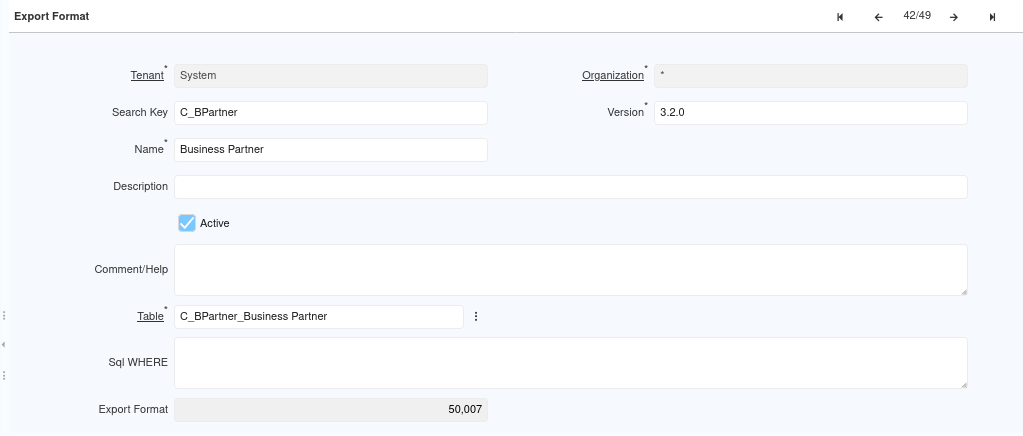
Step 2 — Define Export Format Lines
Each Export Format Line specifies one XML element included in the exported document, including its source column and how it is represented.
In the Export Format Line tab, add a new line for each field. Set the Position, source Column, Type (XML Element or Referenced EXP Format), and Mandatory flag as needed.
| Field | Sample Value | Description |
| Position | 10 | Controls the sequence of the XML element in the export |
| Column | AD_Client_ID | Database column being exported |
| Type | Referenced EXP Format | Defines how the value is represented in the XML |
| Mandatory | Yes | Marks the element as required in the export |
| Part Unique Index | No | Indicates whether the field contributes to record identification |

Step 3 — Save the Export Format
Saving stores the export definition so it can be referenced by other standard processes.
Save the record after the header and lines are configured. No additional fields are required for this action step.
Once saved, the Export Format becomes available for selection in the Test Export Model process and within Replication Strategy configuration.
Common Issues and Resolutions
| Issue | Cause | Resolution |
| Export Format does not appear in export processes | The record is marked Inactive | Set the Active flag to Yes and save the record |
| Incorrect XML structure generated | Export Format Lines are misconfigured or out of sequence | Review line positions and column mappings |
| Referenced data missing from export | Referenced EXP Format is not linked correctly | Verify the referenced Export Format is configured correctly |
| Exported records are missing | SQL WHERE clause is too restrictive | Review and adjust the SQL WHERE condition |
| Related object data fails to export | Embedded Format is not defined for the referenced object | Configure Embedded Format on the relevant line |
| Wrong columns appear in the export | Incorrect Table selected in the header | Confirm the correct Table is selected in the Export Format header |
| Duplicate or unidentifiable records in XML | Part Unique Index not marked on key fields | Mark the relevant identifying fields as Part Unique Index |
Next Steps
- Configure the Export Format Lines for the export definition.
- Associate the Export Format with a Replication Strategy.
- Configure an Export Processor.
- Run the Test Export Model process to generate the XML output.
- Validate the generated XML before using it for replication.