How Change Audit Window Works in iDempiere
Introduction
The Change Audit window in iDempiere shows a read-only history of every tracked data change across the system. Each entry records the table, the field, the old value, the new value, and the user who made the change.
Businesses use this window to review past updates on masters, documents, and settings without depending on outside logs. It supports internal reviews, troubleshooting, and accountability for who changed what and when.
Because entries are view-only, the window does not affect open transactions. It simply reflects changes already saved, giving reporting and support teams a reliable trail for audits and error tracing.
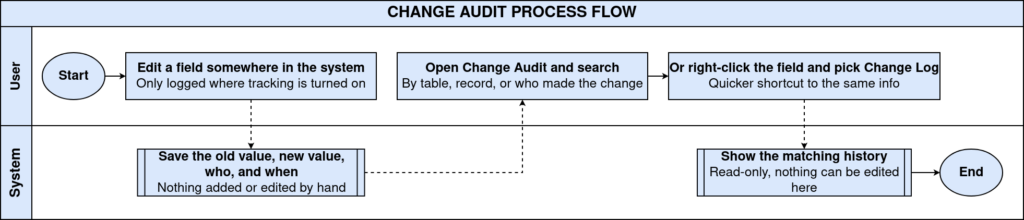
Process Flow
Business Rules
- Change Audit only shows changes for tables where change tracking is turned on.
- Change Audit only shows changes for roles where change tracking is turned on.
- Each record shows one field change, not the whole record at once.
- Old Value and New Value stay blank when the change is a new record or a deleted record.
- Values often show internal reference numbers instead of names, since the source column stores an ID.
- The window is read-only for standard business users; no new entries can be added here.
- Every entry keeps the tenant, organization, session, and updating user for full traceability.
- Inactive entries stay in the system for audit history and do not appear in daily transaction screens.
Prerequisites
Before the Change Audit window shows any meaningful history, the following must already be set up:
- Change tracking turned on for the table in the Table and Column window.
- Change tracking turned on for the role in the Role window.
- User accounts and roles already configured for the tenant.
- At least one saved change made to a tracked record.
Navigation
Menu → System Admin → General Rules → Security → Change Audit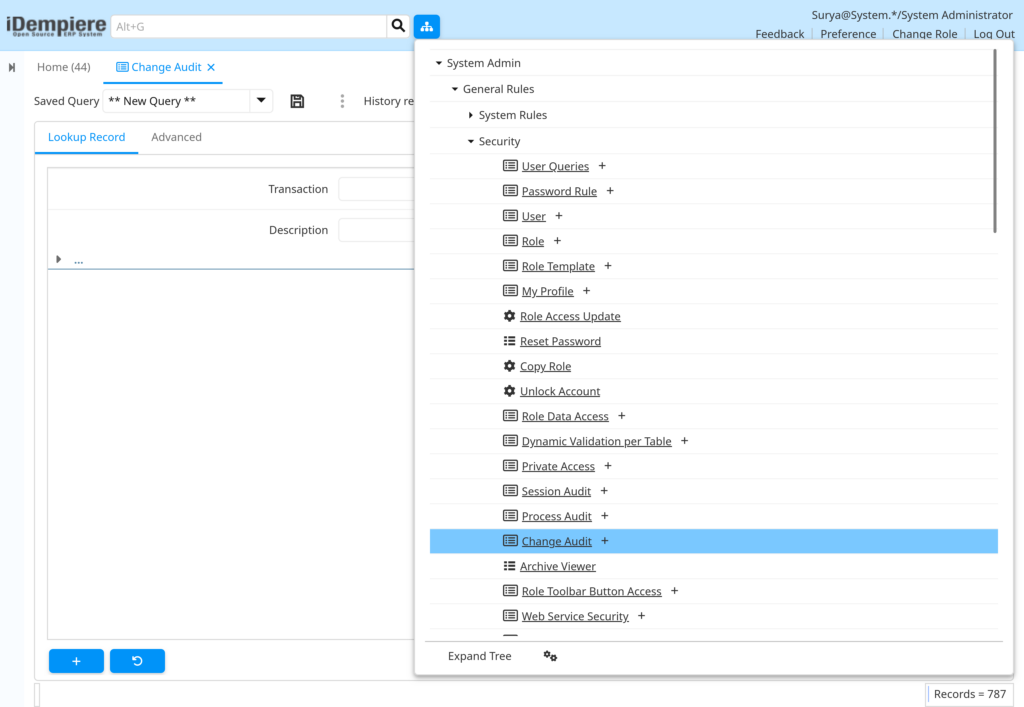
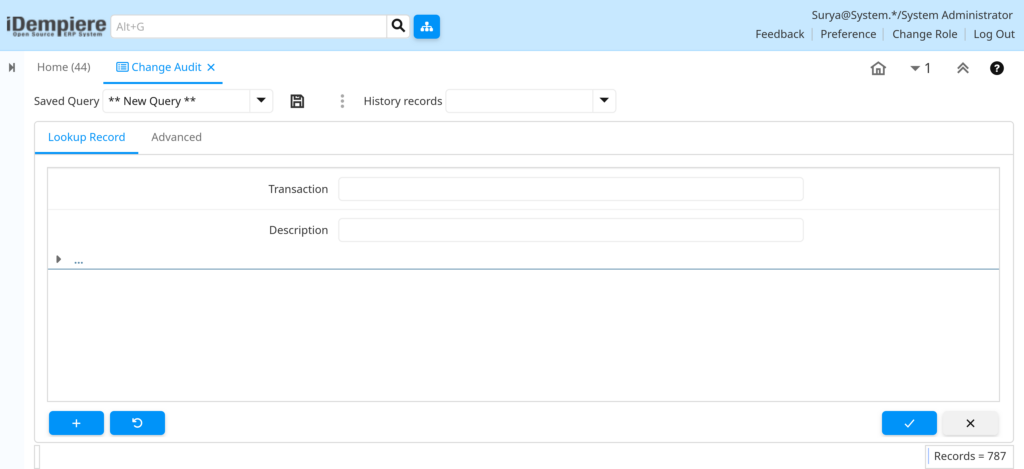
Opening the window shows a single list of change entries. Each row is one field-level change, with the affected table, the column, the old and new values, and the user and time of the update. Users can move through entries with the record navigation controls or narrow the list with a query.
Configuration Steps
Step 1: Turn On Change Tracking For The Table
The Change Audit window stays empty until a table is marked for tracking. This step decides which data areas will build a history.
Instructions
Open the Table and Column window from the Application Dictionary menu. Find the table, and select the Maintain Change Log option. Save the record so future updates on that table are captured.
Step 2: Turn On Change Tracking For The Role
Tracking also depends on the role used to make the change. Without this setting, updates made under that role will not appear.
Instructions
Open the Role window under Security. Select the role that needs tracking, and select the Maintain Change Log option on that role. Save the record.
Step 3: Open The Change Audit Window
Once tracking is active, saved changes start appearing here for review.
Instructions
Go to Menu → System Admin → General Rules → Security → Change Audit. The most recent entry loads first. Use the navigation arrows to move through the full history.
Step 4: Read A Change Record
Each entry holds several fields that together explain what changed, where, and by whom.
Instructions
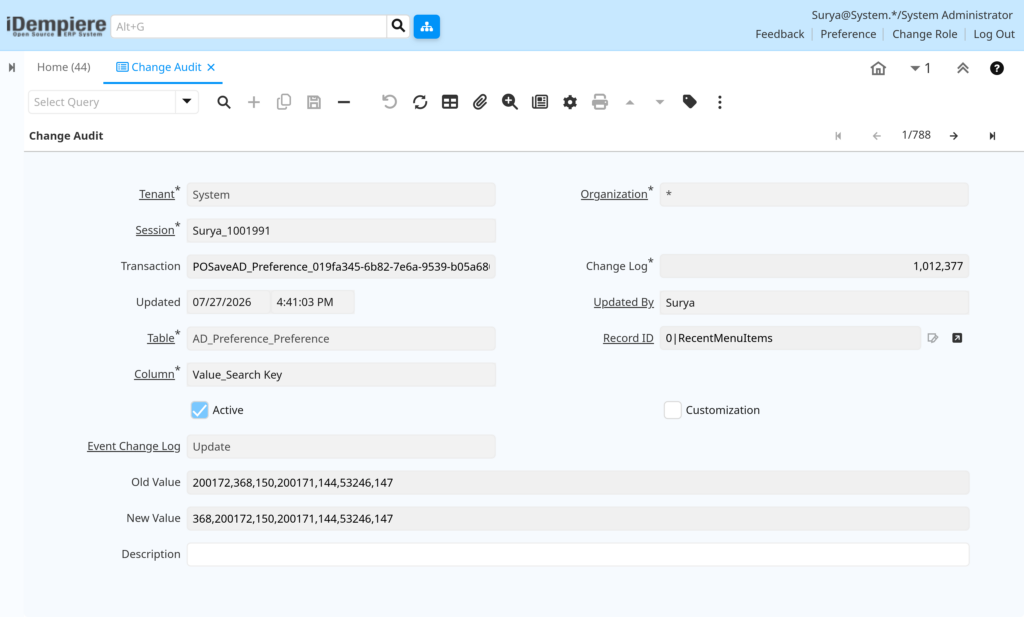
Review the Table, Column, Old Value, and New Value fields to see what changed. Check Updated and Updated By to confirm when and who made the change.
Field Reference Table
| Field | Sample Value | Description |
| Tenant | POTS | The company the change belongs to. |
| Organization | * | The business unit the change belongs to. |
| Session | Surya_1001965 | The user session in which the change was made. |
| Transaction | POSaveAD_Preference_019fa1cd | Internal name of the save action that caused the change. |
| Change Log | 1,012,334 | The unique identifier of this audit entry. |
| Updated | 07/27/2026 9:50:46 AM | Date and time the change was saved. |
| Updated By | Surya | User who made the change. |
| Table | AD_Preference_Preference | The table where the change happened. |
| Record ID | 1000000 | RecentMenuItems | The internal identifier of the changed record. |
| Column | Value_Search Key | The specific field that changed. |
| Active | Checked | Shows the audit entry itself is available for review. |
| Customization | Unchecked | Shows whether the change came from a data dictionary customization. |
| Event Change Log | Update | The type of action: insert, update, or delete. |
| Old Value | 50007,508,411,53354,129,398,318 | The value before the change. |
| New Value | 368,50007,508,411,53354,129,398 | The value after the change. |
| Description | (blank) | Optional short note about the change. |
Step 5: Search And Filter Past Changes
Long histories are easier to review when narrowed to one table, one user, or one time period.
Instructions
Use the Select Query option to filter by Table, Updated By, or Updated date range. Apply the filter to load only the matching change entries.
Note: Change Audit is a review window. It does not let standard users add, edit, or remove entries; entries build automatically once tracking is turned on.Common Issues and Resolutions
| Issue | Cause | Resolution |
| No entries appear in the window | Change tracking is not turned on for the table or the role | Turn on Maintain Change Log on both the table and the role |
| Old Value and New Value are blank | The entry is for a new record or a removed record, not an update | Treat blank values as expected for inserts and deletes |
| Record ID does not open the source record | The source document type could not be identified | Use the Table and Column details to locate the record manually |
| Values show numbers instead of names | The tracked column stores an internal reference, not a name | Cross-check the number against the related window if needed |
| Too many entries to review | Change tracking is on for a high-activity table | Filter by Table, Updated By, or a date range before reviewing |
| Cannot find changes made by one person | The Updated By filter was not applied | Use Select Query and filter on Updated By |
| Description column is always empty | No description is captured automatically during tracking | Treat this as standard behavior, not a data error |
| Same change appears more than once | Two tracked columns changed in the same save action | Review each row as one field change, not one full save |
Next Steps
- Table and Column window – turn change tracking on or off for other tables.
- Role window – turn change tracking on or off for other roles.
- Session Audit window – review login and session history alongside data changes.
- Access Audit window – review access attempts to data and resources.