How to Configure Report Column Set in iDempiere
Introduction
Report Column Set defines the columns — Actual, Budget, prior period, or variance — that appear across financial reports in iDempiere. Each set groups one or more Report Column records with their own formatting, sign, and period rules.
It is used during financial reporting setup, typically paired with a Report Line Set inside a Financial Report (Report Set) to build Profit & Loss statements, Balance Sheets, and management dashboards.
Column configuration directly controls how amounts are calculated, summarized, and displayed, impacting the accuracy and readability of every generated financial report.
Process Flow Diagram

Business Rules
- Active Report Column Set records are available for selection in Financial Reports.
- Each Report Column Set must contain at least one Report Column line to render data.
- Sequence determines the left-to-right display order of columns in the printed report.
- The Printed flag controls whether a column appears in the final report output.
- Posting Type determines whether Actual, Budget, or Encumbrance data populates the column.
- Amount Type defines whether Balance, Debit, Credit, or Quantity is retrieved for the column.
- Relative Period is calculated against the report’s base period, not the calendar period.
- Allow Opposite Sign reverses the natural balance sign for presentation purposes.
- Multiplier and Round Factor scale and round displayed amounts without changing source data.
Prerequisites
- Tenant and Organization configured.
- Accounting Schema and Calendar/Period configured.
- Posting Type data available (Actual documents posted, or GL Budget entered).
- Role has menu access granted to Report Column Set.
Navigation
Menu → Performance Analysis and Accounting → Financial Reporting → Report Column Set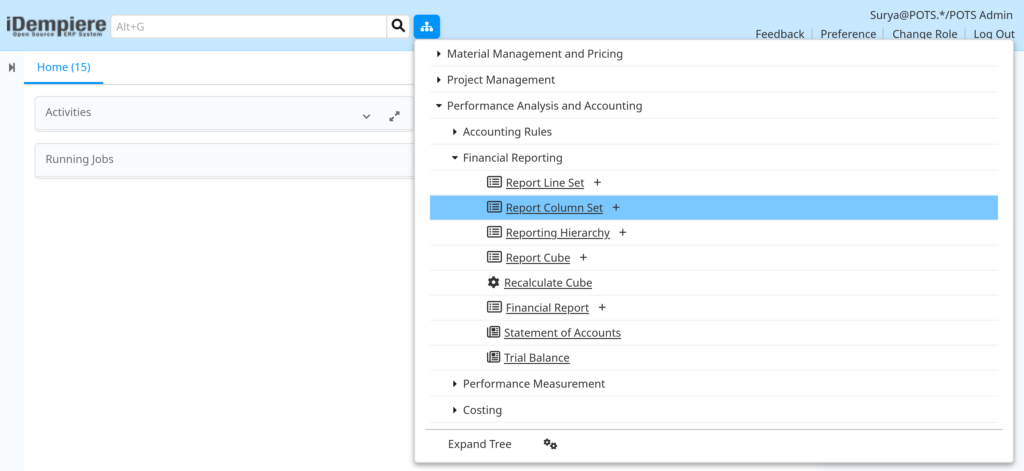
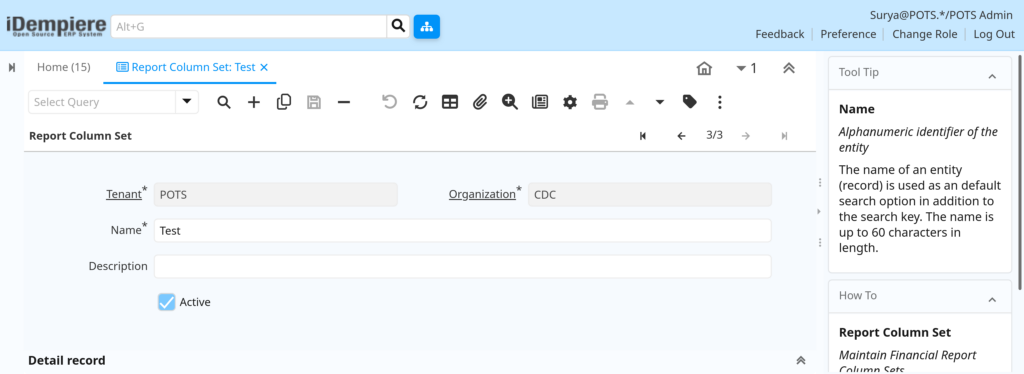
Opening the window displays the Report Column Set header (Tenant, Organization, Name, Description, Active) with a Report Column child tab below listing every column line already defined for that set.

Configuration Steps
Step 1: Create the Report Column Set Header
This groups related report columns under one reusable named set that can be attached to multiple Financial Reports.
Instructions
Enter a Name and optional Description, keep Active checked, and save the header record before adding column lines.
Field Reference
| Field | Sample Value | Description |
| Tenant | POTS | Client/tenant that owns this configuration. |
| Organization | CDC | Organization scope for the record. |
| Name | Test | Unique identifying name of the Report Column Set. |
| Description | (blank) | Optional short description for reference. |
| Active | Checked | Makes the set selectable in Financial Reports. |
Step 2: Add a Report Column Line
Each line defines exactly one column’s data source, order, and whether it prints on the report.
Instructions
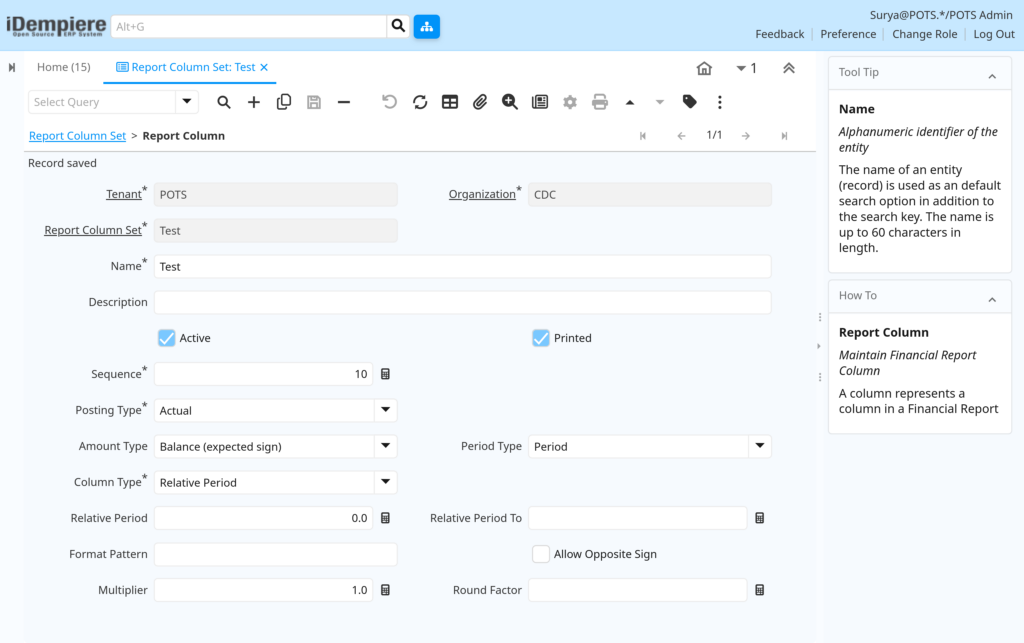
In the Report Column tab, click New, enter Name and Sequence, then set Posting Type and Amount Type before saving.

Field Reference
| Field | Sample Value | Description |
| Name | Test | Label shown as the column header on the report. |
| Sequence | 10 | Controls left-to-right ordering of columns. |
| Printed | Checked | Includes the column in the printed report. |
| Posting Type | Actual | Source of data: Actual, Budget, or Encumbrance. |
| Amount Type | Balance (expected sign) | Value retrieved: Balance, Debit, Credit, or Quantity. |
Step 3: Configure Period and Column Type
This determines which accounting period the column pulls data from and how it relates to the report’s base period.
Instructions
Set Column Type (for example Relative Period), choose the Period Type, and enter a Relative Period value; use Relative Period To when a range is needed.

Field Reference
| Field | Sample Value | Description |
| Column Type | Relative Period | How the reporting period is determined for this column. |
| Period Type | Period | Granularity used: Period, Quarter, Year, or Natural. |
| Relative Period | 0.0 | Offset from the report’s base period. |
| Relative Period To | (blank) | End of range when reporting across multiple periods. |
Step 4: Apply Display Formatting
Formatting controls how the numeric value is scaled, rounded, and signed once printed on the financial report.
Instructions
Set a Format Pattern for number display, a Multiplier to scale values, a Round Factor to round results, and enable Allow Opposite Sign if the natural sign should be reversed.
Field Reference
| Field | Sample Value | Description |
| Format Pattern | (blank) | Java decimal format applied to displayed amounts. |
| Multiplier | (blank / 1) | Scales the amount, for example 0.01 for percentages. |
| Round Factor | (blank) | Rounds amounts to the nearest specified factor. |
| Allow Opposite Sign | Unchecked | Reverses the natural balance sign for presentation. |
Common Issues and Resolutions
| Issue | Cause | Resolution |
| Column shows zero values | Posting Type doesn’t match posted Fact Acct data (e.g. Budget selected with no budget entered) | Verify Posting Type matches available accounting facts or load budget data |
| Report Column Set missing from Report Set selector | Active checkbox unchecked on the header record | Reactivate the Report Column Set record |
| Columns render in the wrong order | Duplicate or unordered Sequence values across Report Column lines | Assign unique, incrementing Sequence numbers |
| Column not appearing on printed report | Printed checkbox unchecked on the Report Column line | Enable Printed on the Report Column record |
| Wrong period data displayed | Relative Period miscalculated against the report’s base period | Recalculate Relative Period relative to the base period used in the Report Set |
| Amounts show incorrect sign | Amount Type or Allow Opposite Sign misconfigured | Adjust Amount Type or toggle Allow Opposite Sign to match presentation needs |
| Percentage or scaled values display incorrectly | Multiplier left at default value | Set the correct Multiplier for the intended display scale |
Next Steps
- Configure a Report Line Set to define the row structure of the report.
- Build a Report Set (Financial Report) combining this Report Column Set and a Report Line Set.
- Review Accounting Schema and GL Budget setup for Budget-based columns.