How Does Import Business Partner Works in iDempiere
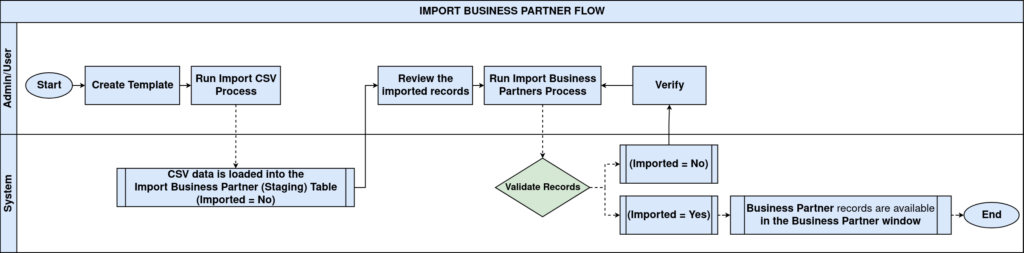
The Import Business Partner process is used to validate the records available in the Import Business Partner staging table and import the valid records into the Business Partner master window.
The records are loaded into the staging table through the Import CSV Process. After the Import Business Partner process completes successfully, the imported records become available in the Business Partner window for normal business use.
Business Rules
- Records must first be loaded into the Import Business Partner staging table using the Import CSV Process.
- Only records that pass validation are imported into the Business Partner master.
- The Tenant parameter is mandatory.
- The Only Validate Data option validates the records without importing them.
- The Delete Old Imported Records option removes previously imported staging records.
- Successfully imported records are marked as Imported = Yes.
- Records with validation errors remain in the staging table with an Import Error Message.
- Existing Business Partners are updated only when the import data matches the required keys.
- New Business Partners are created only after successful validation.
- After successful import, the Business Partner records are available in the Business Partner window.
Process Flow
Prerequisites
- Import Template has been created.
- CSV file has been uploaded using the Import CSV Process.
- Records are available in the Import Business Partner window.
- The user has permission to execute the Import Business Partner process.
Navigation
Menu → System Admin → General Rules → Import CSV Process
The Import CSV Process window allows users to select an Import Template, choose the CSV file, select the Import Mode, and execute the import.
Configuration Steps
Step 1: Verify Imported Records
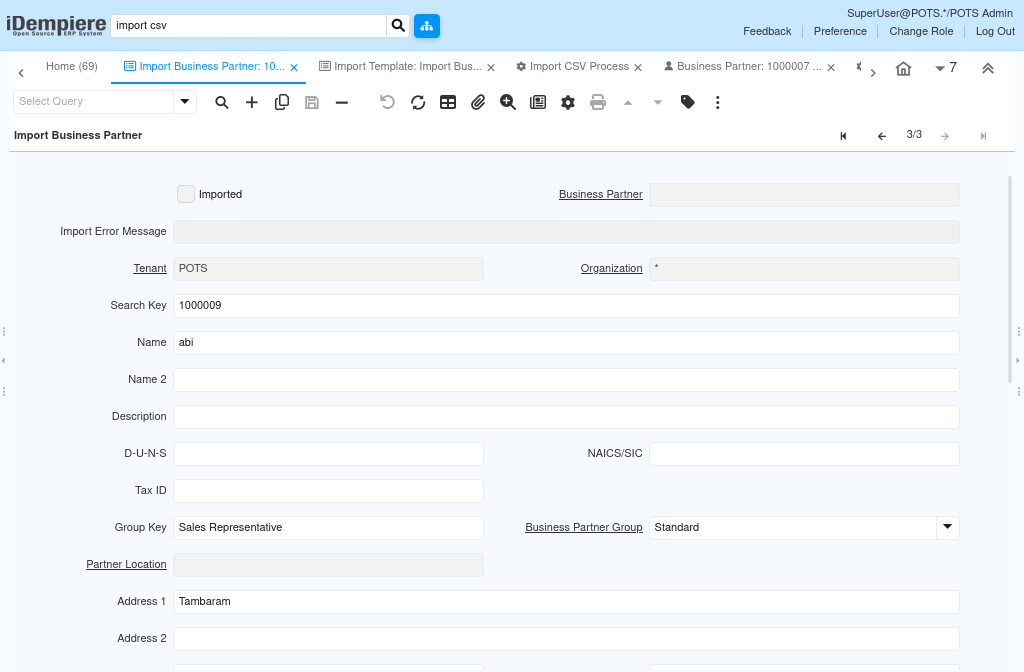
After the Import CSV Process is completed, open the Import Business Partner window.
Verify that the imported records are available and that Imported is unchecked. If any validation issues exist, they will be displayed in the Import Error Message field.

Step 2: Run the Import Business Partner Process
Click the Process button and select Import Business Partners.
In the process window:
- Select the Tenant.
- Enable Delete Old Imported Records if required.
- Enable Only Validate Data if you want to validate the records without importing them.
- Select Run as Job if the process should execute in the background.
- Click OK.


Step 3: Verify the Import
After the process completes successfully:
- The Imported checkbox is automatically selected.
- The records are successfully transferred from the staging table to the Business Partner master.
- Open the Business Partner window and verify that the imported Business Partner records are available.

Parameter Reference
| Parameter | Mandatory | Description |
| Tenant | Yes | Tenant for which the import process is executed. |
| Delete Old Imported Records | No | Deletes previously imported records from the staging table |
| Import Mode unavailable | Permission not granted | Validates the data without importing it into the Business Partner master. |
Common Issues and Resolutions
| Issue | Cause | Resolution |
| Imported remains No | Validation failed | Check the Import Error Message and correct the data. |
| Business Partner not created | Import process not executed | Run the Import Business Partner process. |
| Validation errors | Mandatory fields missing or invalid | Correct the data and run the process again. |
| Record not found in Business Partner window | Import process incomplete | Verify the process completed successfully and Imported = Yes. |
| Duplicate records | Existing Business Partner already exists | Review the import data and matching keys before importing. |
Next Steps
- Verify the imported Business Partner records in the Business Partner window.
- Correct any records with validation errors and rerun the process.
- Continue using the imported Business Partners for sales, purchasing, invoicing, and other business transactions.