How Does Work View Chat Window in iDempiere
The View Chat window in iDempiere displays the chat conversation linked to a specific business record, such as a Sales Order. When a user posts a message from a document, iDempiere automatically creates the underlying chat and chat entry records needed to store the conversation.
This window is used across standard business processes wherever in-context, document-level collaboration is required, and applies broadly to Retail, Distribution, Manufacturing, and Services organisations running iDempiere.
Business Rules
- A Chat header record is automatically created the first time a user posts a message from a business document.
- Each message posted against a document creates a separate Chat Entry record under the same Chat header.
- The Chat header links to the source business record through the Table and Record UUID fields.
- Chat Type determines the default category, and its Moderation Type setting influences whether entries require approval.
- Confidentiality on the Chat header and on each Chat Entry controls who can view the conversation.
- A Chat Entry can reference a Chat Entry Parent and Chat Entry Grandparent to support threaded replies.
- The Updates tab lists users subscribed to notifications for the Chat, with an option for Self-Service access.
- Only active Chat Entry records are displayed as part of the visible conversation.
Prerequisites
- An active Chat Type record, such as UPDATES, must exist before chat messages can be categorized.
- The related business document, such as a Sales Order, must exist and be accessible to the user.
- Users must have access rights to the source record to view or add chat entries.
Navigation
Menu → Chat → View Chat, or directly from a business document using its Chat option.
Upon opening the window, users see the Chat header form along with the Chat Entry and Updates tabs below it.
Configuration Steps
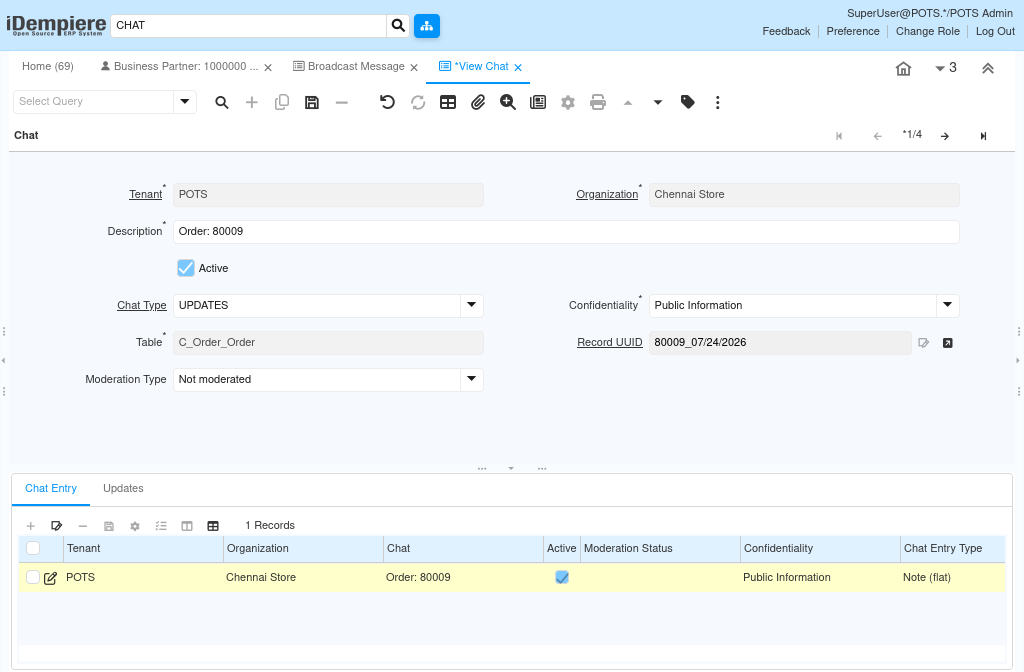
Step 1: Review the Chat Header
The Chat header identifies the overall conversation for a business record and shows its category, confidentiality, and moderation settings.
Open View Chat for the relevant document to review the header details before drilling into individual messages.
| Field | Sample Value | Description |
| Tenant | POTS | Identifies the tenant the Chat belongs to. |
| Organization | * | Identifies the organization scope for the Chat. |
| Description | Order: 50030 | Short label identifying the business record the Chat relates to. |
| Active | Checked | Indicates the Chat header is available for use. |
| Chat Type | UPDATES | Category assigned to this Chat, defined in the Chat Type window. |
| Confidentiality | Internal | Controls the visibility level of the overall conversation. |
| Table | C_Order_Order | Business table and record the Chat is linked to. |
| Record UUID | 50030_06/25/2026 | Unique reference identifying the specific source record. |
| Moderation Type | Not moderated | Indicates whether entries in this Chat require approval before being visible. |
Step 2: Review Chat Entries
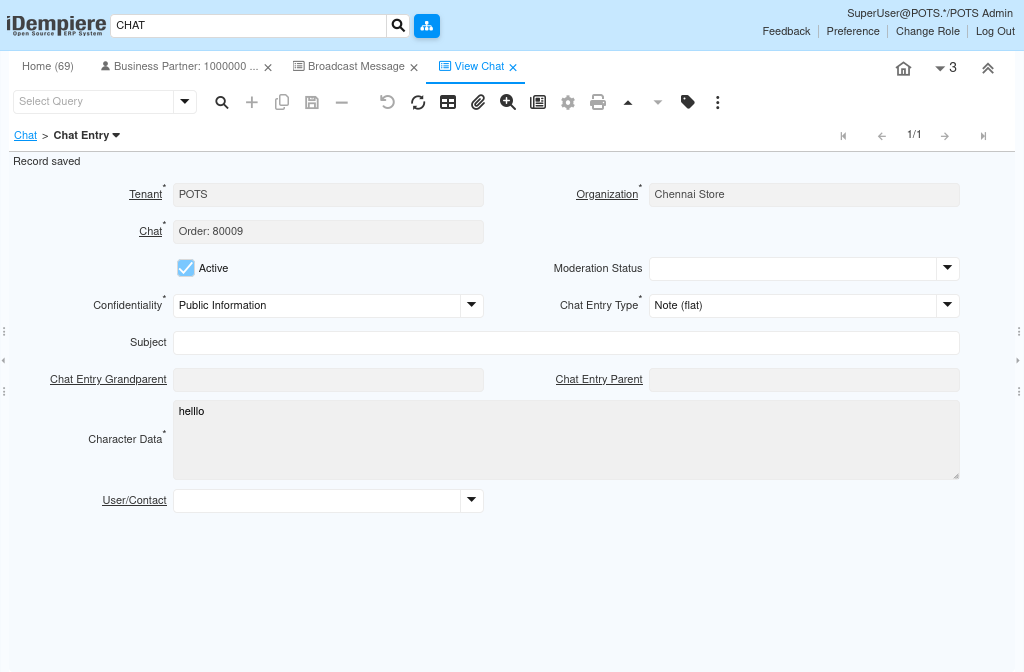
The Chat Entry tab lists each individual message posted to the Chat, including its confidentiality, type, and any threaded relationship to other entries.
Open the Chat Entry tab to review the message content and entry-level settings for each post.
| Field | Sample Value | Description |
| Tenant | POTS | Tenant associated with the Chat Entry. |
| Organization | * | Organization associated with the Chat Entry. |
| Chat | Order: 50030 | Parent Chat header this entry belongs to. |
| Active | Checked | Indicates the entry is part of the visible conversation. |
| Moderation Status | (blank) | Shows the approval status of the entry when the Chat is moderated. |
| Confidentiality | Public Information | Controls the visibility level of this specific message. |
| Chat Entry Type | Note (flat) | Defines the format of the entry, such as a flat note. |
| Subject | (blank) | Optional short heading for the message. |
| Chat Entry Grandparent | (blank) | Reference to a higher-level entry when replies are nested two levels deep. |
| Chat Entry Parent | (blank) | Reference to the entry this message is a direct reply to. |
| Character Data | HELLO | The actual text content of the message. |
| User/Contact | (blank) | User or Contact associated with the entry, if applicable. |
Step 3: Review Subscribed Users
The Updates tab lists the users or contacts subscribed to receive notifications for activity on this Chat.
Open the Updates tab to review or manage the list of subscribed participants.
| Field | Sample Value | Description |
| Tenant | POTS | Tenant associated with the subscription record. |
| Organization | * | Organization associated with the subscription record. |
| Chat | Order: 50030 | Parent Chat header this subscription applies to. |
| User/Contact | SuperUser | User or Contact subscribed to updates for this Chat. |
| Active | Checked | Indicates the subscription is currently in effect. |
| Self-Service | Unchecked | Indicates whether the subscription was created through self-service access. |
Common Issues and Resolutions
| Issue | Cause | Resolution |
| No Chat available for a document | No message has been posted yet from that document | Post a message from the document; the Chat header is created automatically. |
| A message is missing from the conversation | The Chat Entry record is not Active | Activate the Chat Entry record to restore it to the visible conversation. |
| Message not visible to other users | Confidentiality set to a restricted level | Review and adjust the Confidentiality on the Chat header or entry as appropriate. |
| Entry appears stuck awaiting review | Moderation Status pending on a moderated Chat | Have an authorized user approve the pending Chat Entry. |
| Threaded reply not grouped with the original message | Chat Entry Parent not set on the reply | Set the Chat Entry Parent to the correct originating entry. |
| User not receiving notifications for a Chat | User/Contact not listed in the Updates tab | Add the user or contact as a subscriber in the Updates tab. |
| Cannot identify which record a Chat relates to | Table and Record UUID not reviewed on the header | Check the Table and Record UUID fields on the Chat header for the source reference. |
Next Steps
- Chat Type window – to review or maintain the categories available for new Chats.
- Sales Order window (or other source document) – to post new messages that generate Chat records.
- Role window – to manage user access to the Chat feature.