How to Use Business Partner Info Window in iDempiere
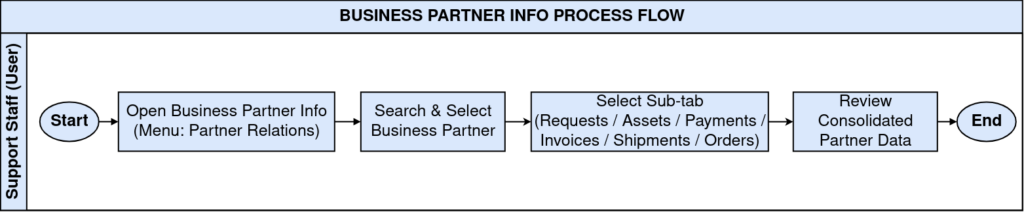
The Business Partner Info window is an inquiry screen in iDempiere that consolidates all transactional history for a single customer or vendor. In retail operations, store and support staff use it to pull up a customer’s requests, assets, payments, invoices, shipments, and orders without opening separate windows. This speeds up customer service, credit checks, and order follow-up, and reduces errors caused by working from incomplete or outdated records.
Process Flow
Business Rules
- Only records tied to the selected Business Partner are displayed across all tabs.
- Active records are available for lookup; inactive records are excluded from results.
- Each sub-tab filters by Tenant and Organization automatically.
- Document Status reflects the live state of Orders, Invoices, Shipments, and Payments.
- Partner Requests show open and closed service cases linked to the partner.
- Partner Assets list only products already sold to or registered for the partner.
- Data shown is read-derived from source documents; it cannot be edited from this window.
- Sales Representative field helps route follow-up to the correct staff member.
Prerequisites
- Business Partner record configured with a valid Search Key and Group.
- Organization and Tenant configured for the retail store or business unit.
- Document Types configured for Orders, Invoices, Shipments, and Payments.
- Greeting configured if customer correspondence fields are used.
- At least one completed transaction (order, invoice, payment, or shipment) exists for meaningful results.
Navigation
Menu → Partner Relations → Business Partner Info
Configuration Steps
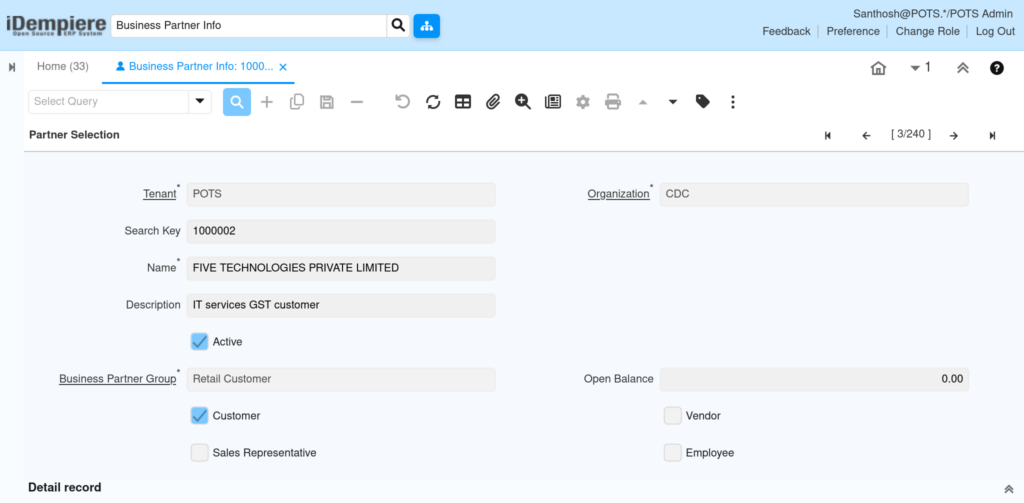
Step 1: Open Partner Selection
Search for the business partner by name or search key, select the correct record, then choose a sub-tab from the drop-down list to view related documents.
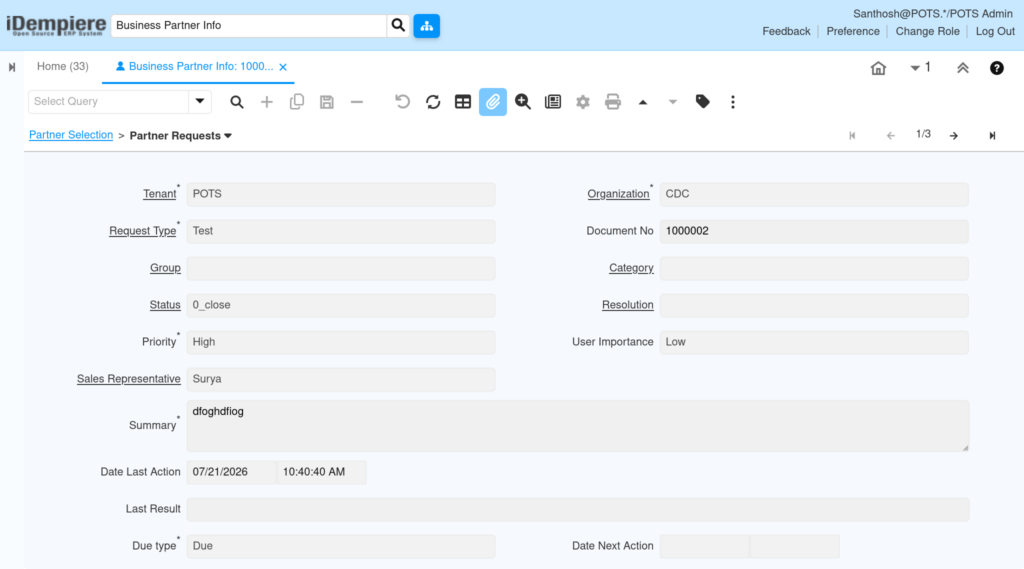
Step 2: Review Partner Requests
Select Partner Requests, then review Status, Priority, and Due Type to see which cases are open, overdue, or awaiting a response.
Field Reference Table
| Field | Sample Value | Description |
| Request Type | Complaint | Classifies the nature of the request |
| Status | Open | Current state of the service case |
| Priority | High | Urgency assigned to the request |
| Sales Representative | S. Kumar | Staff member responsible for follow-up |
| Date Next Action | 20-08-2026 | When the next follow-up is due |
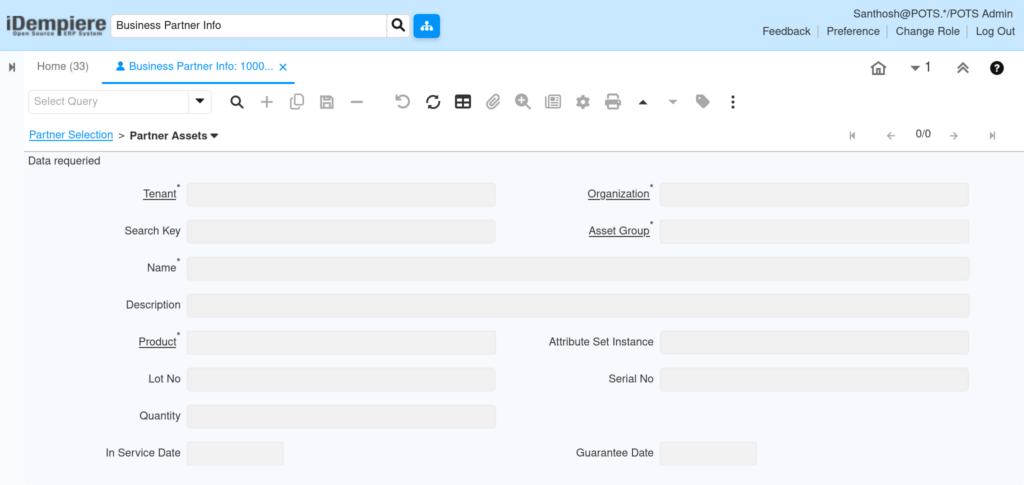
Step 3: Review Partner Assets
Select Partner Assets and check Product, Serial No, In Service Date, and Guarantee Date to confirm the item and its warranty window.
Field Reference Table
| Field | Sample Value | Description |
| Asset Group | Electronics | Category the asset belongs to |
| Product | LED TV 43″ | Item registered to the partner |
| Serial No | SN-88213 | Unique identifier for the unit |
| In Service Date | 01-03-2026 | Date the item became active |
| Guarantee Date | 01-03-2027 | Warranty expiry date |
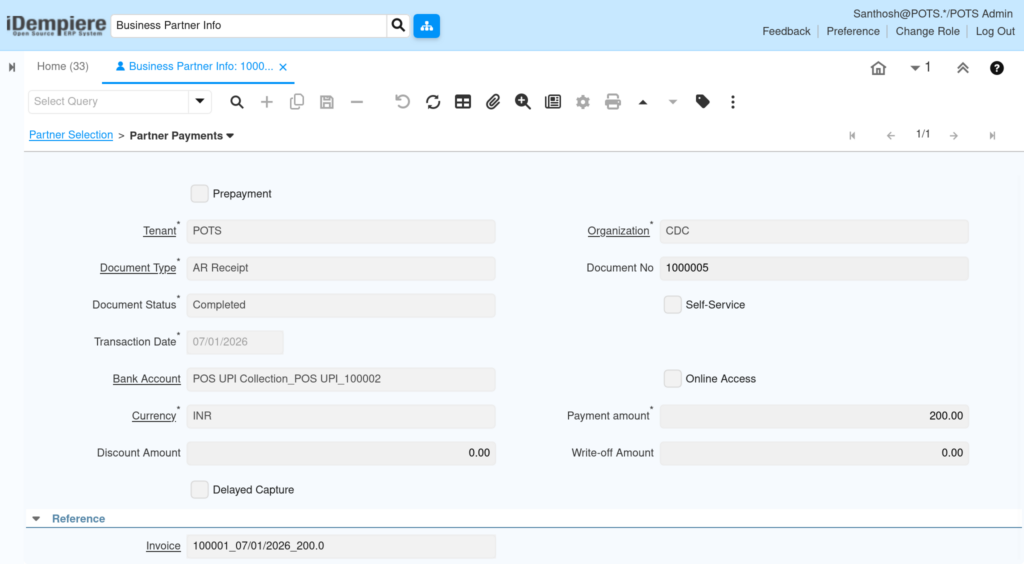
Step 4: Review Partner Payments
Select Partner Payments and check Document Status, Payment Amount, and Currency against the customer’s claim before taking further action.
Field Reference Table
| Field | Sample Value | Description |
| Document Type | AR Receipt | Type of payment document |
| Document Status | Completed | Current processing state |
| Transaction Date | 15-08-2026 | Date the payment was recorded |
| Payment Amount | 5,000.00 | Amount received from the partner |
| Write-off Amount | 0.00 | Amount written off, if any |
Step 5: Review Partner Invoices
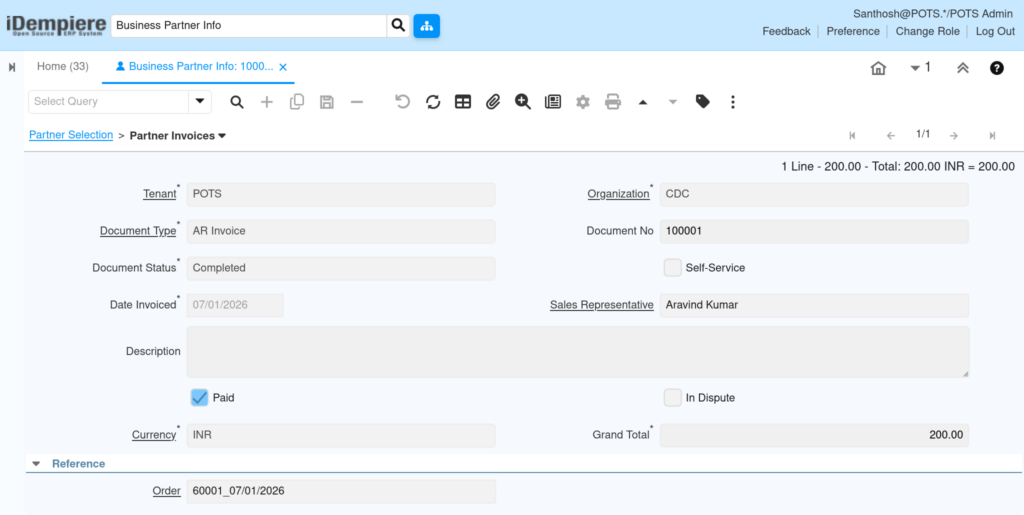
Select Partner Invoices and check Paid, In Dispute, and Grand Total to identify outstanding balances tied to the partner.
Field Reference Table
| Field | Sample Value | Description |
| Document Type | AR Invoice | Type of billing document |
| Document Status | Completed | Current processing state |
| Paid | No | Whether the invoice is settled |
| In Dispute | No | Flags a contested invoice |
| Grand Total | 12,500.00 | Total invoice amount |
Step 6: Review Partner Shipments
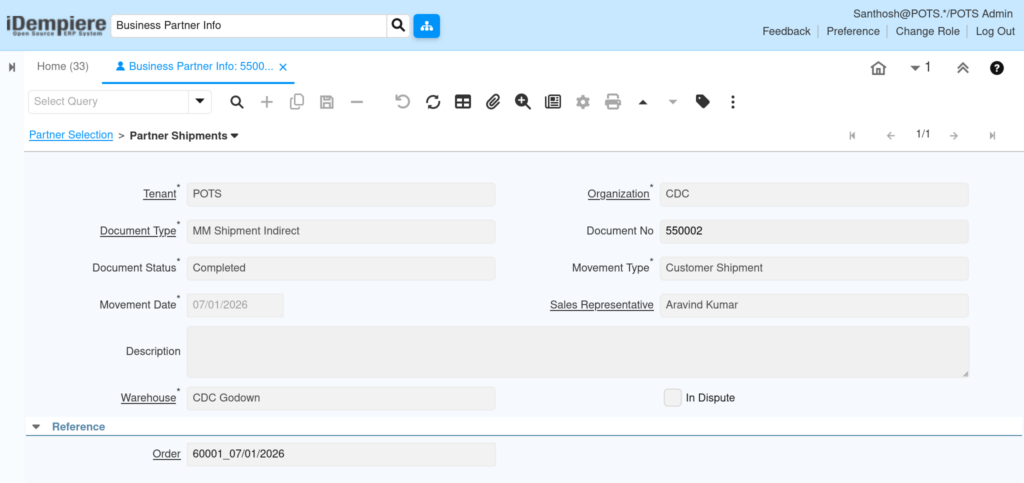
Select Partner Shipments and check Movement Type, Movement Date, and Warehouse to confirm what was delivered and from where.
Field Reference Table
| Field | Sample Value | Description |
| Document Type | MM Shipment | Type of movement document |
| Movement Type | Customer Shipment | Direction of stock movement |
| Movement Date | 16-08-2026 | Date goods were moved |
| Warehouse | Main Store WH | Source warehouse for the shipment |
Step 7: Review Partner Orders
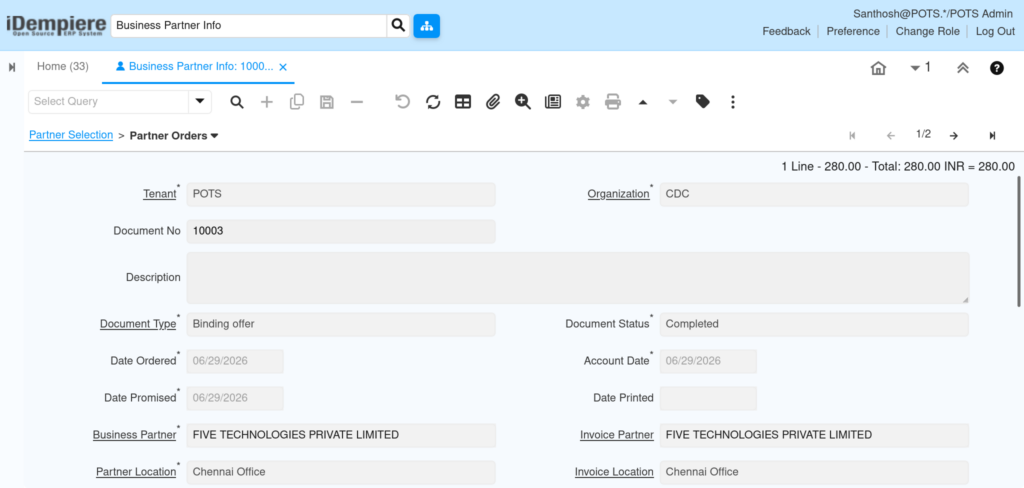
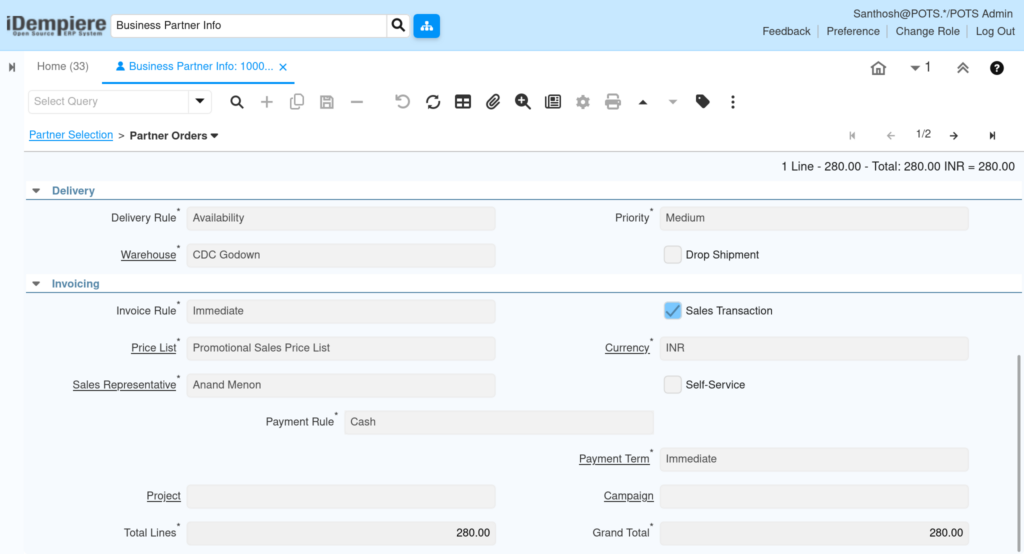
Select Partner Orders and check Document Status, Delivery Rule, Payment Rule, and Grand Total to understand how the order was fulfilled and billed.
Field Reference Table
| Field | Sample Value | Description |
| Document Type | Standard Order | Type of sales document |
| Delivery Rule | Availability | Determines when goods are delivered |
| Payment Rule | On Credit | How the order is expected to be paid |
| Price List | Retail Store PL | Pricing applied to the order |
| Grand Total | 8,750.00 | Total value of the order |
Common Issues and Resolutions
| Issue | Cause | Resolution |
| No records appear in a sub-tab | Partner has no transactions of that document type | Confirm the transaction exists in the source window before searching here |
| Wrong partner data displayed | Duplicate Business Partner records exist | Merge or deactivate duplicate partner records |
| Payments not visible | Payment posted under a different Organization | Check Organization filter matches the payment’s Organization |
| Invoice shows as unpaid incorrectly | Payment allocation not yet completed | Complete payment allocation in AR Receipt or Allocation window |
| Asset not listed for a sold product | Asset record was never created after the sale | Create the asset manually or verify automatic asset generation settings |
| Shipment missing for a delivered order | Shipment document still in Draft status | Complete and process the shipment document |
| Request not showing latest status | Cached tab not refreshed after update | Refresh the tab or reopen Business Partner Info |
| Search Key returns no partner | Business Partner is inactive | Reactivate the Business Partner record if the customer is still valid |
Next Steps
- Business Partner (Customer/Vendor) window – maintain core partner details.
- Business Partner Group – confirm pricing and accounting defaults.
- Request window – create or update service cases directly.
- AR Receipt window – process new customer payments.
- Sales Order window – create new orders for the reviewed partner.