How Product/Component Where Used Report Works in iDempiere
Introduction
The Product/Component Where Used report in iDempiere identifies every Bill of Materials (BOM) that consumes a selected product as a component. It is used in Material Management wherever manufactured or kitted products are maintained, such as FMCG, assembly, and packaging operations.
Users enter a single component, and the report scans active BOM headers and lines to list each Master BOM using it, along with quantity and line number. The report is non-recursive, showing only one parent level above the selected component.
This report supports impact analysis for raw material changes, discontinuation decisions, and production planning by showing dependency between components and finished goods before changes are approved.
Process Flow Diagram
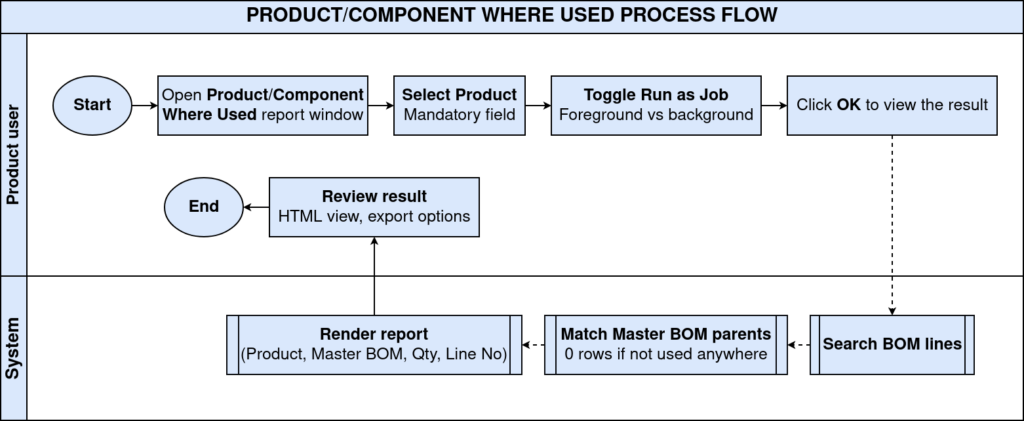
Business Rules
- Only active products, active BOM headers, and active BOM lines are included in the report.
- The Product field is mandatory before the report can be executed.
- The report is non-recursive and shows only one parent level above the selected component.
- Selecting a component displays every Master BOM in which it appears as an ingredient.
- Quantity (QtyBOM) shows how much of the component each Master BOM consumes.
- Line No identifies the position of the component within the Master BOM’s line list.
- The report can run interactively in HTML or be scheduled in the background using Run as Job.
- A component with no active BOM usage returns zero rows in the report.
Prerequisites
- Product master records created for both the component and the finished (Master BOM) products.
- Product BOM and Formula (PP_Product_BOM) defined for each finished product that uses the component.
- BOM lines added to the Product BOM, referencing the component with a valid Qty BOM.
- Component product, Master BOM header, and BOM lines all set to Active = Y.
- Appropriate user role and window access granted for running reports under Material Management.
Navigation
Menu → Material Management and Pricing → Material Management Rules → Product/Component Where Used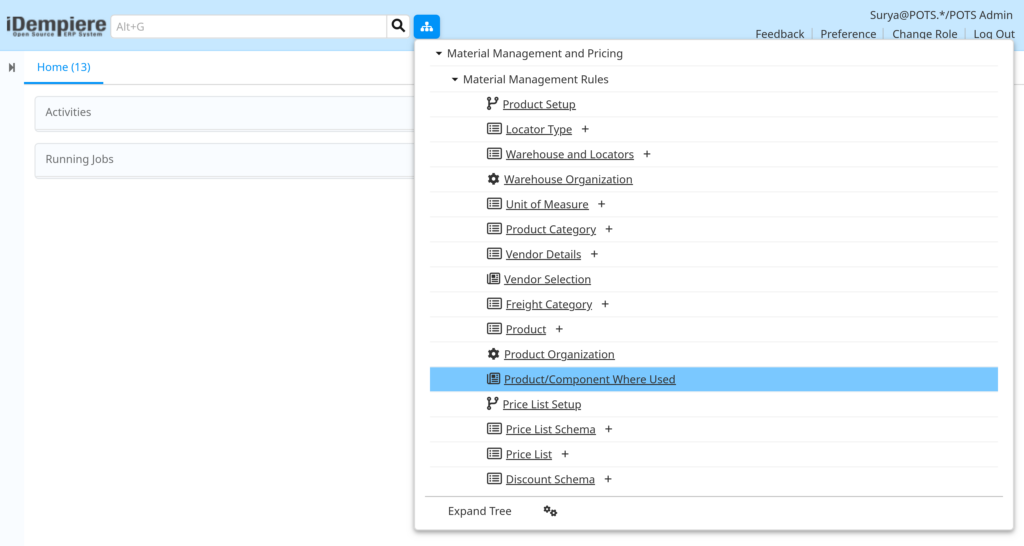
Opening the window displays a parameter screen with a mandatory Product field, a Run as Job checkbox, and OK/Cancel buttons. After running, iDempiere opens the report viewer showing the Parameter summary and a results grid with Product, Master BOM, Name, Quantity, and Line No columns.
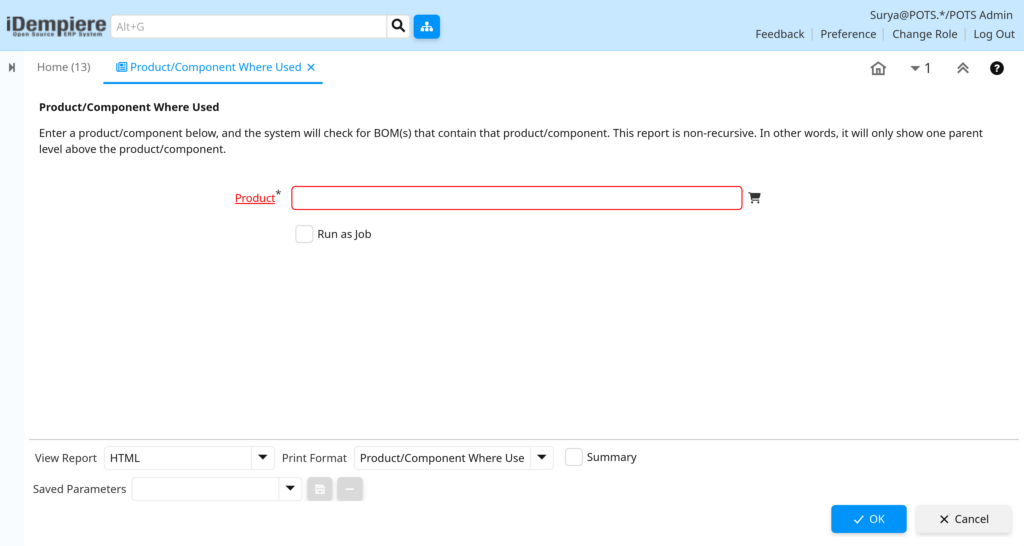
Configuration Steps
Step 1: Select the Component Product
This step defines which component the system searches for across all active Bills of Materials.
Instructions
Open the Product/Component Where Used window. In the Product field, search and select the component, e.g. CIN_Cinthol Soap. The field is mandatory.
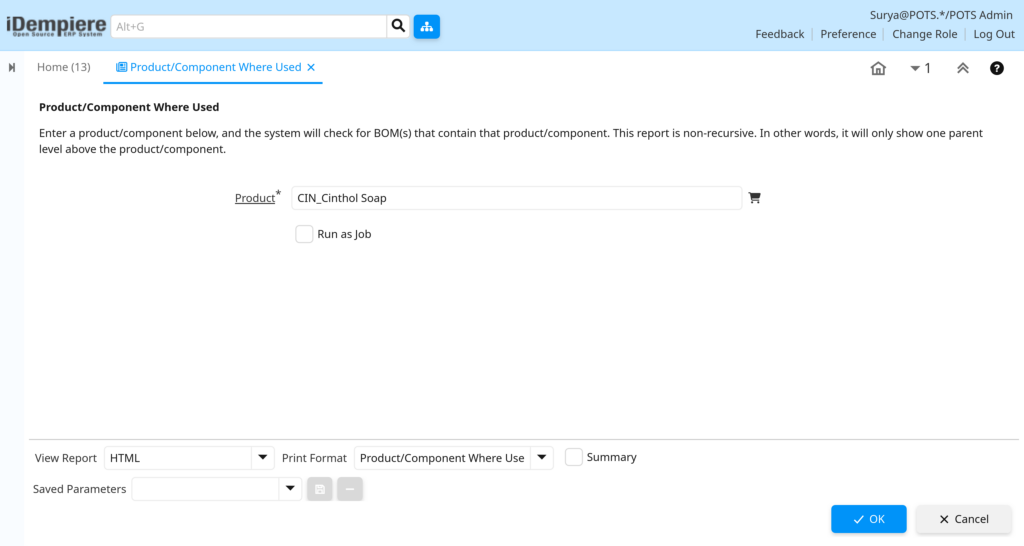
Field Reference Table
| Field | Sample Value | Description |
| Product | CIN_Cinthol Soap | Component product to check for BOM usage. Mandatory field. |
| Run as Job | Unchecked | When checked, the report runs as a background scheduled process instead of running interactively. |
Step 2: Choose Execution Mode
This step determines whether the report runs immediately or is submitted as a background job, useful for large catalogs.
Instructions
Leave Run as Job unchecked for immediate on-screen results. Check it to submit the report as a scheduled process and review results later from Process Request.
Step 3: Execute the Report
Running the report applies the Product parameter against the underlying BOM view and returns matching Master BOM records.
Instructions
Click OK. iDempiere opens the report viewer showing the selected Product parameter and a results grid, or Cancel to close without running.
Step 4: Review the Report Output
This step confirms which finished products depend on the selected component and in what quantity.
Instructions
Review the grid. Each row is one Master BOM using the component. Use View Report to switch between HTML and other formats, and Print Format to change layout.

Field Reference Table
| Field | Sample Value | Description |
| Product | CIN_Cinthol Soap | The component that was selected as the search parameter. |
| Master BOM | FG_Cinthol Combo Pack | The finished product/BOM header that consumes the component. |
| Name | Cinthol Combo Pack 3x100g | Name of the Master BOM product. |
| Quantity | 3 | Quantity of the component consumed per unit of the Master BOM (QtyBOM). |
| Line No | 10 | Sequence number of the BOM line within the Master BOM. |
Step 5: Export or Print the Results (Optional)
This step is used when the where-used data must be shared with planning, purchasing, or costing teams.
Instructions
Use the download icon to export to PDF/Excel, or the email icon to send the report directly from the viewer toolbar.
Common Issues and Resolutions
| Issue | Cause | Resolution |
| Report returns zero rows | Component is not used as a line in any active BOM | Confirm the component is added to a Product BOM and the BOM line is active. |
| Product field validation error | Mandatory Product field left empty | Select a valid product before clicking OK. |
| Expected Master BOM missing from results | BOM header (PP_Product_BOM) is inactive | Activate the BOM header in the Product BOM and Formula window. |
| Master BOM or Name column shows blank | Finished (master) product is inactive | Reactivate the master product record in the Product window. |
| Same component appears multiple times | Component is used in more than one BOM line or Master BOM | Use the Line No column to distinguish each individual BOM usage. |
| Run as Job shows no immediate output | Report is executing as a background process | Check Process Request or notifications for completion status and output. |
| Wrong or unexpected product results | Incorrect product selected via search text | Confirm the product Value/search key before running the report. |
| Multi-level dependency not visible | Report is non-recursive by design | Re-run the report using each intermediate Master BOM to trace additional levels manually. |
Next Steps
- Product BOM and Formula – create or update BOM headers and lines.
- Product window – verify component and finished product master data.
- BOM Drop/Explode process – for multi-level BOM expansion needs.
- Manufacturing Order – to plan production once dependencies are confirmed.