How to Configure Remuneration in iDempiere
Configure Remuneration in iDempiere to define compensation values and associate them with Positions or individual Users/Contacts using effective dates.
Introduction
The Remuneration window in iDempiere maintains compensation definitions — Remuneration Type, Gross Amount, Gross Cost, Standard Hours, Overtime Amount, and Overtime Cost — that can be linked to Positions or directly to individual employees.
It supports Human Resources master-data setup in standard iDempiere, used wherever organizations maintain position-based or employee-specific compensation records for reference and reporting purposes.
Process Flow
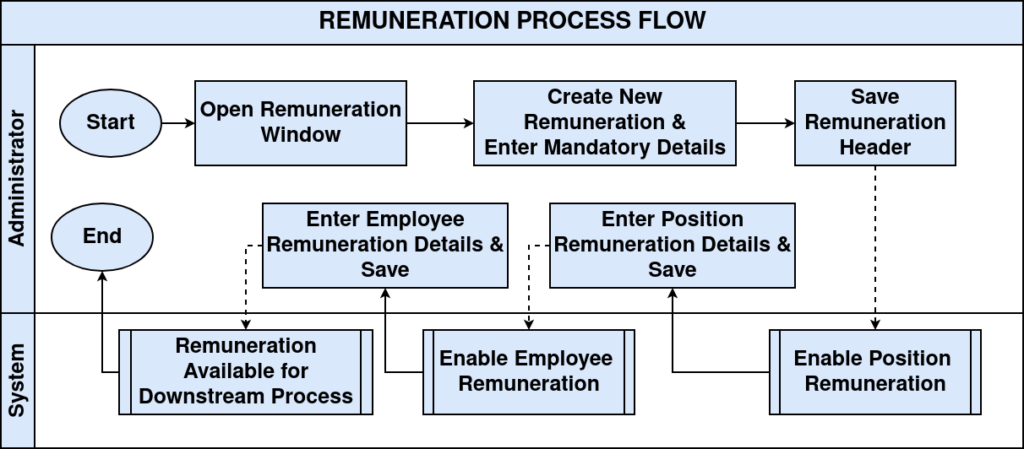
Business Rules
- Name is mandatory when creating a Remuneration record.
- Remuneration Type is mandatory (tested value: Monthly).
- Gross Amount is mandatory and represents the monetary amount for the definition.
- Gross Cost is mandatory and maintained separately from Gross Amount.
- Remuneration, Position Remuneration, and Employee Remuneration each have an independent Active flag.
- A Remuneration record can be associated with a Position through Position Remuneration.
- Position is mandatory when creating a Position Remuneration record.
- A Remuneration record can be associated directly with a User/Contact through Employee Remuneration.
- User/Contact is mandatory on Employee Remuneration.
- Employee Remuneration separately stores its own Gross Amount, Gross Cost, Overtime Amount, and Overtime Cost.
- Valid From is mandatory on Employee Remuneration; Valid To is optional.
- A User/Contact can be associated with a Position using Position → Assignment, independent of remuneration.
- Valid From is mandatory on Position Assignment; Valid To is optional.
- Position Remuneration, Employee Remuneration, and Position Assignment are maintained as separate, independent records.
- Assigning a User/Contact to a Position does not automatically create or copy Employee Remuneration values.
- Changes to a parent Remuneration record are not confirmed to automatically update existing Employee Remuneration amounts.
Prerequisites
- An active Tenant and Organization must exist for the record.
- Relevant Positions must already be defined (for Position Remuneration).
- Relevant Users/Contacts must already exist in the system (for Employee Remuneration and Position Assignment).
- User must have access rights to the Remuneration and Position windows.
Configuration Steps
Step 1: Create Remuneration
This step defines the compensation values that make up a reusable Remuneration record.
Navigate to the Remuneration window and create a new record. Enter the Name, select the Remuneration Type, and enter Gross Amount, Gross Cost, Standard Hours, Overtime Amount, and Overtime Cost, then save.
| Field | Sample Value | Description |
| Tenant | POTS | Tenant owning the record |
| Organization | * | Organizational scope |
| Name | ERP Consultant – Monthly | Identifies the remuneration record |
| Description | Standard monthly remuneration for ERP Consultant | Describes the remuneration |
| Comment/Help | Monthly wage and overtime rates applicable to ERP Consultant positions. | Additional explanation |
| Active | Yes | Indicates whether the record is active |
| Remuneration Type | Monthly | Defines the remuneration type |
| Gross Amount | 75,000.00 | Gross remuneration amount |
| Gross Cost | 90,000.00 | Gross cost maintained for the remuneration |
| Standard Hours | 160 | Standard working hours |
| Overtime Amount | 600.00 | Overtime remuneration amount |
| Overtime Cost | 750.00 | Overtime cost |
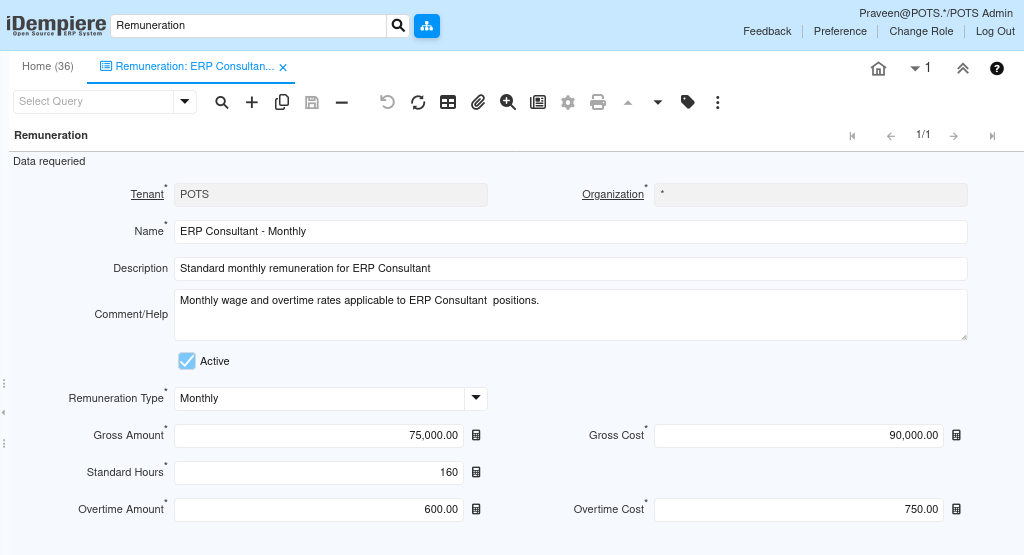
The Remuneration record is saved and becomes available for association through the Position Remuneration and Employee Remuneration tabs.
Step 2: Create Position Remuneration
This step associates the Remuneration record with a Position for a defined effective period.
Open the Position Remuneration tab under Remuneration, select the Position, enter Valid From, and optionally Valid To, then save.
| Field | Sample Value | Description |
| Tenant | POTS | Tenant owning the record |
| Organization | * | Organizational scope |
| Remuneration | ERP Consultant – Monthly | Parent Remuneration record |
| Position | ERP Consultant | Position associated with the remuneration |
| Active | Yes | Indicates whether the association is active |
| Valid From | 12/02/2024 9:30 AM | Effective start date of the association |
| Valid To | Blank | Effective end date; left blank in the tested record |
| Description | Monthly remuneration applicable to ERP Consultant position. | Describes the association |
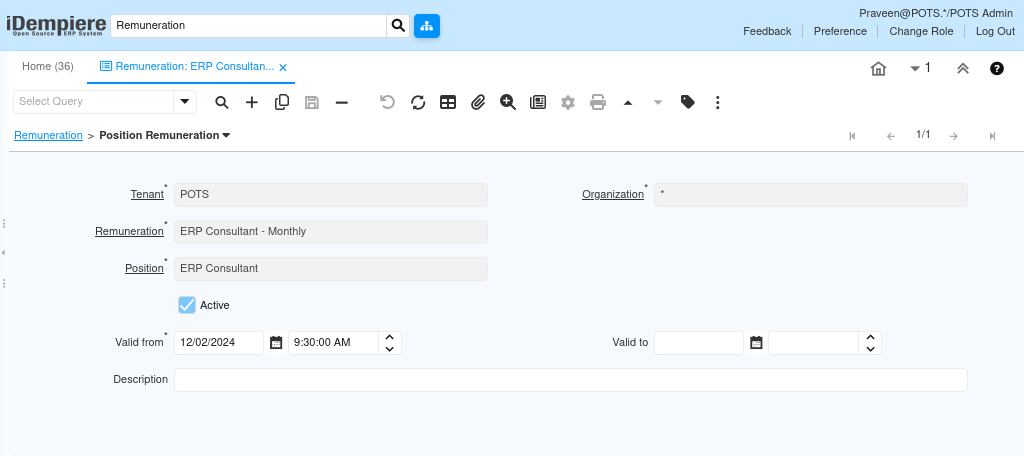
The remuneration becomes associated with the Position and is also visible from the Position → Remuneration tab. No Employee Remuneration record is automatically created by this step.
Step 3: Assign User/Contact to the Position
This step associates a User/Contact with the Position. This is a Position Assignment, separate from Employee Remuneration.
Open the Position window, select the Position, go to the Assignment tab, select the User/Contact, enter Valid From, and optionally Valid To, then save.
| Field | Sample Value | Description |
| Tenant | POTS | Tenant owning the record |
| Organization | * | Organizational scope |
| Position | ERP Consultant | Position being assigned |
| User/Contact | Anand Menon | User/Contact assigned to the Position |
| Active | Yes | Indicates whether the assignment is active |
| Valid From | 01/01/2025 12:00 AM | Effective start date of the assignment |
| Valid To | Blank | Effective end date; left blank in the tested record |
| Description | Assigned as ERP Consultant for ERP implementation and support. | Describes the assignment |
The User/Contact is associated with the Position for the specified validity period. This assignment does not by itself create or transfer any remuneration values to the User/Contact.
Step 4: Create Employee Remuneration
This step associates the Remuneration record directly with a specific User/Contact and maintains employee-level compensation values.
Open the Employee Remuneration tab under Remuneration, select the User/Contact, enter Gross Amount, Gross Cost, Overtime Amount, Overtime Cost, and Valid From, then save.
| Field | Sample Value | Description |
| Tenant | POTS | Tenant owning the record |
| Organization | * | Organizational scope |
| Remuneration | ERP Consultant – Monthly | Parent Remuneration record |
| User/Contact | Praveen | User/Contact associated with the remuneration |
| Active | Yes | Indicates whether the association is active |
| Gross Amount | 75,000.00 | Gross remuneration amount for this employee |
| Gross Cost | 90,000.00 | Gross cost for this employee |
| Overtime Amount | 600.00 | Overtime remuneration amount for this employee |
| Overtime Cost | 750.00 | Overtime cost for this employee |
| Valid From | 12/02/2024 9:30 AM | Effective start date of the association |
| Valid To | Blank | Effective end date; left blank in the tested record |
| Description | Monthly remuneration assigned to Praveen for ERP Consultant role. | Describes the association |
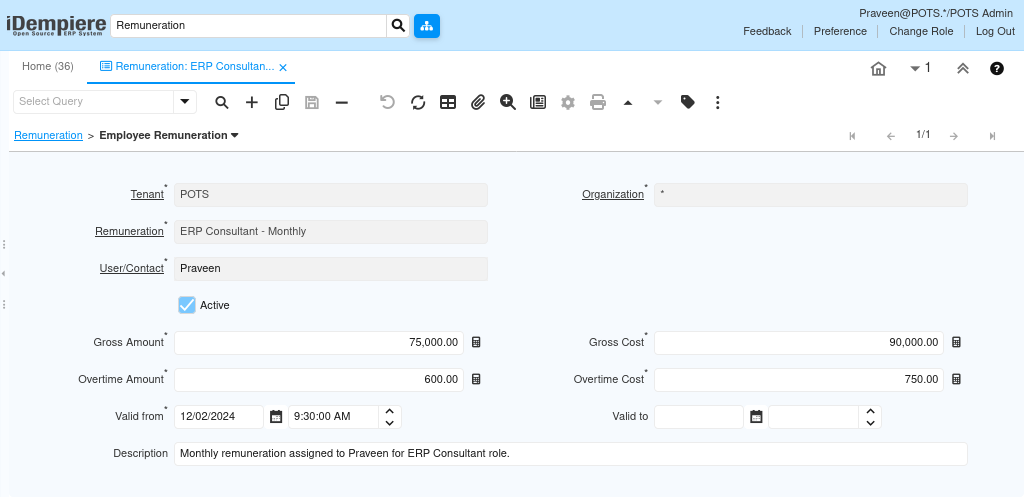
The system saves an Employee Remuneration record linking the User/Contact to the selected Remuneration. Gross Amount, Gross Cost, Overtime Amount, and Overtime Cost are stored independently on this child record.
Position Remuneration vs. Employee Remuneration
| Behavior | Position Remuneration | Employee Remuneration |
| Parent Remuneration | Yes | Yes |
| Associates to | Position | User/Contact |
| Active flag | Yes | Yes |
| Valid From | Mandatory | Mandatory |
| Valid To | Available, optional | Available, optional |
| Gross Amount on child record | Not shown in tested tab | Yes |
| Gross Cost on child record | Not shown | Yes |
| Overtime Amount on child record | Not shown | Yes |
| Overtime Cost on child record | Not shown | Yes |
| Creates Position Assignment automatically | Not observed | Not applicable |
| Creates Employee Remuneration automatically | Not observed | User creates the record directly |
| Payroll processing observed | No | No |
Common Issues and Resolutions
| Issue | Cause | Resolution |
| Remuneration cannot be saved | Mandatory fields are incomplete | Complete Name, Remuneration Type, Gross Amount, Gross Cost, Standard Hours, Overtime Amount, and Overtime Cost. |
| Position Remuneration cannot be saved | Position or Valid From is missing | Select a Position and provide a Valid From date. |
| Employee Remuneration cannot be saved | User/Contact or a mandatory value is missing | Select a User/Contact and complete the mandatory remuneration values and Valid From. |
| User/Contact does not appear as assigned to the Position | Assignment was not created separately | Create the relationship under Position → Assignment. |
| Position has Remuneration but no employee association is visible | Position Remuneration and Position Assignment are separate records | Verify the Assignment tab under the Position window. |
| Employee is assigned to a Position but Employee Remuneration is missing | No automatic creation occurs on Assignment | Create the Employee Remuneration record separately if required. |
| Valid To field left blank | Valid To is optional in standard iDempiere | Blank Valid To is accepted on Position Remuneration, Employee Remuneration, and Assignment records. |
Next Steps
The verified Remuneration configuration flow is complete at the master-data level. The logical next activity is to review the standard iDempiere processes that consume remuneration records, to confirm any downstream rules for remuneration selection, effective-date evaluation, position-to-employee inheritance, employee-specific overrides, or overtime calculation.